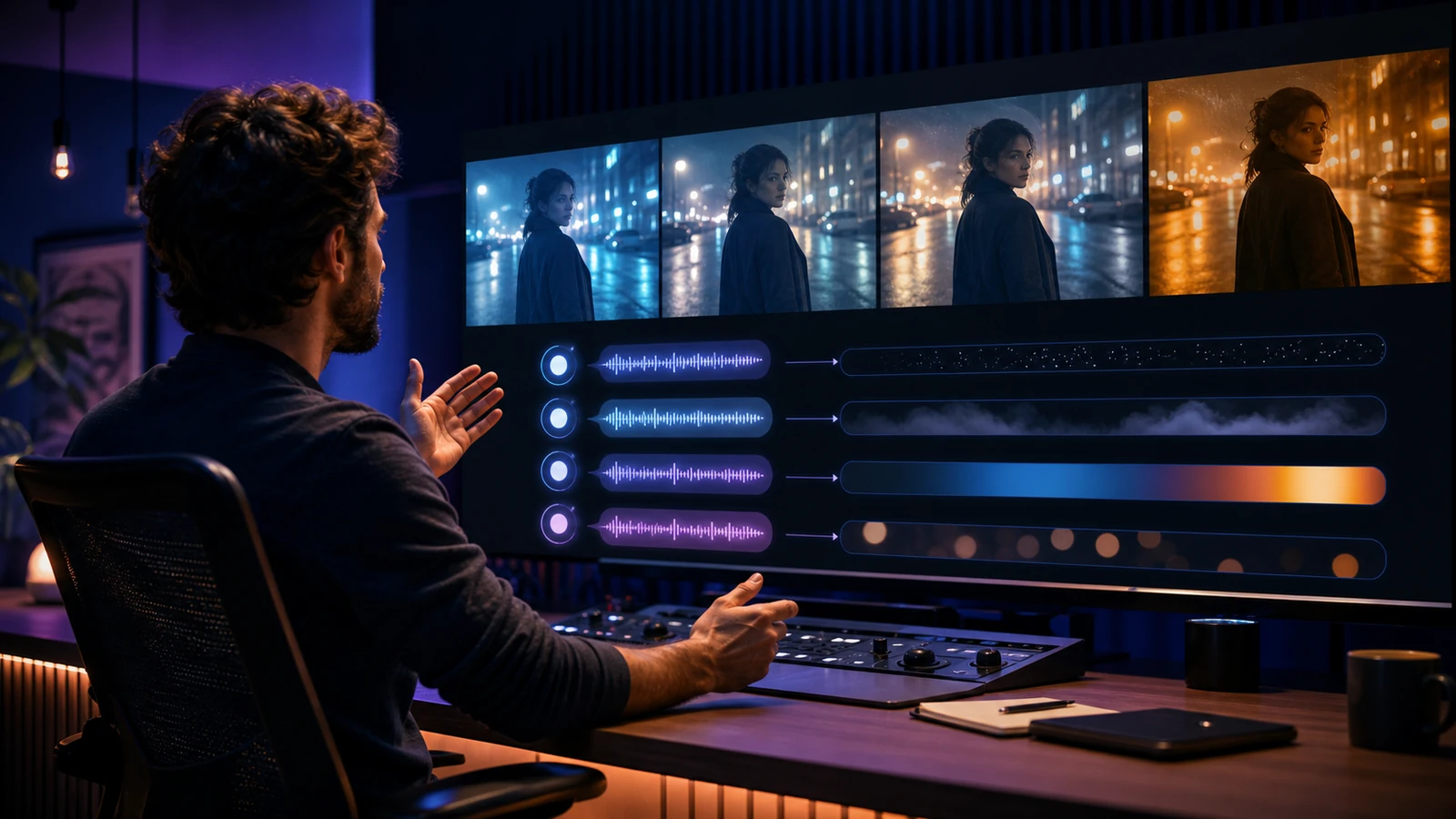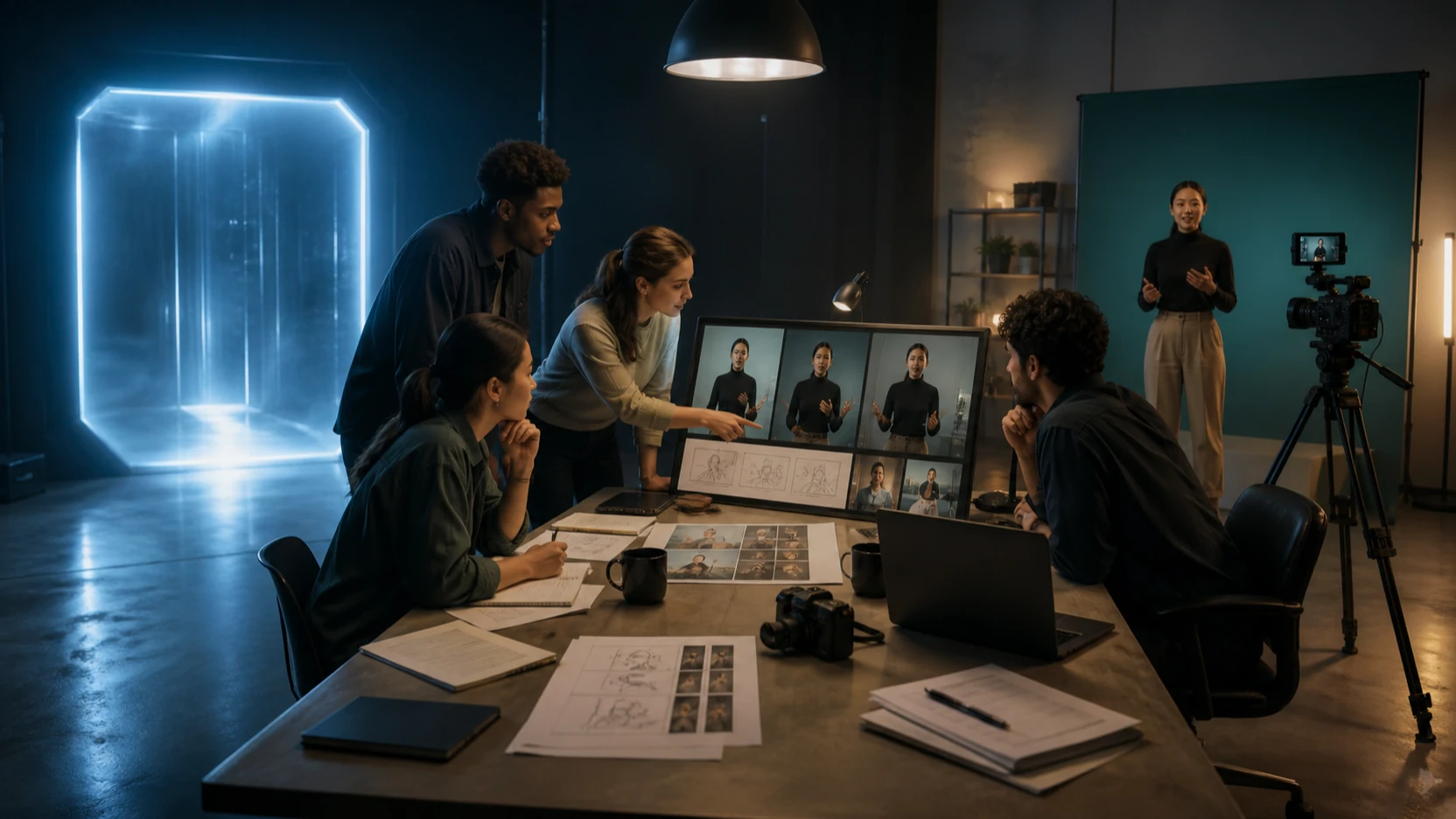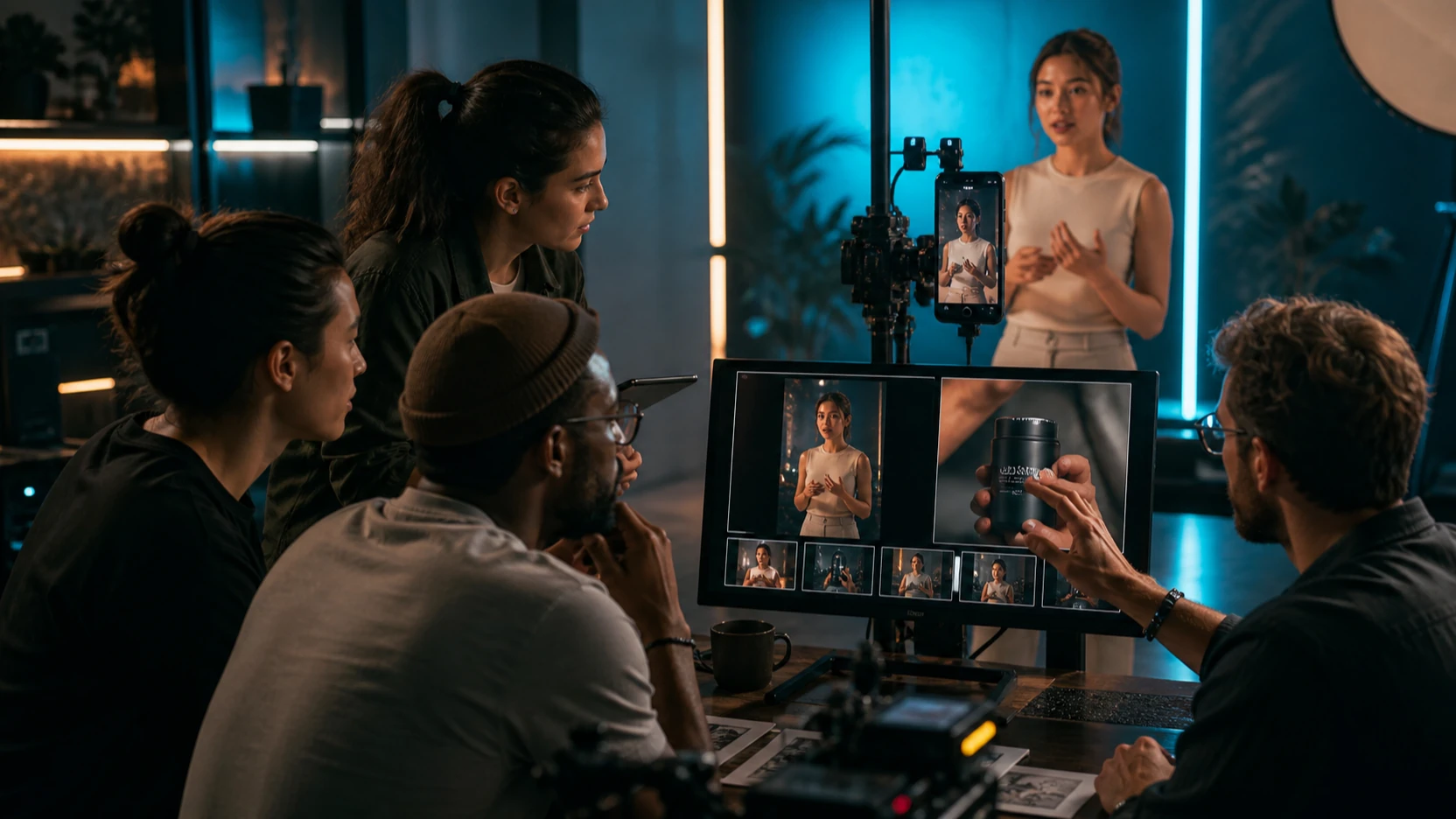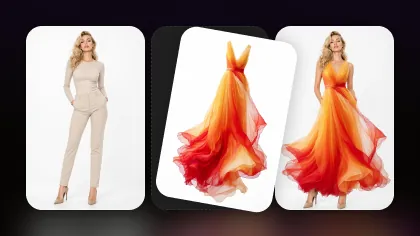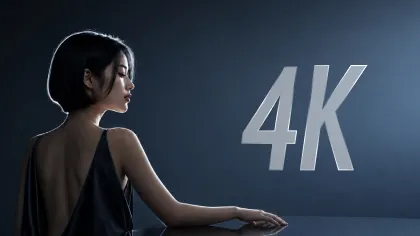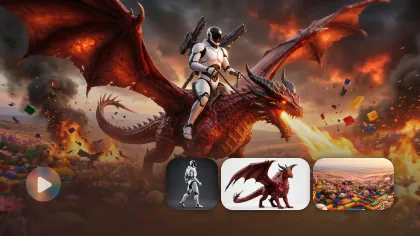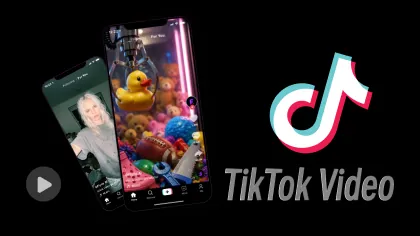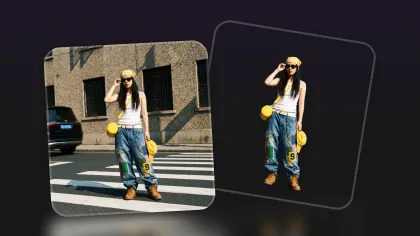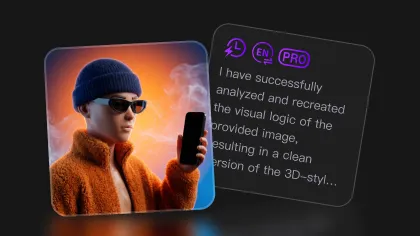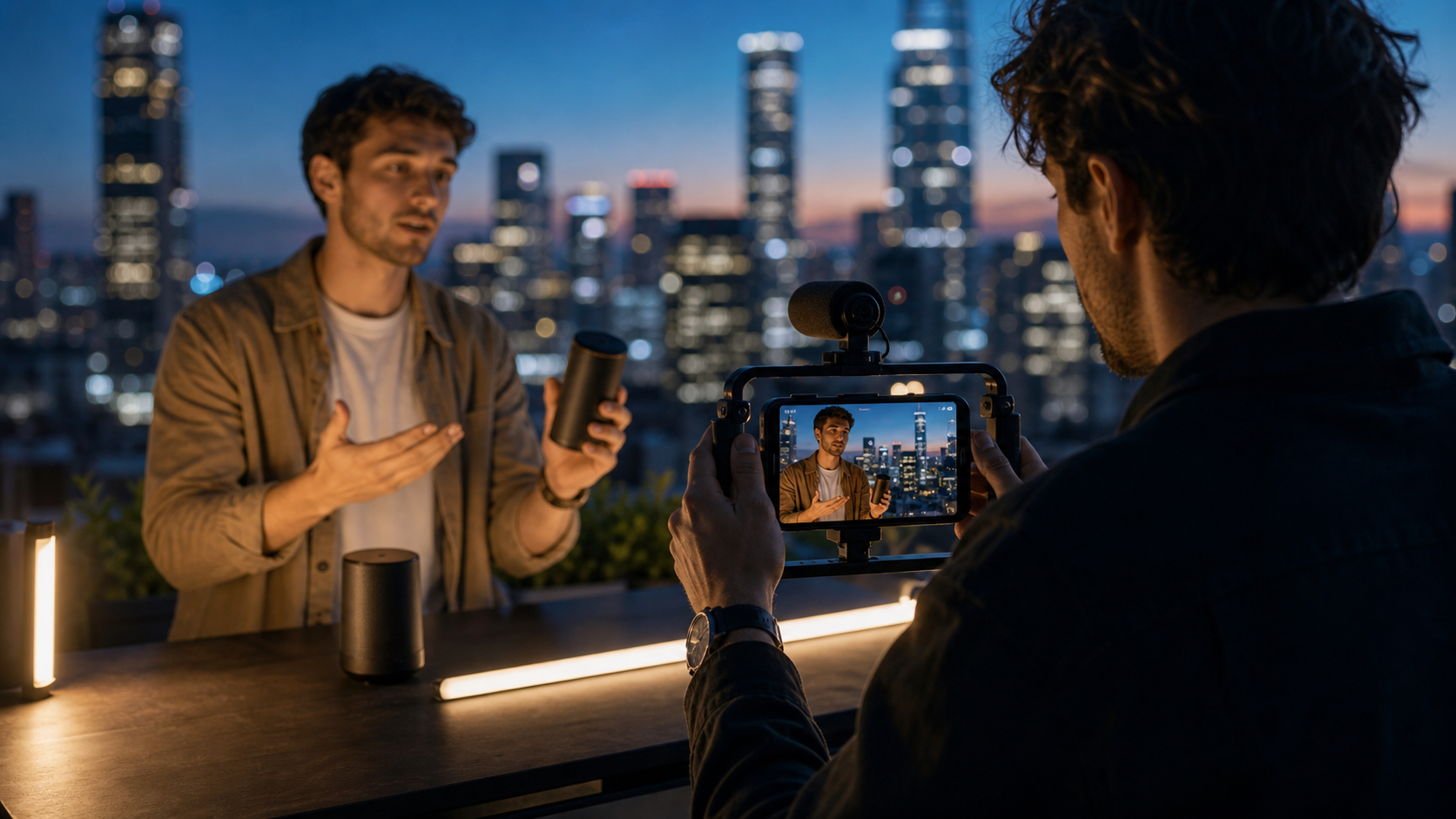
Kling 3.0 Turbo is built for creators who need fast AI video drafts before spending time on a final hero clip. On Flyne AI, the Kling 3.0 Turbo AI Video Generator gives creators a direct place to test text-to-video ideas, image-to-video references, multi-image controls, 480p or 720p previews, synced audio, lip sync, product ads, UGC drafts, and short-form video concepts. Treat the output as a creative draft: useful for speed, comparison, and direction, then review the best clip before publishing.

What Kling 3.0 Turbo Is for Fast AI Video Previews
Kling 3.0 Turbo is the preview-friendly version to use when speed matters more than final polish. It is useful when you want to test a prompt, compare a few camera directions, validate a product-ad concept, or see whether a reference image can become a believable short clip.
Flyne AI positions the model around fast generation, prompt-to-video and image-to-video workflows, 480p and 720p options, synced audio, lip sync, motion stability, and multi-image reference control. Because model pages and plan details can change, check the live Kling 3.0 Turbo page before promising duration, credits, watermarks, or export quality to a client.
Use Turbo when you need creative momentum: TikTok concepts, Reels hooks, Shorts ideas, meme reactions, quick product previews, UGC ad drafts, and storyboard shots. Once a direction works, you can decide whether to regenerate, refine, or move to a higher-polish model.

Kling 3.0 Turbo vs Kling 3.0: Speed, Previewing, and Polish
The practical difference is workflow intent. Kling 3.0 Turbo is better for speed, prompt exploration, draft testing, and fast social-video iteration. Kling 3.0 is usually the better next step when you care more about cinematic mood, refined motion, premium lighting, and final hero clips.
Use this simple split:
| Need | Better starting point |
|---|---|
| Try five product hooks quickly | Kling 3.0 Turbo |
| Compare text-to-video prompt wording | Kling 3.0 Turbo |
| Test image-to-video motion from a product photo | Kling 3.0 Turbo |
| Build a polished cinematic brand clip | Kling 3.0 |
| Create a premium hero shot for a campaign | Kling 3.0 |
| Explore directed movement from a still | Kling Motion Control |
For agencies and social teams, this split keeps budgets and review cycles cleaner. Use Turbo to find the idea; use Kling 3.0 or another model when the idea has earned more production time.

How to Use Kling 3.0 Turbo on Flyne AI
Flyne AI is a practical workspace because it connects the Kling 3.0 Turbo model page with broader AI video tools. A creator can start from AI Video Generator, AI Text to Video Generator, Photo to Video, or Video to Video, then compare model paths such as Kling 3.0, Kling Motion Control, Seedance 2.0, Veo 3, Vidu Q3, and Higgsfield AI.
For a clean Turbo workflow:
- Start with one use case: social clip, product ad, UGC draft, cinematic preview, meme reaction, or storyboard.
- Choose text-to-video for pure idea testing or image-to-video when subject consistency matters.
- Keep the clip short and focused on one motion.
- Pick a format such as 9:16 for TikTok/Reels/Shorts or 16:9 for storyboards and product pages.
- Test 480p for rough previewing and 720p when you need a clearer review draft, if those options are available on your current plan.
- Review motion stability, audio timing, subject consistency, product accuracy, and export rules before sharing.
The key is to compare like with like. Keep the same source image, aspect ratio, duration, and camera direction when testing prompt changes.

Text-to-Video Prompts for Fast Drafts
Text-to-video works best when the prompt has one subject, one action, one camera move, and one mood. Turbo is fast, but it still needs clear direction. A broad prompt such as "make a cool product video" gives the model too much to guess.
Reusable Kling 3.0 Turbo text-to-video prompt formula:
Create a [duration] AI video for [platform/use case]. Subject: [person/product/object/scene]. Setting: [location/background]. Main action: [one clear motion]. Camera: [push-in / tracking shot / pan / handheld / static close-up / dolly]. Lighting: [studio / natural daylight / golden hour / neon / cinematic]. Mood: [premium / playful / dramatic / realistic / UGC / futuristic]. Audio direction: [ambient sound / short dialogue / product narration / music cue / silent draft]. Output should be [aspect ratio] and [480p or 720p] for [TikTok / Reels / Shorts / ad / product page / storyboard]. Keep the clip focused, short, and easy to compare with other drafts.
For better comparison, create three versions from the same idea. Change only camera motion, pacing, or audio direction. This makes it easier to see whether the prompt, not the subject, caused the difference.

Image-to-Video and Multi-Image Reference Workflows
Image-to-video is the better starting point when the product, character, outfit, or visual identity needs to stay recognizable. Use a clean reference image with strong lighting, visible edges, and minimal clutter. If the source image is confusing, the generated motion will have more chances to drift.
Reusable image-to-video prompt formula:
Use this uploaded image as the reference. Preserve [subject identity / product shape / outfit / pose / composition / color palette / material texture]. Add [camera movement], [subject motion], [background motion], and [lighting shift]. Keep motion stable, subject details consistent, and pacing suitable for a fast preview draft.
Multi-reference prompt formula:
Use these reference images to guide the subject, style, and layout. Preserve [main subject], [visual style], [product shape], [character design], and [color palette]. Generate a short Kling 3.0 Turbo video with [one main action], [camera movement], [lighting], and [mood]. Keep the output clean enough for creative comparison.
Reference images are especially useful for ecommerce teams, fashion clips, character tests, product ads, and brand mood boards. Before publication, check the live page for current reference-image limits and supported input modes.

Best Use Cases: Social Clips, Product Ads, UGC Drafts, Storyboards, and Cinematic Previews
Kling 3.0 Turbo is strongest when the goal is fast decision-making. It lets creators test whether a clip idea has energy before committing to a more polished generation or manual editing pass.
Good Turbo use cases include:
- Social clips: test hooks, reaction shots, travel reels, food close-ups, and vertical pacing.
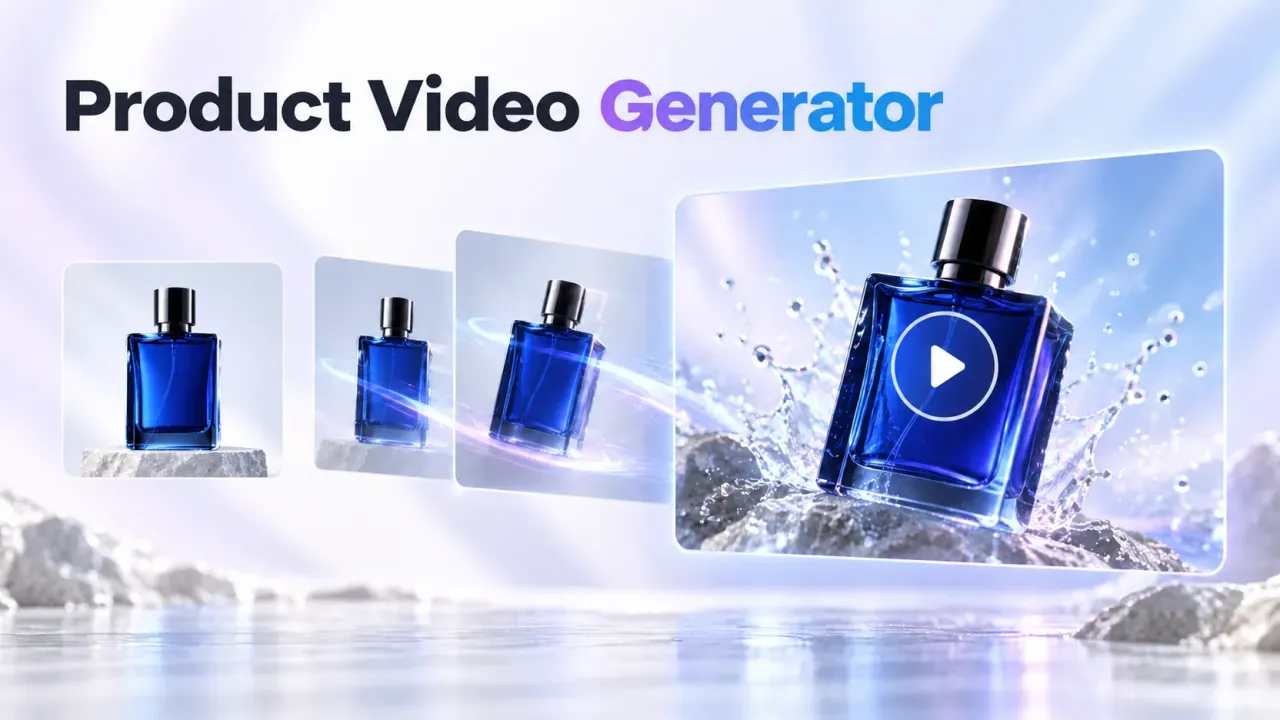
- Product ads: compare push-ins, rotations, tabletop reveals, ingredient shots, and lighting styles.
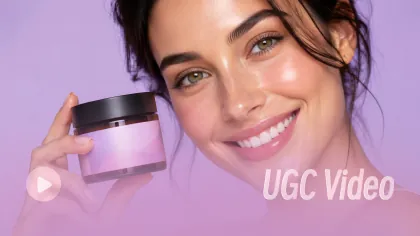
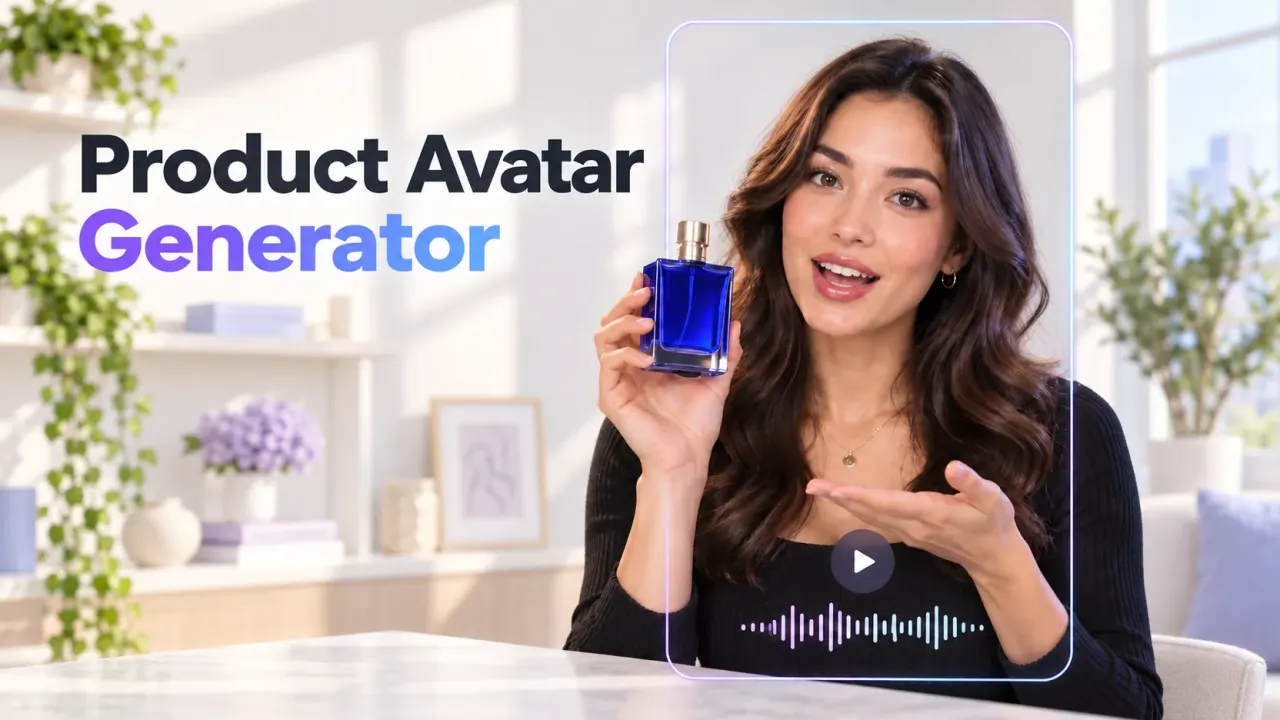
- UGC drafts: test a fictional creator demo, natural room lighting, handheld camera feel, and short spoken-review energy.
- Storyboards: quickly preview camera movement, scene blocking, and shot rhythm.
- Cinematic previews: explore rain, neon, golden hour, studio light, or premium product moods.
- Meme clips: draft reaction timing, caption space, and quick zoom beats.
Use Turbo for the first pass, then narrow the best two or three directions. A short shortlist is easier to review than a folder full of unrelated generations.

Prompt Examples Readers Can Copy
These examples are designed for fast drafts. Replace the subject, product, platform, duration, and aspect ratio as needed.
- Create a 5-second product video for a skincare bottle on a marble counter. Slow camera push-in, soft morning light, subtle water droplets, premium ecommerce mood, gentle ambient sound, 9:16, 720p.
- Use this product photo as the reference. Preserve the product shape, label area, cap, material texture, and color. Add a slow rotating tabletop camera move, soft studio lighting, realistic shadows, and clean ad pacing.
- Create a TikTok-style UGC product demo. A fictional creator holds a product near a window, natural handheld camera, friendly expression, casual room lighting, short spoken-review energy, 9:16.
- Create a cinematic street scene. A fictional person in a dark coat walks through rainy neon streets, tracking camera from behind, realistic reflections, atmospheric pacing, 16:9.
- Create a quick food video. A hot dish sits on a restaurant table, visible steam, slow close-up, warm lighting, shallow depth of field, appetizing motion, 5 seconds.
- Create a meme reaction clip. A fictional office worker slowly turns toward the camera with exaggerated disbelief, quick zoom-in, clean lighting, blank caption space, 9:16.
- Use this portrait as the reference. Preserve facial identity, hairstyle, and outfit. Add gentle camera movement, subtle background motion, natural light shift, and realistic face stability.
- Create a product launch teaser. A black box opens under dramatic studio light, slow push-in camera, soft smoke, premium reveal mood, clean background, 16:9.
- Create a travel reel shot. A cafe table beside a busy street, sunlight moving across the table, soft camera pan, warm editorial color, natural ambient sound, 9:16.
- Create a fashion lookbook clip. A fictional model walks across a minimalist studio, soft fabric movement, side-tracking camera, editorial lighting, stable body proportions, 9:16.
- Use three reference images for the same product. Preserve shape, color, and material. Generate a short product hero video with slow dolly motion, clean studio lighting, and realistic reflections.
- Create three Kling 3.0 Turbo drafts from the same prompt: one cinematic, one UGC ad, and one product demo. Keep the subject stable while changing camera style, pacing, and sound direction.
Turbo testing formula:
Generate 3 fast Kling 3.0 Turbo drafts from the same idea. Version A should focus on cinematic camera motion. Version B should focus on product clarity. Version C should focus on social-video energy. Compare motion, pacing, composition, subject stability, audio timing, and best campaign use.

When to Use Kling 3.0 Turbo vs Seedance 2.0, Veo 3, or Kling Motion Control
Choose the model based on the job you are trying to repeat. Turbo is a strong first step when speed, draft volume, and prompt exploration matter. Other Flyne AI model pages are useful when your priority shifts.
Use this decision guide:
| Model path | Best fit |
|---|---|
| Kling 3.0 Turbo | Fast previews, draft testing, social iterations, product ad variants |
| Kling 3.0 | More polished cinematic clips, premium mood, hero visuals |
| Kling Motion Control | Directed movement from a reference, camera or subject motion planning |
| Seedance 2.0 | Controlled video generation and alternate prompt/model comparison |
| Veo 3 | Higher-end cinematic exploration when available for the needed workflow |
| Vidu Q3 or Higgsfield AI | Additional model comparisons for creators testing style and motion options |
Do not assume one model is always best. A practical team often uses Turbo to test the concept, then compares the winning prompt in another model for polish.

FAQ About Kling 3.0 Turbo on Flyne AI
Is Kling 3.0 Turbo good for beginners?
Yes, especially for quick draft testing. Beginners can start with one subject, one action, and one camera move, then compare two or three variations before trying more complex prompts.
Does Kling 3.0 Turbo support audio and lip sync?
Flyne AI's Kling 3.0 Turbo page references synced audio and lip sync support. Because audio features can depend on the current model page, account plan, and generation mode, verify support on the live page before promising client deliverables.
Should I use 480p or 720p?
Use 480p when you only need rough concept feedback. Use 720p when you need a clearer review draft, product detail check, or more useful internal presentation, assuming the option is available on your current plan.
Can I use Kling 3.0 Turbo for commercial videos?
Check Flyne AI Terms, Pricing, and the current model page before publishing ads, client projects, or monetized content. Rights, export rules, watermarks, and credit costs can change.

Final Checklist Before Exporting or Publishing AI Videos
Before you export or publish, treat every Kling 3.0 Turbo result as a draft that needs review. Fast generation is valuable because it creates options, not because every option is ready to post.
Use this checklist:
- Confirm the live model page still supports the input mode you used: text-to-video, image-to-video, or multi-image references.
- Check duration, resolution, 480p/720p availability, audio support, lip-sync support, reference-image limits, and export settings.
- Review motion stability, subject consistency, product shape, face/body realism, lighting, and audio timing.
- Check watermark rules, pricing, credit cost, privacy settings, and commercial-use terms.
- Avoid source images, logos, people, music, products, or trademarks you do not have permission to use.
- Compare at least three drafts before choosing the best direction.
- Move the strongest concept into Kling 3.0, Kling Motion Control, or another Flyne AI model when final polish matters.
For related reading, see Flyne AI's Kling 3.0 Guide, Kling 3.0 vs Seedance 2.0 comparison, and Seedance 2.0 video generation guide.
The best Kling 3.0 Turbo workflow is simple: test quickly, compare fairly, keep the strongest draft, then polish only what deserves more time.