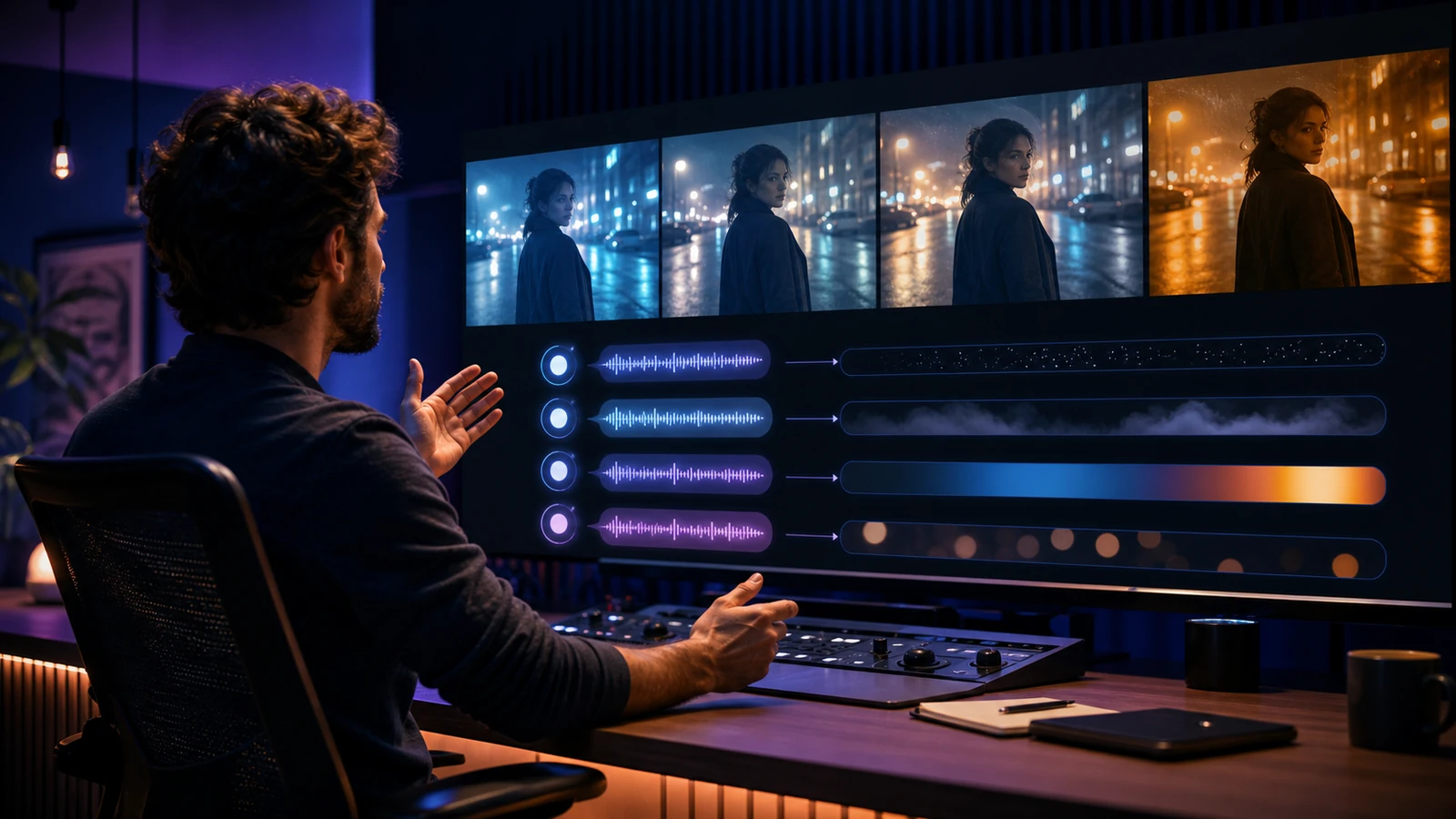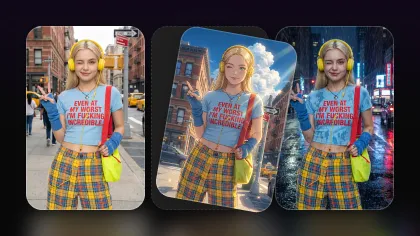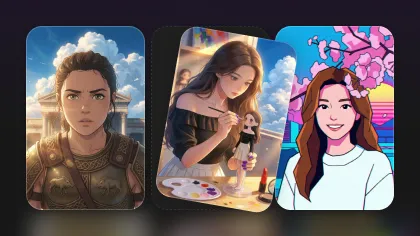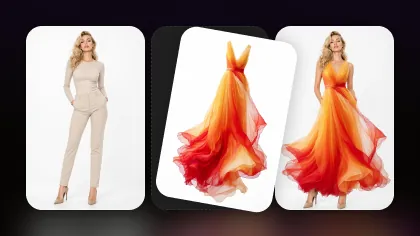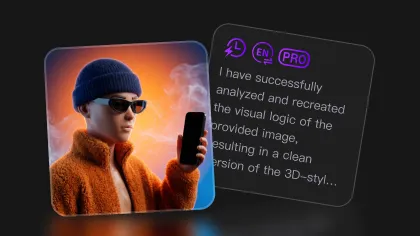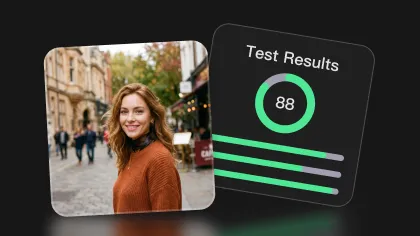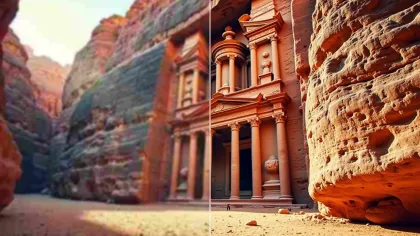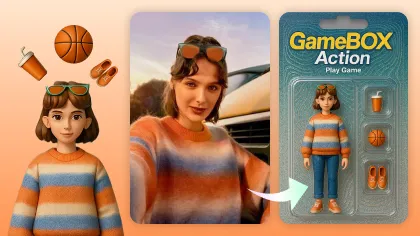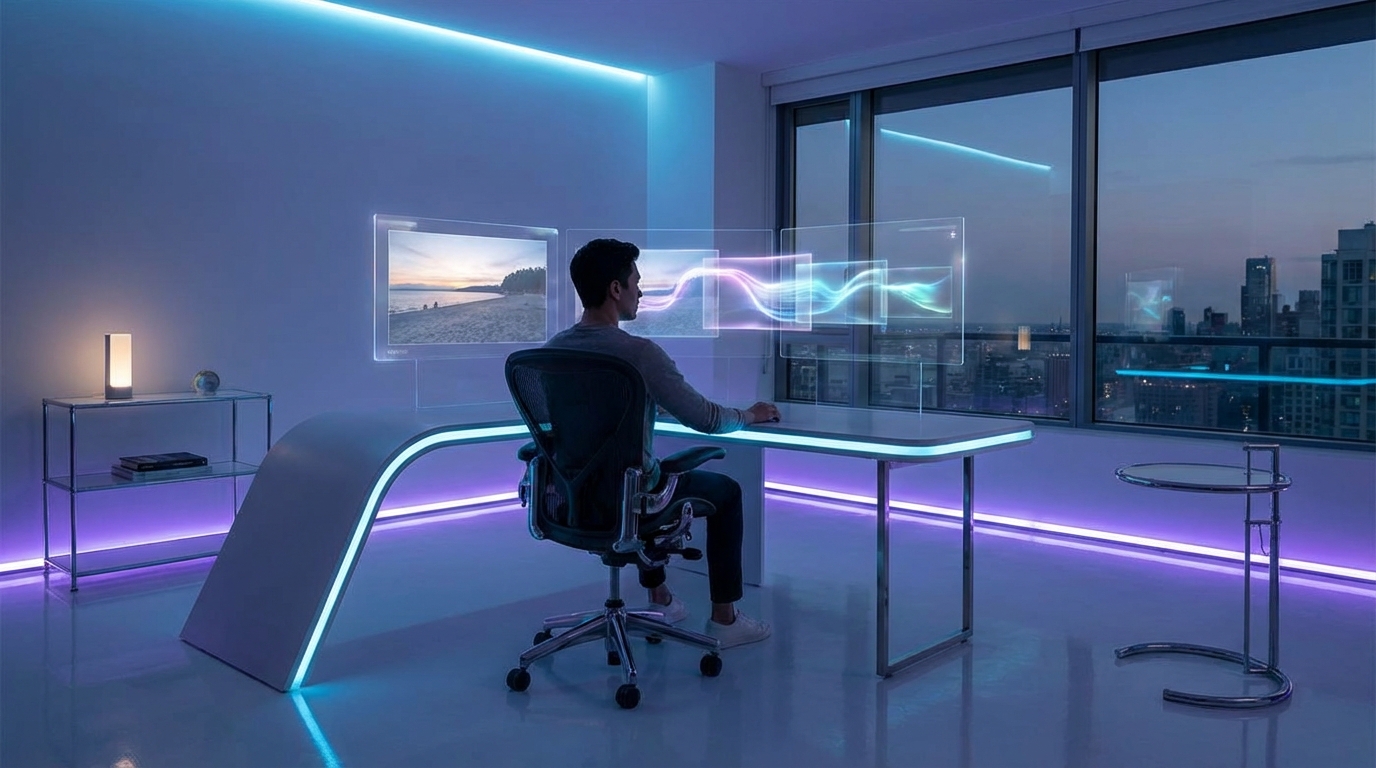
If you have tried image-to-video even once, you already know the magic trick: one strong image can become an ad, a product reel, a short film beat, a social clip, or a talking character video if you pair it with the right model and the right workflow.
The mistake is assuming one AI video model should do everything. In 2026, the best image-to-video workflow depends on what you are animating: a face, a product, a fashion look, a cinematic scene, a talking avatar, or a motion-heavy short-form clip.
That is where Flyne AI Video Generator becomes useful. Instead of jumping between disconnected platforms, creators can test text-to-video, image-to-video, and model-specific workflows from one practical video hub. You can start with a strong keyframe, choose the right model, compare motion behavior, and build a repeatable process for real production work.
This guide explains how creators are approaching image-to-video in 2026, which models fit which use cases, and how to run a cleaner Flyne AI workflow from source image to finished clip.
What “Best” Really Means for Image-to-Video in 2026
Most people judge image-to-video by asking one question: “Does it look real?” But realistic video is not one single thing. It is a combination of several qualities.
A good image-to-video model should deliver:
- Motion realism: body weight, hair movement, fabric motion, camera movement, and object physics should feel believable.
- Identity consistency: the face, outfit, product shape, logo area, and key visual details should remain stable.
- Prompt controllability: subtle motion, dramatic action, camera movement, and pacing should match your instructions.
- Artifact control: the clip should avoid flickering, warped hands, melting objects, rubber-like physics, and unstable backgrounds.
- Iteration speed: you should be able to test, compare, and revise without wasting too many credits or too much time.
This is why the “best AI video model” depends on context. A cinematic model may be excellent for story scenes but unnecessary for quick product clips. A fast social model may be perfect for drafts but weaker for premium brand films. A talking-avatar tool may outperform cinematic models when the goal is simply a presenter clip.
The real advantage is knowing which tool to use for the job.
A Clean Image-to-Video Workflow Most Creators Use
A reliable image-to-video pipeline usually follows four stages:
- Create a motion-ready keyframe. Start with a clean source image that has stable anatomy, clear edges, and usable lighting.
- Choose the video model based on the goal. Do not use the same model for every product ad, cinematic shot, avatar, and social clip.
- Animate with constrained motion first. Start with subtle movement before asking for complex action.
- Export variations and refine. Compare outputs, choose the strongest, then edit or regenerate only when necessary.
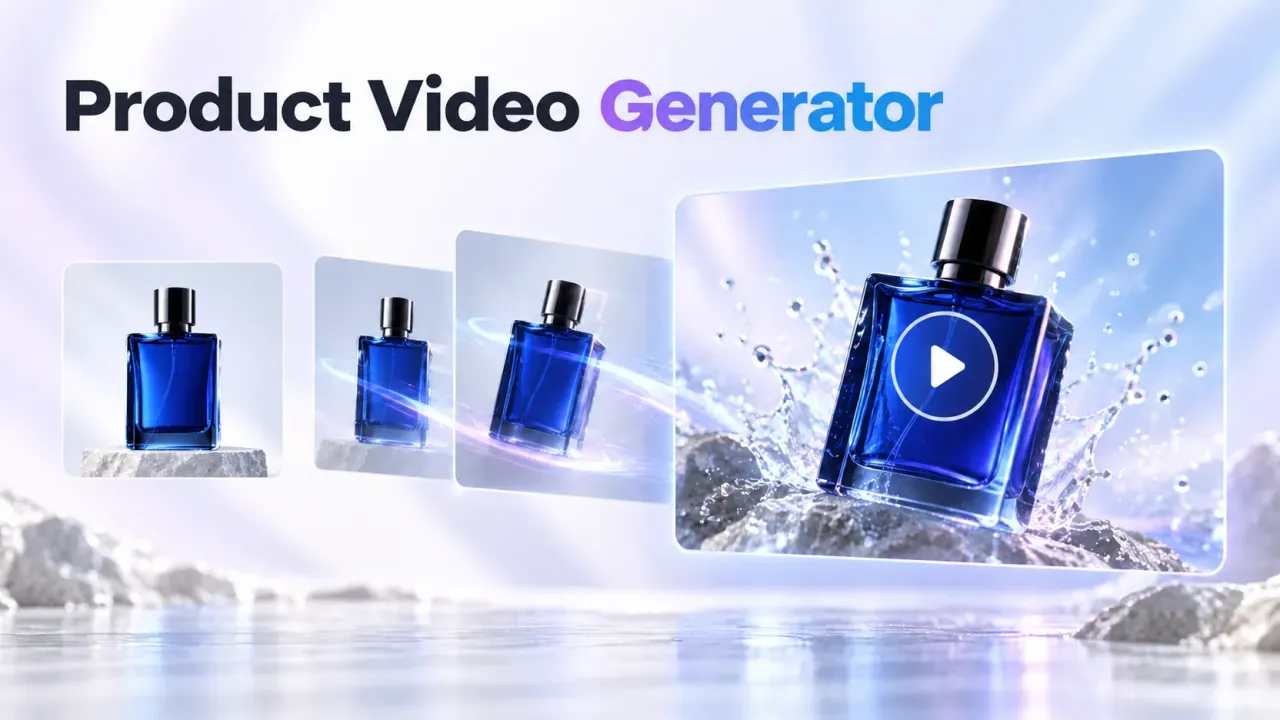
Flyne AI simplifies this process because it gives creators a practical place to test multiple video paths. For broad video creation, start with AI Video Generator. For image-led animation, use Photo to Video AI Generator. For prompt-first video creation, use AI Text to Video Generator.
The key is to keep your test conditions consistent. Use the same source image and a similar prompt when comparing models. Otherwise, you are not comparing models; you are comparing different inputs.
Start With a Strong Image: Why Seedream 4.5 Matters
Many weak AI videos fail before the video model even starts. If the source image is blurry, crowded, distorted, or visually confused, the video model has to invent too much. That often leads to unstable motion, flickering details, and identity drift.
That is why creators often begin with Seedream 4.5 to create a clean hero frame. A strong keyframe should have:
- Clear subject shape
- Stable face or product details
- Readable edges
- Controlled lighting
- Simple background structure
- A composition that leaves room for motion
For recurring characters, product shots, fashion content, and ad visuals, a better keyframe almost always improves the final video. Generate several still-image options first, then animate only the strongest candidate.
A simple rule: if the image is not strong as a still, it probably will not become strong as a video.
Choosing the Right Image-to-Video Model in 2026
There is no single winner for every image-to-video task. Each model has a different personality and workflow fit.
| Use Case | Recommended Starting Point | Why |
|---|---|---|
| Cinematic storytelling | Sora 2 or Veo 3.1 | Stronger scene logic, camera language, and narrative motion |
| Film-like camera control | Veo 3.1 | Useful for polished movement, shot pacing, and cinematic framing |
| Fast short-form drafts | Hailuo 2.3 or Vidu 2.0 | Better for quick iteration and social-friendly motion |
| Product and fashion videos | Kling 2.6 or Product to Video | Better fit for preserving product shape, fabric details, and ad clarity |
| General-purpose testing | AI Video Generator | Best when you want a flexible hub before committing to a model |
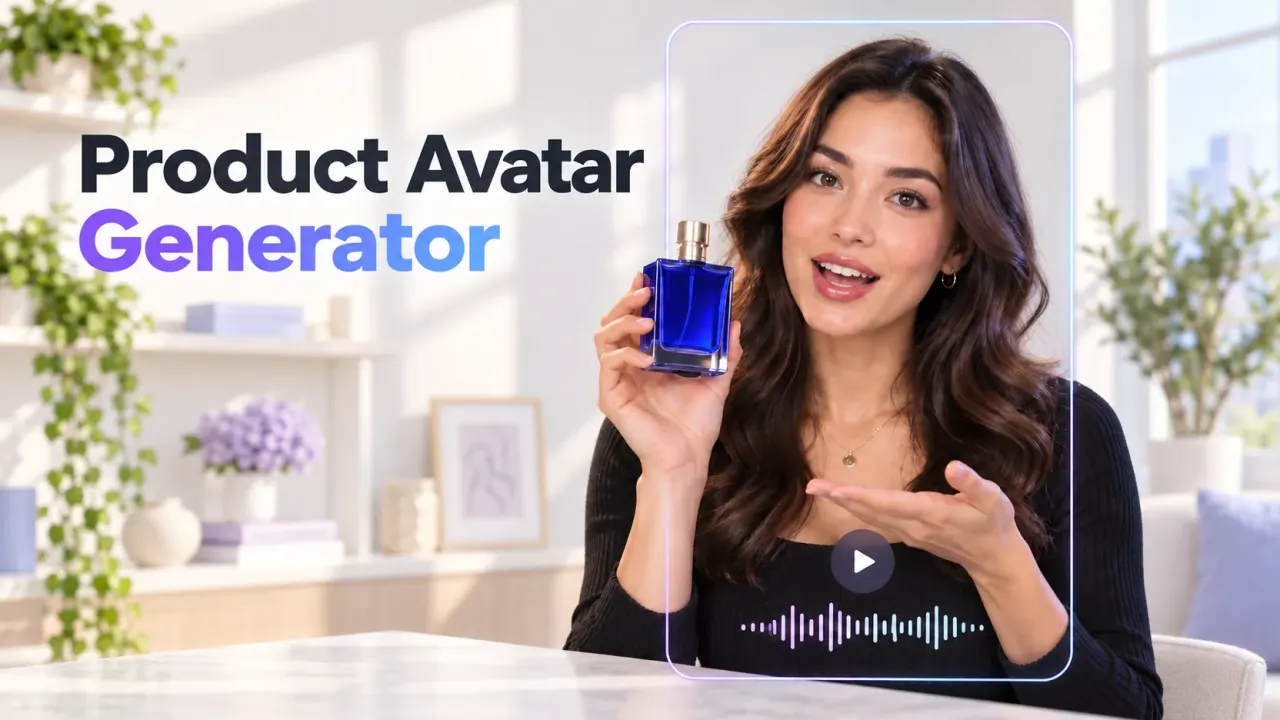
| Talking avatars | AI Talking Avatar | More direct than cinematic models for presenter-style clips |
| Dynamic social motion | Vidu Q3 or Hailuo 2.3 | Useful for short clips, brand snippets, and fast creative testing |
Sora 2: Best for Cinematic Scenes and Narrative Motion
Sora 2 is a strong choice when your video needs story logic, scene continuity, and cinematic imagination. It is especially useful for wide environments, character-driven moments, surreal scenes, and narrative prompts that need more than simple object movement.
Use Sora 2 when you need:
- Story-driven clips
- Cinematic mood
- Complex scenes
- Character or environment motion
- Visual sequences that feel directed rather than random
Sora 2 prompts work better when you describe intent, pacing, and mood, not only the action. Even for image-to-video workflows, write like a director.
Example prompt:
Animate this image as a quiet cinematic shot. The character slowly turns toward the window while soft rain moves outside. Camera gently pushes in, subtle breathing motion, natural fabric movement, calm emotional mood, no sudden action.
Avoid asking for too many dramatic motions at once. Start with a simple camera move or emotional beat, then increase complexity if the output stays stable.
Veo 3.1: Best for Film Language and Camera Control
Veo 3.1 is a strong option when camera language matters. It is useful for creators who want polished movement, controlled pacing, and a more film-like result.
Use Veo 3.1 when you need:
- Brand films
- Dramatic shots
- Smooth camera motion
- Product reveal clips
- Cinematic short scenes
- More deliberate visual pacing
Veo-style prompts often benefit from shot terms:
- slow dolly-in
- handheld close-up
- wide establishing shot
- soft rack focus
- product reveal pan
- low-angle tracking shot
Example prompt:
Animate this product image as a premium cinematic ad. Slow dolly-in toward the product, soft studio reflections, subtle rotating highlight across the surface, shallow depth of field, elegant pacing, no background distortion.
The more clearly you separate subject stability from camera motion, the better the result usually becomes.
Hailuo 2.3: Best for Speed and Social Iteration
Hailuo 2.3 is useful when speed and iteration matter. It fits short-form content, drafts, A/B testing, and quick social video ideas.
Use Hailuo 2.3 when you need:
- Fast tests
- Social clips
- Short ad drafts
- Motion experiments
- Creator content variations
- Lightweight image-to-video animation
Hailuo works best with clean images and modest motion requests. It is a good model for finding whether a concept has potential before spending more time on a premium polish pass.
Example prompt:
Animate this image for a short social ad. Add gentle camera movement, subtle subject motion, soft background parallax, energetic but clean pacing, no face distortion, no text changes.
For social content, prioritize clarity over complexity. A simple motion that preserves the subject is usually more useful than an ambitious clip full of artifacts.
Kling 2.6: Best for Product and Fashion Detail Retention
Kling 2.6 is a strong option for creators working with product shots, fashion visuals, and ad-ready clips. These workflows require identity preservation: the bottle should not change shape, the shoe should not melt, the fabric should not turn into a different outfit, and the product should remain recognizable.
Use Kling 2.6 when you need:
- Product reels
- Fashion motion
- E-commerce clips
- Ad-ready visuals
- Better detail preservation
- Controlled image-led animation
For product-specific workflows, Product to Video is also worth using because it focuses directly on turning product assets into promotional clips.
Example prompt:
Animate this product image into a premium product reel. Keep the product shape, logo area, and packaging details stable. Add a slow rotating camera move, soft studio lighting, subtle reflections, clean background, no label distortion.
For fashion, keep motion natural and avoid asking for extreme pose changes unless the image is already built for that movement.
A General-Purpose Baseline for Everyday Testing
Some creators want one baseline workflow before choosing a more specialized model. When you do not know where to start, use Flyne AI Video Generator as your hub.
A general-purpose workflow is helpful when you need to test:
- Whether a keyframe animates well
- Whether motion direction makes sense
- Whether the subject remains consistent
- Whether a clip should become cinematic, social, product-focused, or avatar-led
For model families that do not have a clearly confirmed dedicated Flyne page in your current workflow, use the main video hub or the closest task-specific page instead of guessing a URL.
Vidu 2.0 and Vidu Q3: Best for Stylized and Social-Friendly Motion
Vidu 2.0 is useful for stylized, energetic motion and short-form creative clips. It can work well when strict realism is less important than rhythm, movement, and visual impact.
Use Vidu 2.0 when you need:
- Music-style visuals
- Stylized promos
- Fast creator clips
- Short narrative beats
- Energetic motion tests
Vidu Q3 is also worth testing for newer short-form and production-oriented workflows, especially when you want social-friendly pacing and more structured video output.
Example prompt:
Animate this image as a punchy short-form promo. Add dynamic camera movement, energetic lighting shifts, smooth subject motion, stylish pacing, no face warping, no background melting.
Use Vidu when motion energy matters. Use Veo 3.1 or Sora 2 when cinematic structure matters more.
Talking Avatars: Use a Dedicated Avatar Workflow
Talking-character content is its own category. If your goal is a presenter video, UGC-style narration, explainer avatar, or speaking character, do not force a cinematic model to behave like an avatar tool.
Use AI Talking Avatar when you need:
- Talking presenters
- UGC-style product narration
- Short explainer clips
- Character speech videos
- Avatar-led social content
A strong avatar keyframe should be front-facing, clear, and not overloaded with distracting background elements. The cleaner the face and lighting, the easier it is to generate a usable speaking clip.
Example prompt:
Create a natural talking presenter clip from this portrait. Keep the face identity stable, use subtle head movement, natural blinking, friendly expression, clean lighting, and realistic lip movement.
How to Run a Smooth Flyne AI Image-to-Video Test
A good comparison test should be controlled. Do not change the image, prompt, and model all at once.
Use this process:
- Create or select one clean keyframe.
- Save one base prompt.
- Test the same image and prompt across 2–3 models.
- Compare motion stability, identity consistency, artifacts, and overall usability.
- Pick the strongest model for that use case.
- Only then refine the prompt.
For example, if you are testing a product image, compare Kling 2.6, Veo 3.1, and the general Flyne AI Video Generator path using the same input. If you are testing a social clip, compare Hailuo 2.3, Vidu 2.0, and Vidu Q3. If you are testing a narrative scene, compare Sora 2 and Veo 3.1.
This keeps your image-to-video model comparison practical instead of random.
Prompting Tips That Improve Image-to-Video Quality
1. Separate Subject Identity From Motion
Tell the model what must stay the same before describing motion.
Keep the product shape, color, and packaging details unchanged. Add only a slow camera push-in and soft reflections.
2. Start With Subtle Movement
Small motion is easier to control than dramatic motion.
Good first moves include:
- slow camera push-in
- gentle head turn
- soft hair movement
- fabric moving in wind
- subtle light shift
- slight product rotation
3. Use Camera Language
Instead of saying “make it cinematic,” describe the shot.
Use terms like:
- dolly-in
- tracking shot
- close-up
- wide shot
- handheld movement
- slow pan
- rack focus
4. Give Motion a Physical Cause
Motion looks better when it has a reason.
Examples:
- wind moves the coat
- spotlight glides across the product
- camera slowly circles the subject
- character breathes naturally
- candlelight flickers in the room
5. Avoid Contradictory Requests
Do not ask for “no movement” and “dramatic action” in the same prompt. Do not ask a product to stay unchanged while also asking it to transform. Keep the instruction clean.
Best Model Picks by Creator Goal
| Goal | Best Starting Point | Practical Tip |
|---|---|---|
| Cinematic story scene | Sora 2 or Veo 3.1 | Use director-style prompts with pacing and camera movement |
| Premium product ad | Kling 2.6 or Product to Video | Keep product details stable and motion subtle |
| Fast social clip | Hailuo 2.3 or Vidu Q3 | Test several short variations before polishing |
| Stylized promo | Vidu 2.0 or Vidu Q3 | Prioritize rhythm and visual energy |
| Talking presenter | AI Talking Avatar | Use a clean front-facing portrait |
| Keyframe creation | Seedream 4.5 | Generate multiple source images before animating |
| General testing | Flyne AI Video Generator | Keep the same input when comparing models |
Final Takeaway
In 2026, image-to-video success comes from systems, not shortcuts. A strong source image, a clear motion prompt, and the right model matter more than chasing one universal “best” tool.
Use Seedream 4.5 to create cleaner keyframes. Use Sora 2 or Veo 3.1 when cinematic storytelling matters. Use Kling 2.6 or Product to Video for product and fashion motion. Use Hailuo 2.3 or Vidu for fast social clips. Use AI Talking Avatar when the goal is a presenter-style video.
Flyne AI’s advantage is that it gives creators a practical hub for this process. You can test, compare, and refine without rebuilding your workflow every time a new model appears.
The best image-to-video model is the one that helps you turn a strong still image into a usable final clip with the fewest wasted generations.
Recommended Tools
- Flyne AI Video Generator — the best starting point for testing text-to-video and image-to-video workflows in one place.
- Photo to Video AI Generator — useful when you want to animate a still image into a short clip.
- AI Text to Video Generator — best when your workflow begins with a written scene prompt.
- Sora 2 — useful for cinematic scenes, narrative motion, and story-driven video concepts.
- Veo 3.1 — strong for film language, camera movement, and polished cinematic output.
- Hailuo 2.3 — useful for fast social clips, drafts, and iteration-heavy workflows.
- Kling 2.6 — practical for product, fashion, and detail-sensitive image-to-video generation.
- Product to Video — useful for turning product assets into promotional clips.
- Vidu 2.0 — useful for stylized motion and energetic short-form clips.
- Vidu Q3 — worth testing for newer short-form and social-friendly video workflows.
- AI Talking Avatar — best for presenter clips, talking characters, and UGC-style narration.
- Seedream 4.5 — useful for creating clean motion-ready keyframes before video generation.
Related Articles
- Best AI Video Models 2026 for Image-to-Video Generation
- Flyne AI Video Generator Guide 2026: Best Models Compared and Ranked
- Sora 2 AI Video Generator Explained: The Next Leap in AI Filmmaking
- Introducing Veo 3.1: Google’s Next Leap in AI Video vs Sora 2 AI
- Hailuo 2.3 vs 02 AI: The Future of AI Video Generation
- Kling 2.6 AI Video Generator With Audio
- Wan 2.6 vs Veo 3.1: The New AI Video Battle Explained
- Vidu Q3 Guide: Better AI Video Prompts and Cinematic Clips
People Also Read
- VideoWeb AI Video Generator 2026: One Hub, Every AI Video Workflow
- The 2026 Image-to-Video Guide for Sea Imagine AI: Best Models & Prompts
- Try Veo 3.1 in Dream Machine AI: A Practical Guide to Text-to-Video and Image-to-Video Creation
- SeaArt AI Video Generation: An Unbiased, Objective Review
- Hailuo 2.3 AI Video Generator: Next-Gen Cinematic Motion
- Kling 3.0 Review: Is It the Best AI Video Generator Yet in 2026?