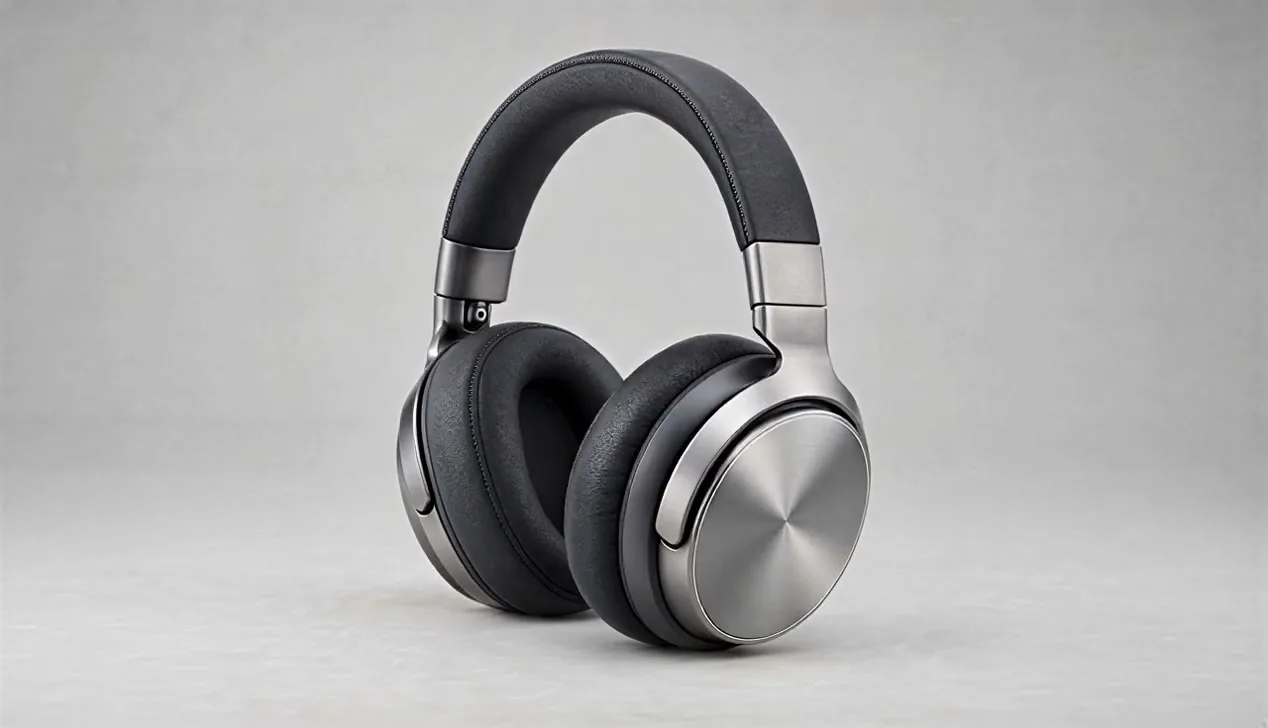
Product Spin
Rotate your product to show its shape from every angle.
Product image
Turn a product photo into an AI video with the AI Product Video Generator on Flyne AI. Choose a visual template, adjust the motion and setting, and generate a video that puts your product in focus.
Preview product spins, close-ups, unboxing scenes, and lifestyle clips to choose a direction before adding your own product image.
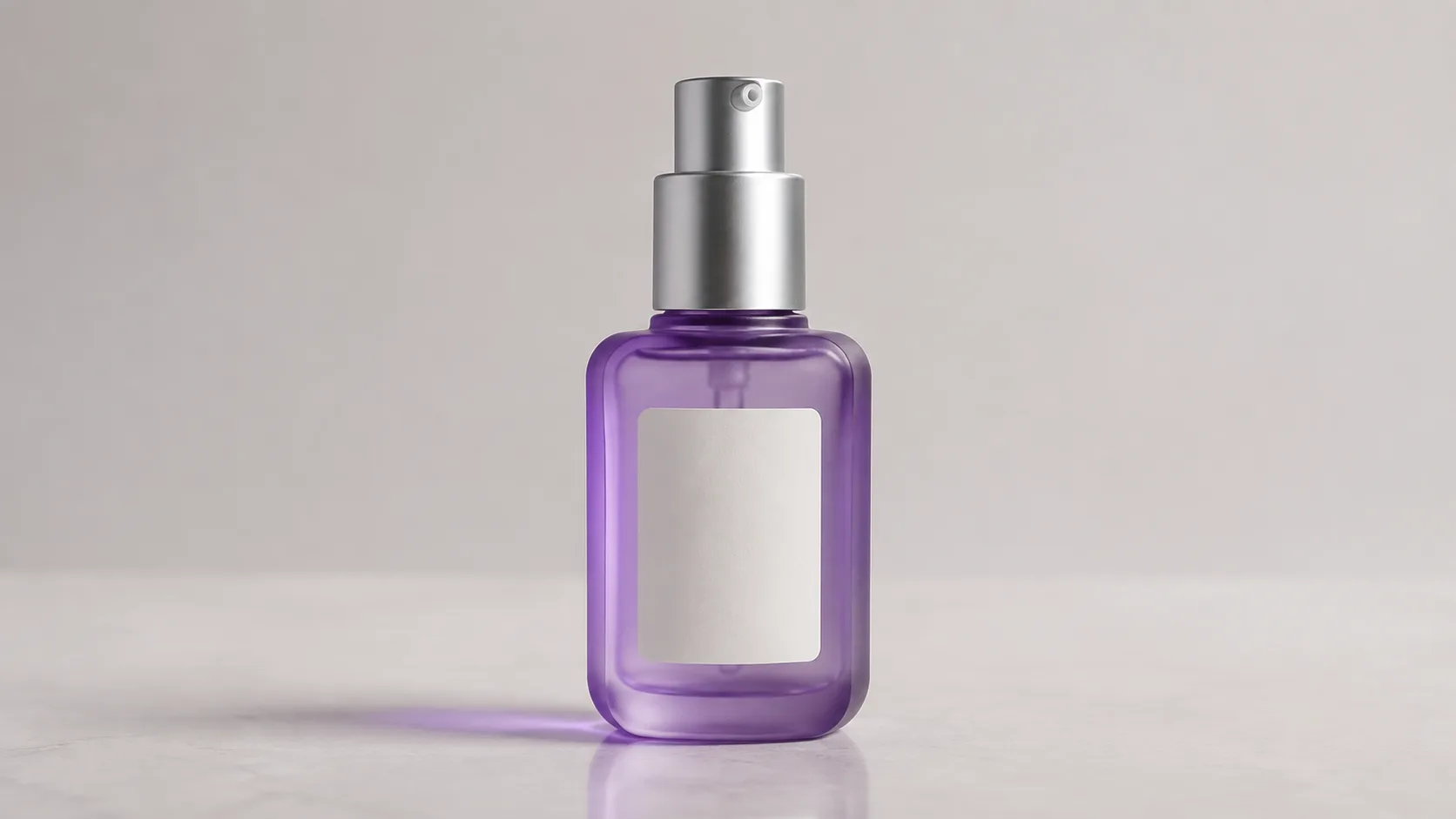
Build an AI video from reference images, a scene template, and an editable prompt that guides the action.
Upload a clear product image to guide the appearance of the item in your generated video, from its overall shape to visible packaging details.
Explore twenty templates, including Product Spin, Push-in Close-up, and presenter-led styles. Select the movement or reveal that fits the detail you want to show.
Use a presenter reference with a compatible template to introduce a human element alongside your product. Product-focused templates also offer a starting point without a presenter.
Adjust the template prompt to describe the setting, camera movement, and product action. Make the visual brief specific to the item you upload.
Use template previews and guided image inputs to turn an existing product photo into a clear video brief.
Watch a template preview before generating to understand the intended framing and action. Pick a scene based on what you want shoppers to notice.
Start an AI video concept with a product image you already have. The image provides a visual reference while the selected template supplies the scene direction.
Edit the prompt after selecting a template to change the setting or movement. Use the supplied direction as a starting point for your own product story.
Follow the submitted generation in Create and review the result in Video History. Check the product appearance and motion before choosing a clip for your campaign.
Match a product image with a scene template to create AI video content for a listing, launch, social post, or visual concept.
Pair a clear item photo with Product Spin or Desktop Display to generate a showcase clip that draws attention to the product silhouette and finish.
Use an unboxing scene to build a video concept around a newly packaged item. Guide the reveal with your product reference and a focused prompt.
Try Floating Reveal or Liquid Splash Reveal to give a product photo a more expressive video treatment for a social campaign concept.
Choose Push-in Close-up and describe the material, control, or feature to emphasize. Generate a clip that moves from the overall item toward that visible detail.
Choose a scene, supply the requested reference images, and refine the prompt before submitting your product video.
Learn how product image inputs, templates, prompt edits, and result review fit into the video creation workflow.
Discover more tools for image and video creation.
Explore guidance on choosing product photos, writing motion prompts, and planning template-based AI video content for launches and ecommerce showcases.
Preview a style, then use it with your own product.
Rotate your product to show its shape from every angle.
Product image
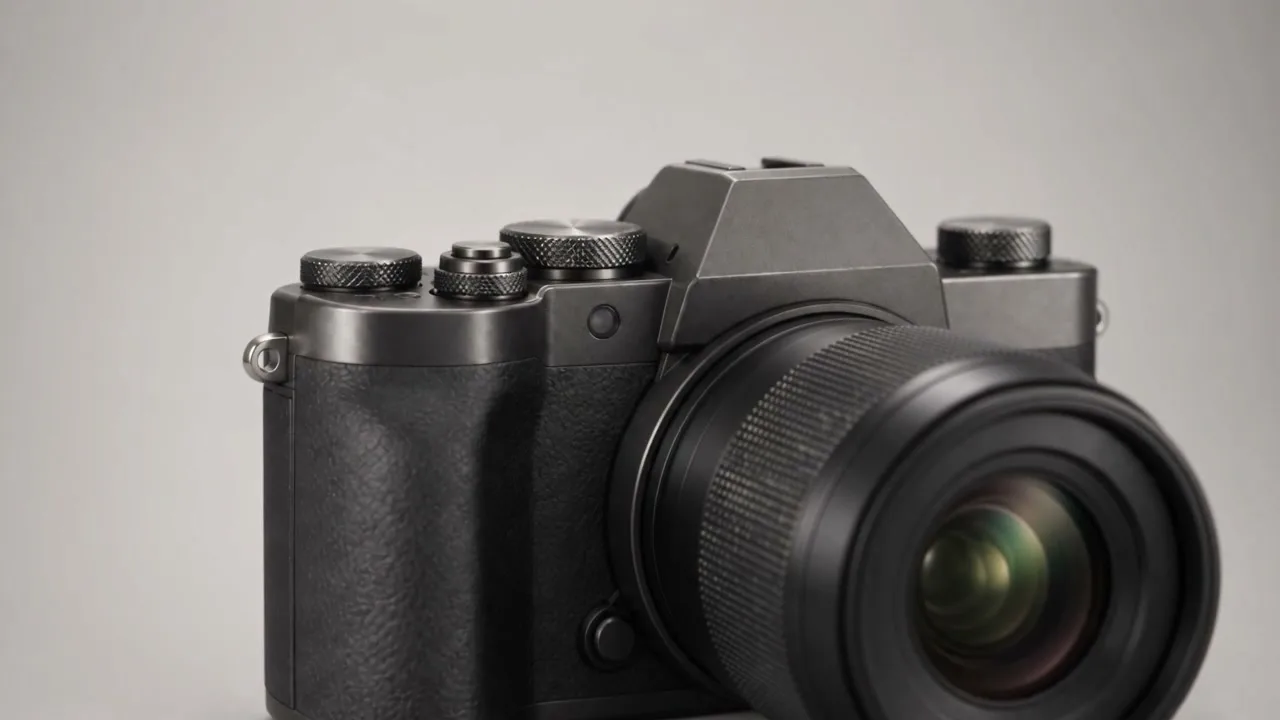
Move closer to reveal a distinctive product detail.
Product image
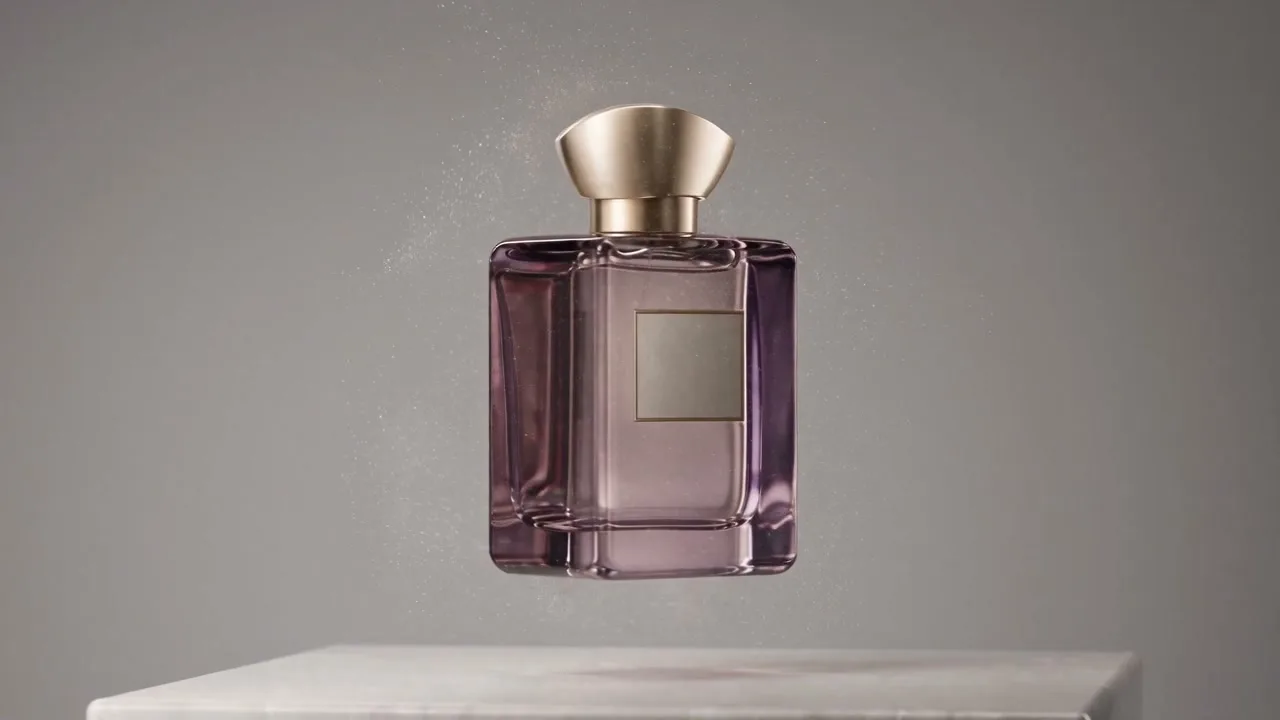
Lift your product into a floating reveal with subtle effects.
Product image
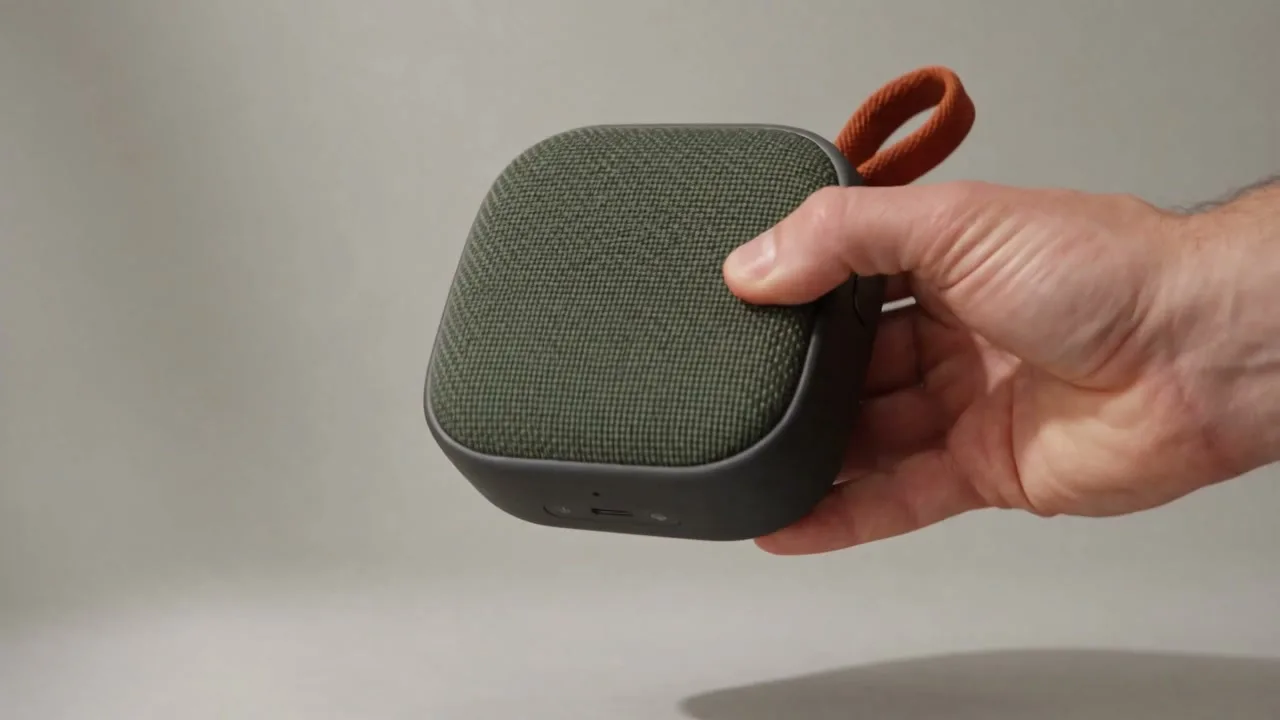
Pick up and gently turn your product for a clear in-hand view.
Product image
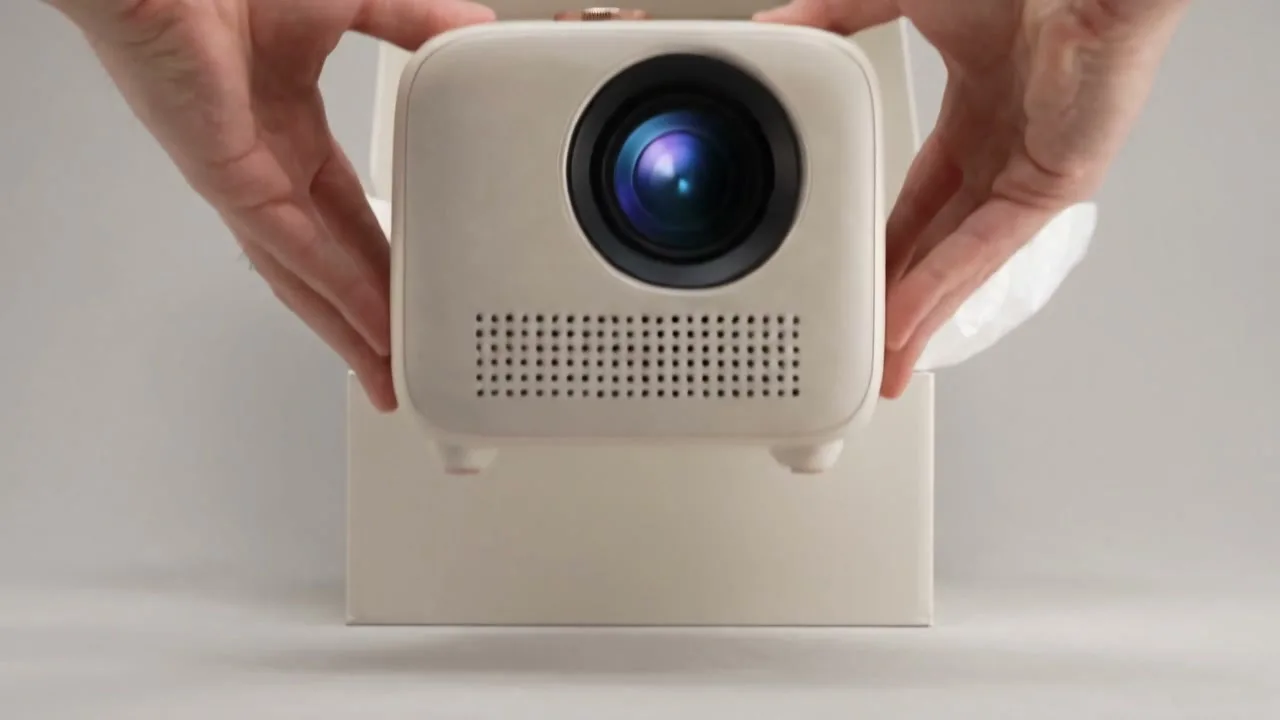
Open the package and reveal your product in a clean hero shot.
Product image
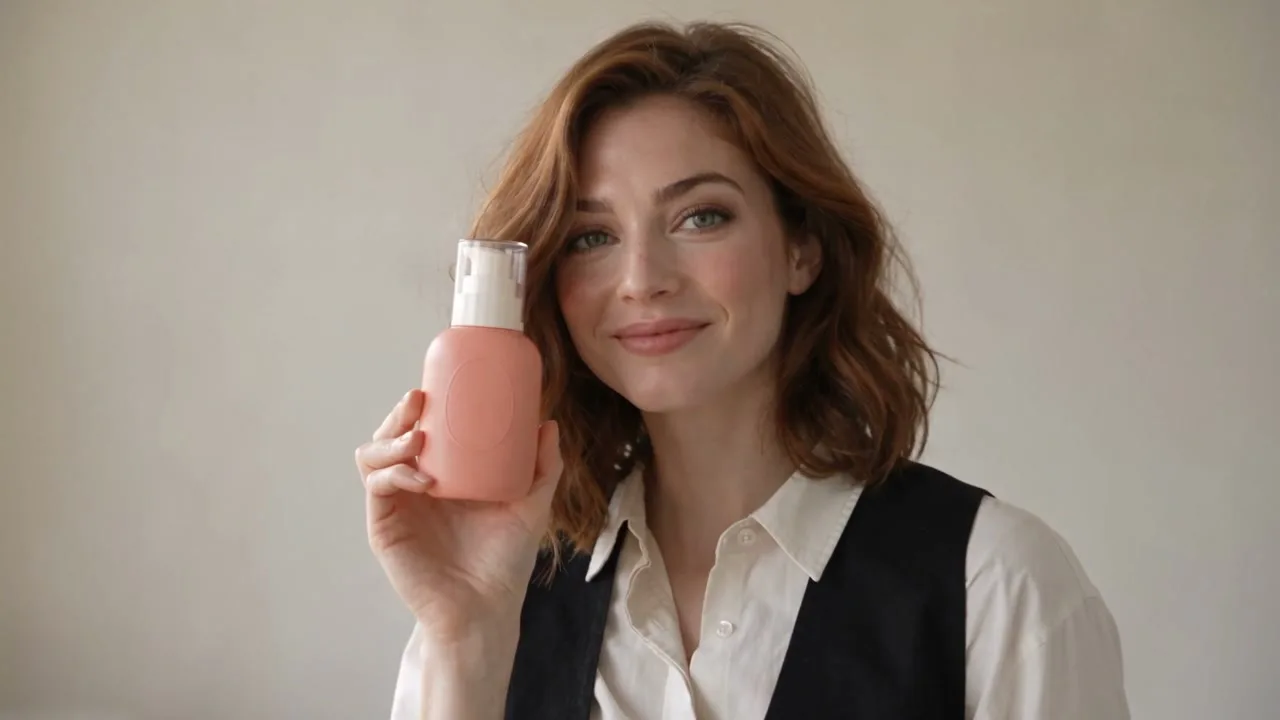
Let a presenter hold your product and make a natural gesture.
Product image