Nano Banana 2.1 AI Image Generator and Editor
Turn a product brief into an ad visual: describe a scene to generate an image, or upload a product photo to change its setting and light. Nano Banana 2.1 improves prompt adherence and visual design as you explore campaign directions.
Nano Banana 2.1 Image Creation Capabilities
Compare the inputs and results behind four ways to create and refine an image.
Combine Multiple References
Bring separate references for a person, product, and setting into one cohesive image. Check whether each source remains recognizable in the final composition.

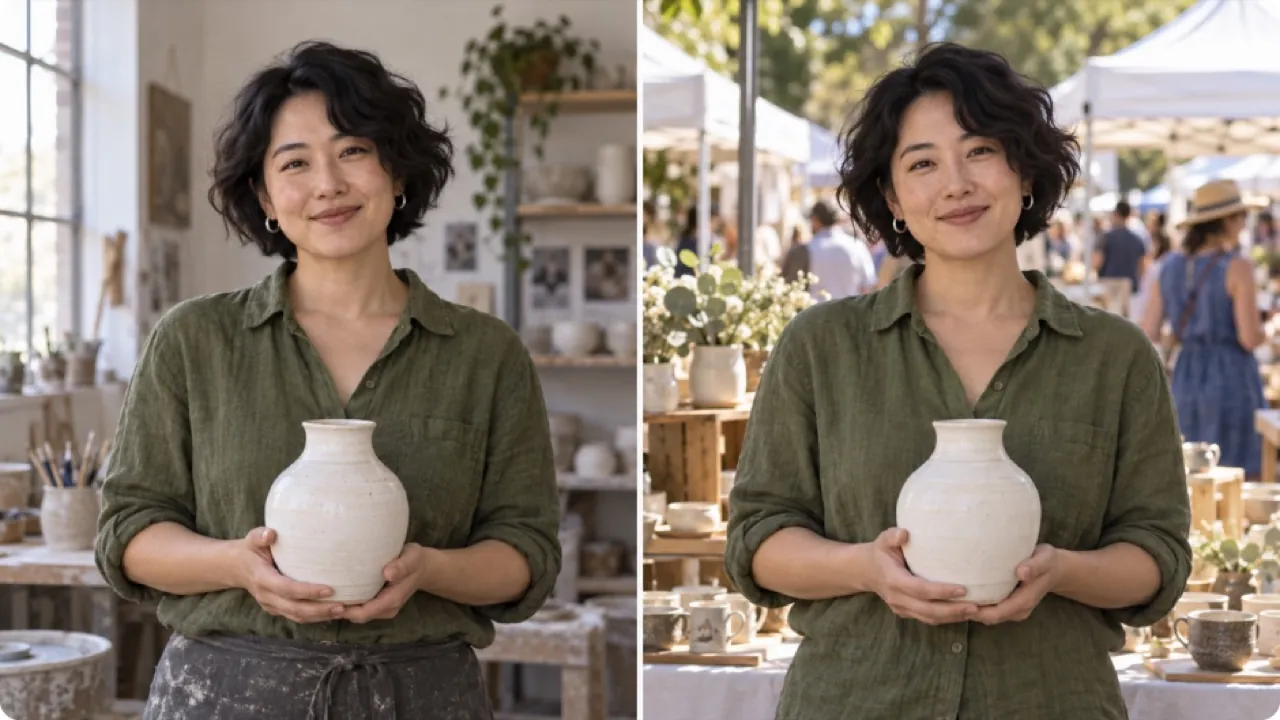
Keep Subjects Consistent
Change the setting or visual mood while keeping a person’s likeness and important object details recognizable. Build a series around the same subject.
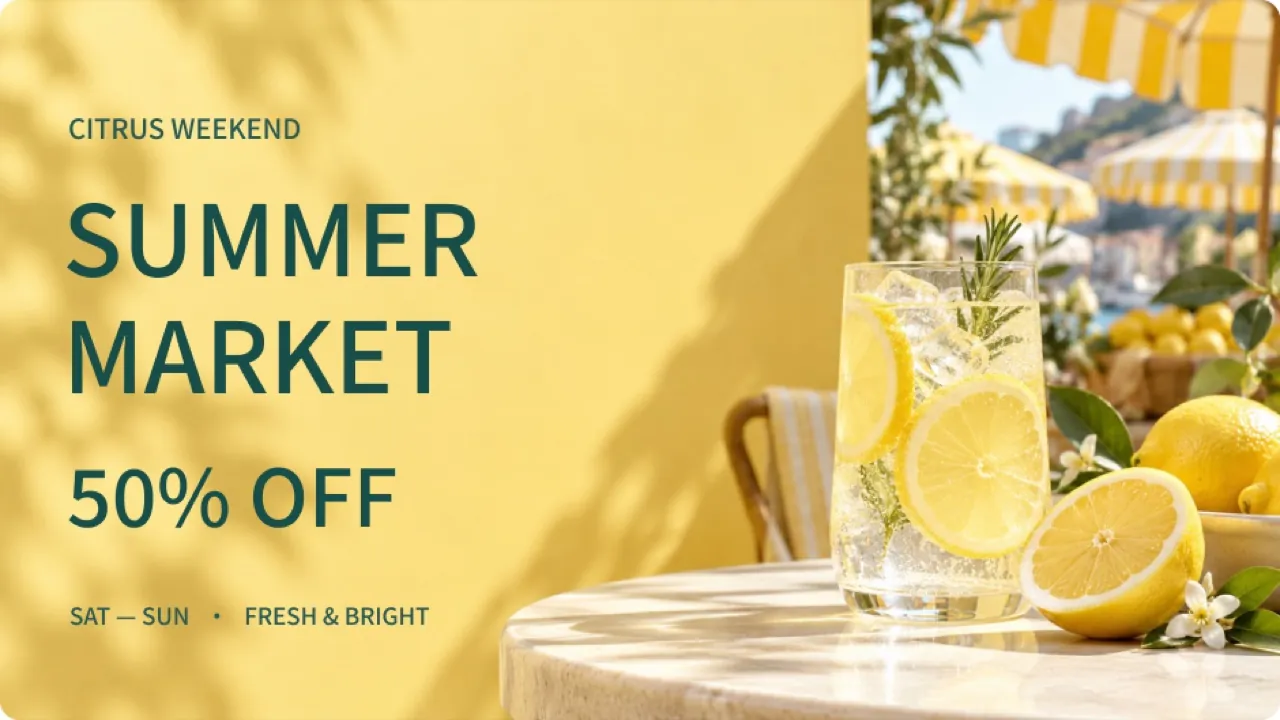
Design Images with Readable Text
Turn a title and key details into a poster or infographic with a clear visual hierarchy. Review every word for accuracy and legibility before publishing.
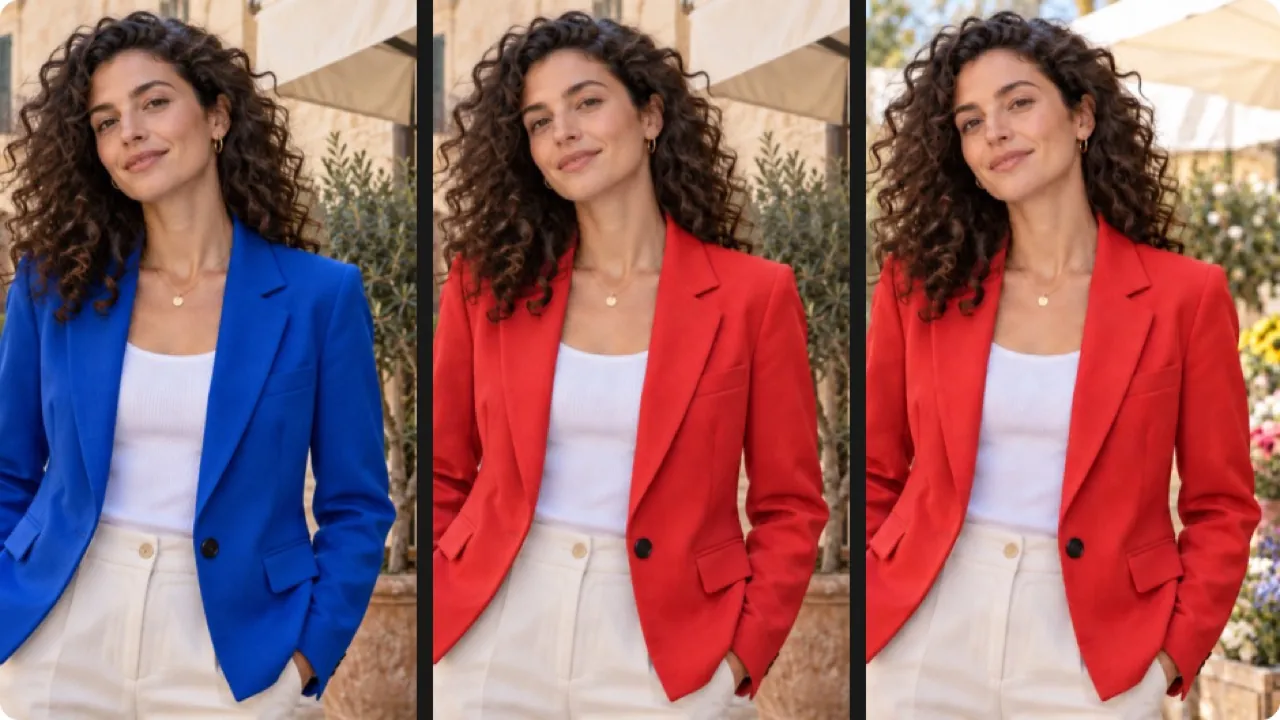
Edit in Steps, Keep What Matters
Refine an image one instruction at a time, such as changing a color and then the setting. Compare each step to confirm new edits and preserved details.
Nano Banana 2.1 Image Creation Features
Move from a written concept to an image, or use a reference photo to guide an edit. Give the generator concrete instructions about the subject, composition, and details that matter.
Create Scenes from a Product Brief
Describe the product, surroundings, and camera view to generate an initial scene. A brief such as a glass bottle beside a sunlit window gives the image a more specific direction than a general request for an attractive ad.
Edit a Reference Photo with Instructions
Upload a product photo and ask for a different setting or lighting treatment. State which details should remain, then inspect the generated image for changes to packaging, proportions, and labels.
Direct the Composition in Words
Specify product placement, headline space, and any short text you want to explore in the image. Check brand names and packaging after generation, then place final campaign copy in your design tool.
Develop a New Version from an Image
Use a generated image as the reference for another edit. Change one element, such as the backdrop, so you can judge that revision against the earlier direction.
Why Use Nano Banana 2.1 for Creative Development?
Text prompts and reference edits give you two ways to work through a visual brief. Choose the starting point that matches the materials already available for your campaign.
Begin Before a Photoshoot
Generate a scene from a written brief to discuss framing and styling before arranging physical props. Treat the result as a concept that helps make production decisions.
Keep Feedback Concrete
Translate feedback into an edit request: move the product forward, simplify the background, or soften the light. A specific instruction makes the next generated version easier to evaluate.
Build on an Existing Asset
Reference editing lets you start with a photo you already have. Describe the new context while calling out the product features the generated image should retain.
Compare Creative Choices
Generate separate interpretations of the same brief and review them side by side. Keep the subject description stable while testing an alternative setting or visual treatment.
Nano Banana 2.1 Marketing Workflows
Use text-to-image generation and reference editing to develop visual concepts for product launches, retail promotions, and brand storytelling.
Plan a Product Launch Scene
Start with a bottle photo and request a bright countertop setting with room beside the product. Use the generated composition to assess a launch campaign direction.
Explore Seasonal Store Imagery
Describe a shop window with paper decorations, warm lighting, and a central display. Generate a concept image to discuss the seasonal arrangement with your team.
Draft a Social Campaign Visual
Write a brief for a running shoe resting on a geometric pedestal. Ask for a bold color palette and an uncluttered background to explore a social post concept.
Refresh an Editorial Product Photo
Upload an existing still life and request a softer, magazine-style lighting treatment. Check material texture and product shape before selecting the edited image.
How to Use Nano Banana 2.1 on Flyne AI
Choose a text prompt for a new image or a reference photo for an edit. Explain the desired scene, generate the image, and review the details against your brief.
Describe your image or upload a reference photo
Specify the scene and the details to preserve
Generate, inspect, and refine the visual