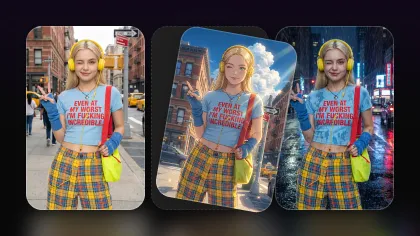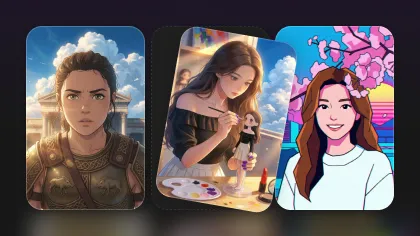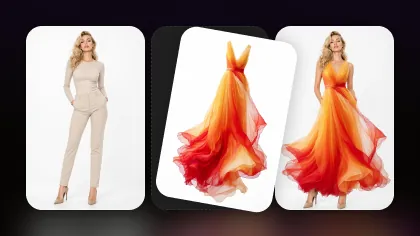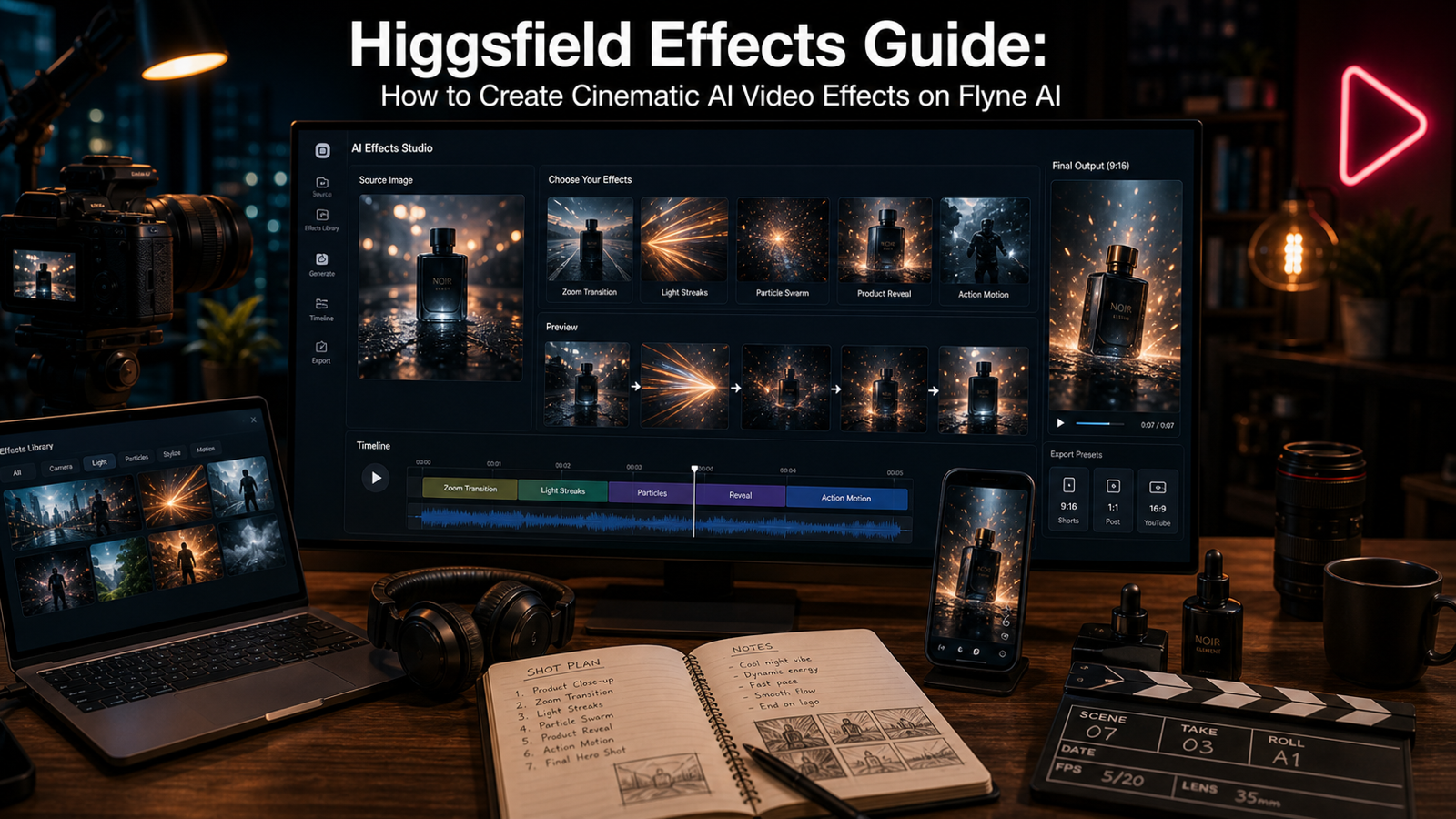
Learn how to create Higgsfield effects on Flyne AI with source images, prompts, motion review, image-to-video workflows, and publishing checks for social clips.

Higgsfield effects guide searches usually come from creators who want a practical result: upload a photo, describe an effect, generate a cinematic AI video clip, and avoid the messy artifacts that make short videos feel unfinished. This guide focuses on that workflow.
Flyne AI is a useful place to start because it has a dedicated Higgsfield AI Video Generator, a broader AI Video Generator, Photo to Video, AI Text to Video, Earth Zoom Out AI Effect, AI Kung Fu, and Kling Motion Control as a related motion-control option.
The goal is not to promise that every effect will be available, free, watermark-free, commercial-safe, or perfect. The smarter workflow is to choose a strong source image, write a focused effect prompt, generate a short test, review the motion, then export only the clip that fits your platform and rights requirements.
What Are Higgsfield Effects?
Higgsfield effects are best understood as cinematic AI video effect workflows that turn a still image or concept into a short motion clip. They are useful when you want a portrait to move, a product to reveal itself, a city scene to gain light streaks, or a travel image to become a dramatic zoom transition.
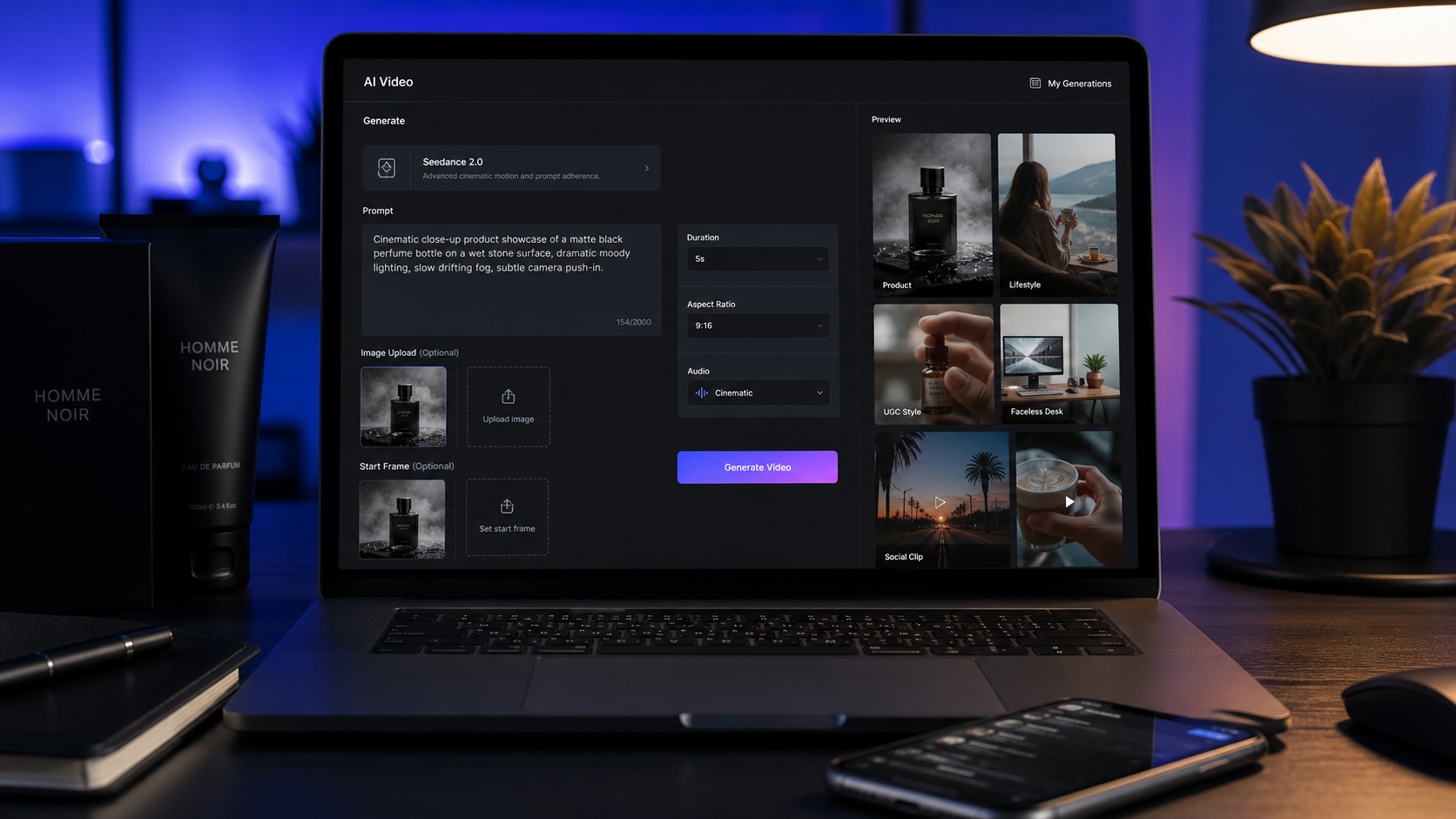
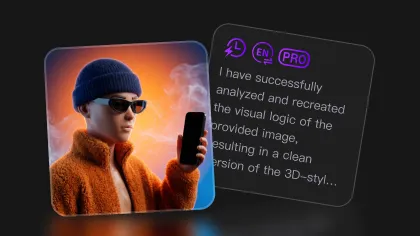
On Flyne AI’s Higgsfield page, the interface emphasizes image upload, prompt input, a public toggle, and generation history. The page also describes Higgsfield use cases around static materials, character motion, short clips, brand promotion, and visual presentations. That makes the workflow especially relevant for creators who start with one strong image and want motion rather than a full manual edit.
The official Higgsfield site also highlights viral presets and big visual effects such as explosions, transformations, action, camera-driven scenes, and stylized short-video looks. Treat those as inspiration, not a guarantee that every named preset or effect is available on every third-party page at the moment you generate.
For creators, the practical definition is simple: a Higgsfield-style effect adds camera movement, subject action, stylized transformation, or cinematic visual energy to a short AI video clip.

Why Use Flyne AI for Higgsfield Effects?
Use Flyne AI when you want a practical creator workflow around Higgsfield-style effects, not only a definition of the model. Flyne’s Higgsfield AI Video Generator page gives you a direct place to test source images and prompts, while the broader Flyne AI Video Generator lets you compare nearby video workflows.
This matters because effect creation is rarely a one-shot process. A portrait effect, product reveal, Earth zoom transition, action clip, and social intro all need different inputs. Flyne’s related pages let you move between image-led animation, prompt-only video, effect-specific generation, and motion-control alternatives without rebuilding your entire workflow.
A sensible Flyne workflow looks like this: use the Higgsfield AI Video Generator for image-led effects, use Photo to Video when the source photo is the anchor, use AI Text to Video for concept-only clips, use Earth Zoom Out for dramatic geographic transitions, and consider Kling Motion Control when directed movement is more important than a preset-like effect.
Before publishing, verify the live model availability, credit cost, free-trial terms, output duration, resolution, export rules, watermark rules, privacy settings, and commercial-use terms on Flyne’s current pages.

Step 1: Choose a Strong Source Image
A strong source image is the fastest way to improve Higgsfield AI effects. The model needs a clear subject and enough visual information to preserve identity, object shape, outfit, product details, or scene layout while adding motion.
For portraits, choose a high-resolution image with a visible face, natural lighting, and minimal obstruction. Avoid blurry eyes, cropped hands, heavy filters, or busy backgrounds if face stability matters. For product visuals, choose a clean product angle with visible shape and enough empty space for particles, reflections, or camera movement.
For action effects, start with a full-body or wide enough frame. If you want a martial-arts motion, jump, turn, or dramatic push-in, the model needs room around the subject. If the hands or feet are already cropped, the generated motion may invent unstable body parts.
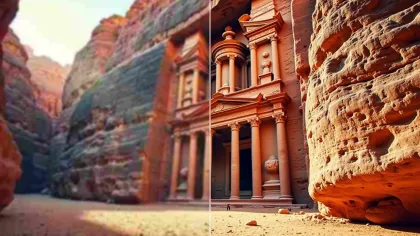
For Earth Zoom Out or travel transitions, use an image with a clear location anchor. A street, landmark, landscape, building, or travel scene usually works better than a close-up object because the transition needs visual context.
Use images you own, generated yourself, licensed, public-domain, or have permission to modify. Do not upload celebrity images, copyrighted brand assets, or private people’s images without permission.

Step 2: Choose Image-to-Video or Text-to-Video
Choose image-to-video effects when identity, product shape, outfit, composition, or location matters. This is the safest starting point for most Higgsfield effects because the uploaded source image acts as the visual anchor.
Use image-to-video for product reveals, creator selfie intros, fashion portraits, travel zooms, car reveals, food product ads, room transitions, character actions, and any clip where the viewer needs to recognize the original subject. In the prompt, say what should be preserved: face, outfit, product shape, label area, background landmark, furniture layout, or vehicle silhouette.
Choose text-to-video when you do not have a source image yet or when the clip is more conceptual. A futuristic product teaser, rainy music-video silhouette, abstract light streak, or cinematic city shot can start from text alone. The trade-off is that text-to-video gives the model more freedom, which can also mean less control.
For beginners, start with image-to-video. Once you understand how motion, lighting, and camera instructions behave, use text-to-video for broader ideation and then generate a still frame to reuse as a more controlled image-to-video source.

Step 3: Write Effect-Focused Higgsfield Prompts
A good Higgsfield prompt describes the source image, effect type, subject action, camera movement, lighting, mood, platform format, and what must remain stable. The prompt should be specific enough to guide motion but not so overloaded that the model has to obey five different videos at once.
Use this reusable formula:
Use the uploaded image as the start frame. Create a [duration] AI video effect with [main effect type], [subject action], [camera movement], [lighting], [mood], and [platform format]. Preserve [face / product / outfit / object shape / background element] while adding [motion detail]. Keep the motion smooth, realistic, and visually coherent. Avoid [extra limbs / warped faces / unreadable text / object melting / exaggerated distortion / copyrighted logos / celebrity imitation].
For most clips, the strongest prompt has one main effect and one main camera move. “Slow camera push-in with light streaks” is clearer than “push-in, orbit, zoom, spin, glitch, particles, smoke, fire, and transformation.” Keep the prompt direct, then iterate.
Also include format early. If you want TikTok, Reels, or Shorts, say 9:16 vertical. If the output is for YouTube, a website hero, or an ad preview, say 16:9 horizontal. Platform format changes the way you judge cropping, motion direction, and usable safe area.

Copy-to-Use Higgsfield Effect Prompt Examples
Use these examples as starting points, then replace the subject, format, and preservation details with your own asset.
-
Use this portrait as the start frame. Create a cinematic skin-surge energy effect around the subject, slow camera push-in, dramatic side lighting, realistic face stability, 9:16 vertical format, no warped eyes or extra fingers.
-
Use this product photo as the start frame. Create a premium product reveal with subtle particles, slow rotating camera movement, glossy reflections, clean studio lighting, 16:9 format, preserve the product shape and label area.
-
Use this city street photo as the start frame. Create a fast viral transformation effect with neon reflections, light streaks, smooth forward camera motion, realistic subject consistency, 9:16 social video format.
-
Use this travel image as the start frame. Create an Earth zoom out effect that begins from the original location and pulls back into a dramatic planet-scale view, documentary-style transition, smooth motion, 16:9.
-
Use this fashion portrait as the start frame. Create a cinematic outfit-energy effect with fabric movement, soft wind, slow orbit camera, editorial lighting, preserve the person’s identity and clothing structure.
-
Use this action pose image as the start frame. Create a dynamic martial-arts motion effect with quick footwork, controlled camera shake, dust movement, realistic body proportions, no extra limbs.
-
Use this food product image as the start frame. Create a short ad-style video with steam, light motion, close-up camera push, appetizing natural color, polished commercial look, 9:16.
-
Use this car image as the start frame. Create a dramatic reveal effect with moving reflections, low-angle dolly shot, cinematic lighting, road atmosphere, preserve vehicle shape and brand-neutral details.
-
Use this creator selfie as the start frame. Create a clean social intro effect with subtle background motion, glowing light streaks, smooth camera push-in, natural face stability, no exaggerated facial changes.
-
Create a text-to-video concept for a futuristic product teaser: a small device on a reflective table, particles gathering around it, slow orbit camera, premium lighting, clean background, no readable fake text.
The pattern is the point: one subject, one effect, one motion direction, one format, and a short list of artifacts to avoid.

Step 4: Select the Right Effect Style or Flyne Tool
Pick the effect style by the job, not by what sounds most dramatic. A product reveal needs clean shape preservation, controlled reflections, and stable label areas. A creator intro needs face stability, flattering lighting, and a vertical safe area. A travel transition needs geographic context and a clean camera path.
Use the Higgsfield page for general image-led effects such as character motion, gaze changes, action previews, and stylized visual transformations. Use Flyne’s broader AI Video Generator when you want to compare other models or when audio, prompt interpretation, or model choice matters.
Use the Earth Zoom Out AI effect when the creative goal is a pull-back transition from location to aerial or planet-scale context. Use AI Kung Fu when the visual idea is action-first and the source image has a body pose that can support movement. Use Kling Motion Control as a related option when you need more directed motion behavior rather than a preset-style transformation.
Do not assume every effect name from Higgsfield’s official preset gallery exists on every Flyne page. Effect names, available models, modes, and credit costs can change. Check the live page before writing copy for a client, ad, or tutorial.

Step 5: Review Motion Quality Before Export
Review every generated clip like an editor. A clip can look exciting in the first second and still fail because the face drifts, product shape changes, hands deform, background text flickers, or the camera move breaks the platform crop.
Check face stability first for portraits and creator intros. Look at eyes, mouth, jawline, hairline, and hands. For products, check silhouette, label area, edges, reflections, and whether the object melts or changes size. For action effects, check body proportions, contact with the ground, limb count, and whether motion blur hides a structural error.
Then check camera movement. A push-in should feel smooth, not like a sudden jump. An orbit should preserve the subject’s shape. A zoom transition should maintain orientation and visual context. A particle reveal should enhance the subject rather than bury it.
Finally, check platform fit. For 9:16, make sure the subject stays inside the vertical safe area. For 16:9, make sure the composition has enough horizontal context and does not leave the main action in a tiny center crop.
If the result is close, revise one variable at a time: source image, effect type, camera move, lighting, format, or preservation instruction.

Best Use Cases for TikTok, Reels, Shorts, Ads, and Product Visuals
Higgsfield-style effects are strongest when the video idea is short, visual, and easy to understand quickly. That makes them well suited for TikTok, Reels, Shorts, ad intros, product reveals, meme edits, music teasers, creator intros, and ecommerce motion assets.
For TikTok and Reels, keep the concept fast: a portrait energy effect, a city light-streak transition, a before-to-after transformation, or a product reveal. Use 9:16 and keep the subject large enough to read on a phone.
For ecommerce, avoid over-stylizing the product. A subtle particle reveal, glossy reflection, steam movement, or slow camera push can be more useful than a chaotic transformation. The product needs to remain recognizable.
For brand and agency work, generate multiple low-risk tests before choosing a direction. One clip can test motion, another can test lighting, and another can test platform crop. This makes review easier for teams and clients because each variation answers one creative question.
For intros and transitions, Earth Zoom Out and related camera-driven effects can help create a memorable opening without a drone shoot or complex edit. Still, verify output duration, resolution, watermark, and rights before using the clip commercially.

Publishing and Rights Checklist for AI Video Effects
Before publishing, check the boring details. They are what keep a good-looking AI clip from becoming a production headache.
Verify live model availability, supported input modes, credit cost, free-trial terms, output duration, resolution, export rules, watermark rules, privacy settings, and commercial-use rights on Flyne AI and any official Higgsfield reference you rely on. Do not assume a feature is available just because a tutorial or screenshot mentions it.
Check input rights. Use source images you own, generated yourself, licensed, public-domain, or have permission to modify. Avoid celebrity faces, real brand logos, copyrighted artwork, private people, and client assets unless the permission path is clear.
Check content risk. AI video effects can accidentally change faces, distort products, create confusing text, or imply a person performed an action they did not perform. For ads, product pages, and brand content, use human review before publishing.
Check platform fit. TikTok, Reels, Shorts, YouTube, ecommerce pages, and paid ads may need different aspect ratios, safe zones, captions, file sizes, and disclosure policies. A clip that works as a private concept test may not be ready for a public campaign.

FAQ: Higgsfield Effects Guide for Beginners
What is the easiest way to create Higgsfield effects on Flyne AI?
Start with the Higgsfield AI Video Generator page, upload a clear source image, write one focused effect prompt, choose the right platform format, generate a short test, and review the motion before exporting.
Should I use Photo to Video or AI Text to Video?
Use Photo to Video or the Higgsfield image workflow when you need to preserve a person, product, outfit, object, or location. Use AI Text to Video when you only have a concept and do not need a specific source image.
What makes a good Higgsfield prompt?
A good prompt includes the source image role, effect type, subject action, camera move, lighting, mood, format, preservation details, and artifacts to avoid. Keep the prompt focused on one main motion idea.
Can I make Earth Zoom Out effects on Flyne AI?
Flyne has an Earth Zoom Out AI Effect page for zoom-out transition videos. Check the live page for current input rules, credit cost, output details, and export behavior before production use.
Are Higgsfield effects always commercially safe?
No. Commercial safety depends on your input rights, Flyne and Higgsfield terms, watermark/export rules, privacy settings, platform policies, and the content of the generated clip. Verify the current terms before using clips in paid work.
How do I avoid messy AI video artifacts?
Use a clean source image, keep the prompt specific, avoid asking for too many effects at once, preserve important details explicitly, and review the output for face drift, extra limbs, product distortion, text flicker, and unstable backgrounds.

Conclusion: Build a Repeatable Higgsfield Effects Workflow
The best Higgsfield effects guide is not a list of flashy prompts. It is a repeatable workflow: choose a strong source image, decide whether image-to-video or text-to-video fits the job, write a focused prompt, generate a short test, review motion quality, then check rights and export details before publishing.
Flyne AI is a practical recommendation because it gives creators several relevant entry points: Higgsfield AI Video Generator for effect-led clips, AI Video Generator for broader model testing, Photo to Video for image-led animation, AI Text to Video for prompt-only concepts, Earth Zoom Out for dramatic transitions, AI Kung Fu for action-style motion, and Kling Motion Control as a related directed-motion alternative.
Keep the creative ambition high and the claims cautious. AI video effects can produce striking short clips, but they still need source-image discipline, prompt control, artifact review, and rights checks. That is how creators turn a still image into a usable cinematic effect instead of a disposable experiment.
Reviewed sources include Flyne AI Higgsfield AI Video Generator, Flyne AI Video Generator, Flyne Earth Zoom Out AI Effect, and Higgsfield AI.