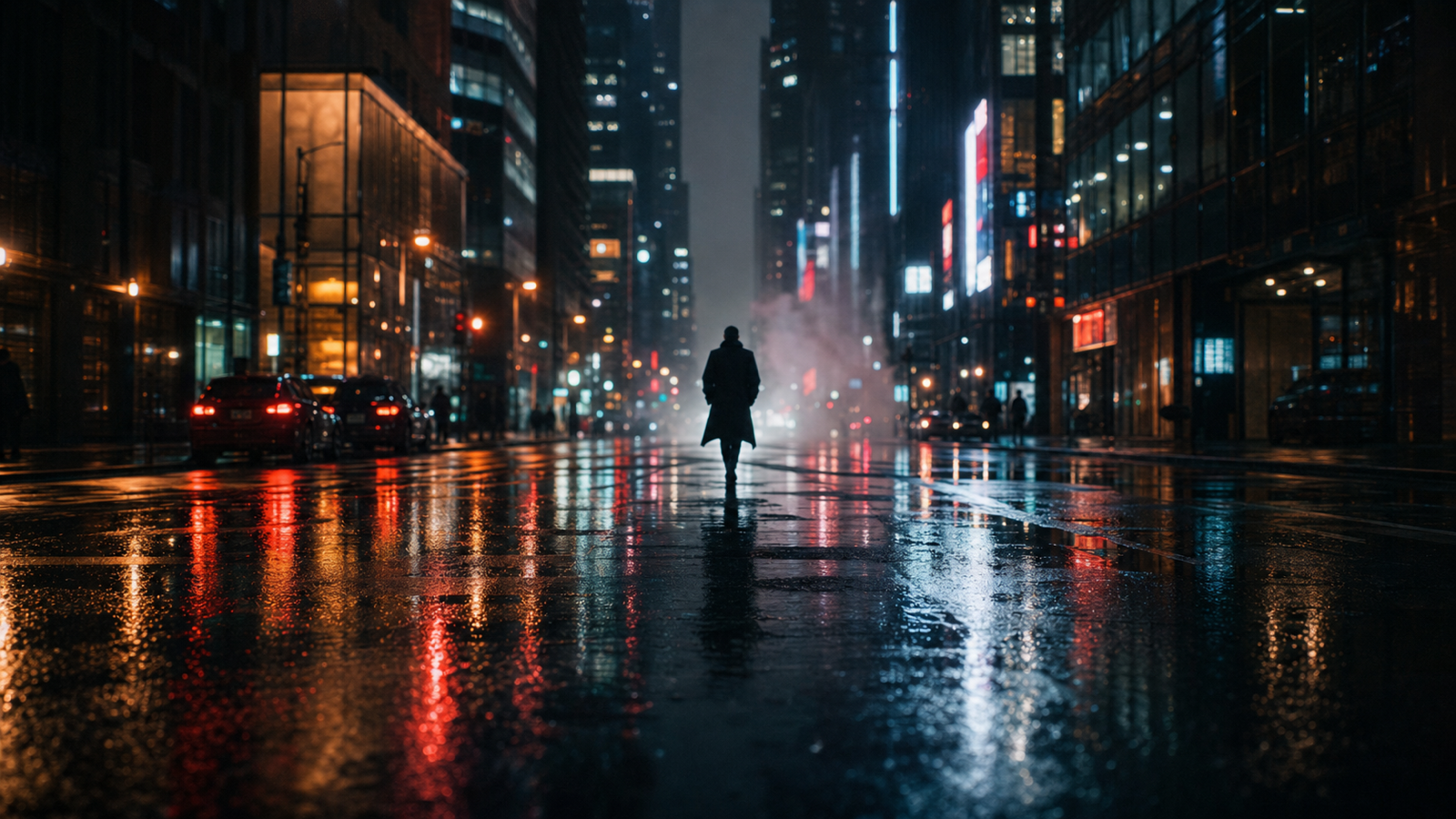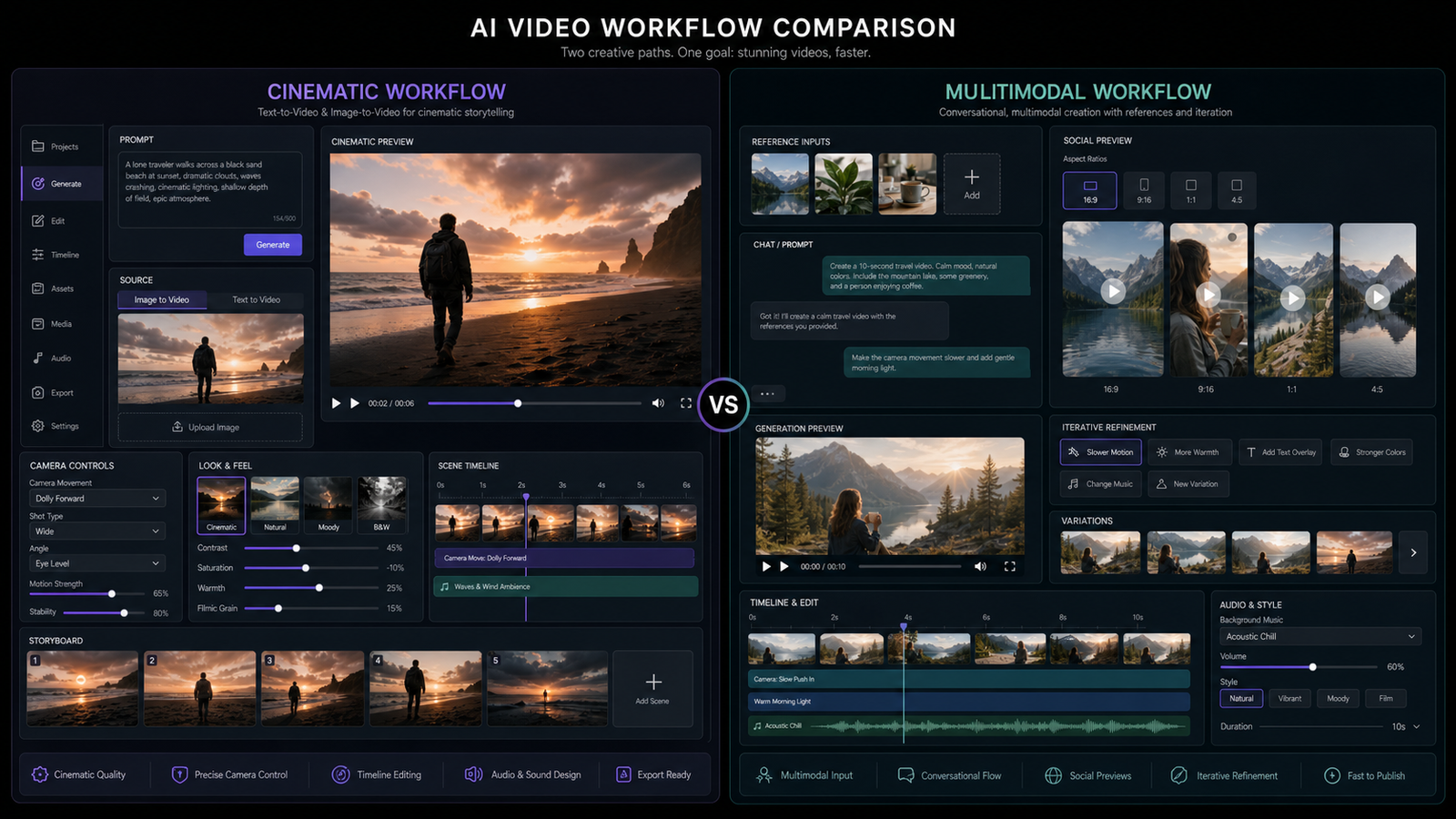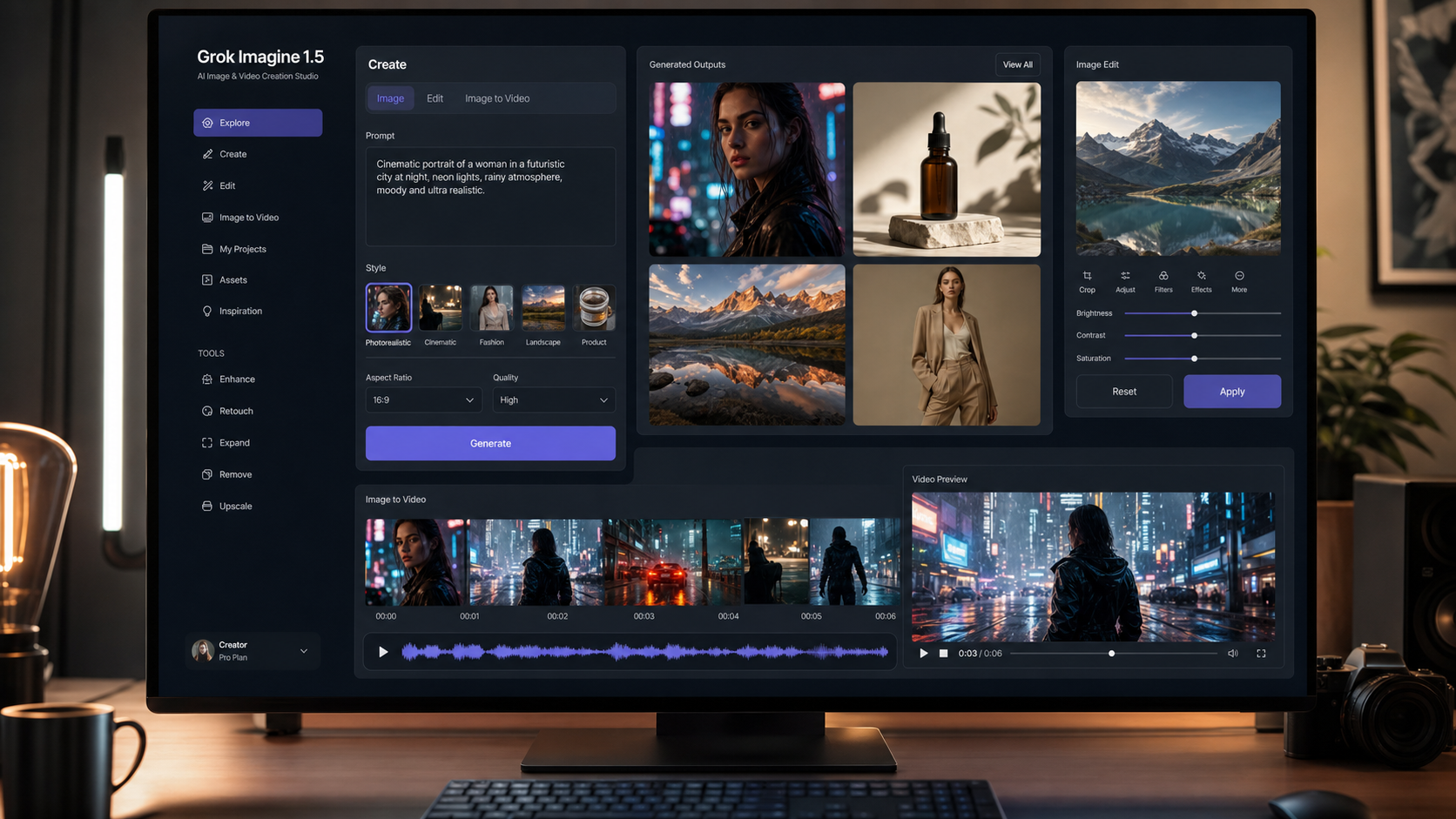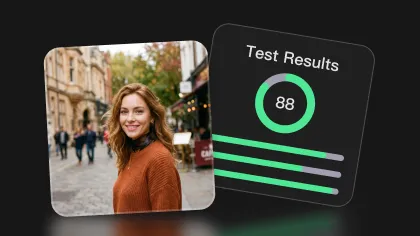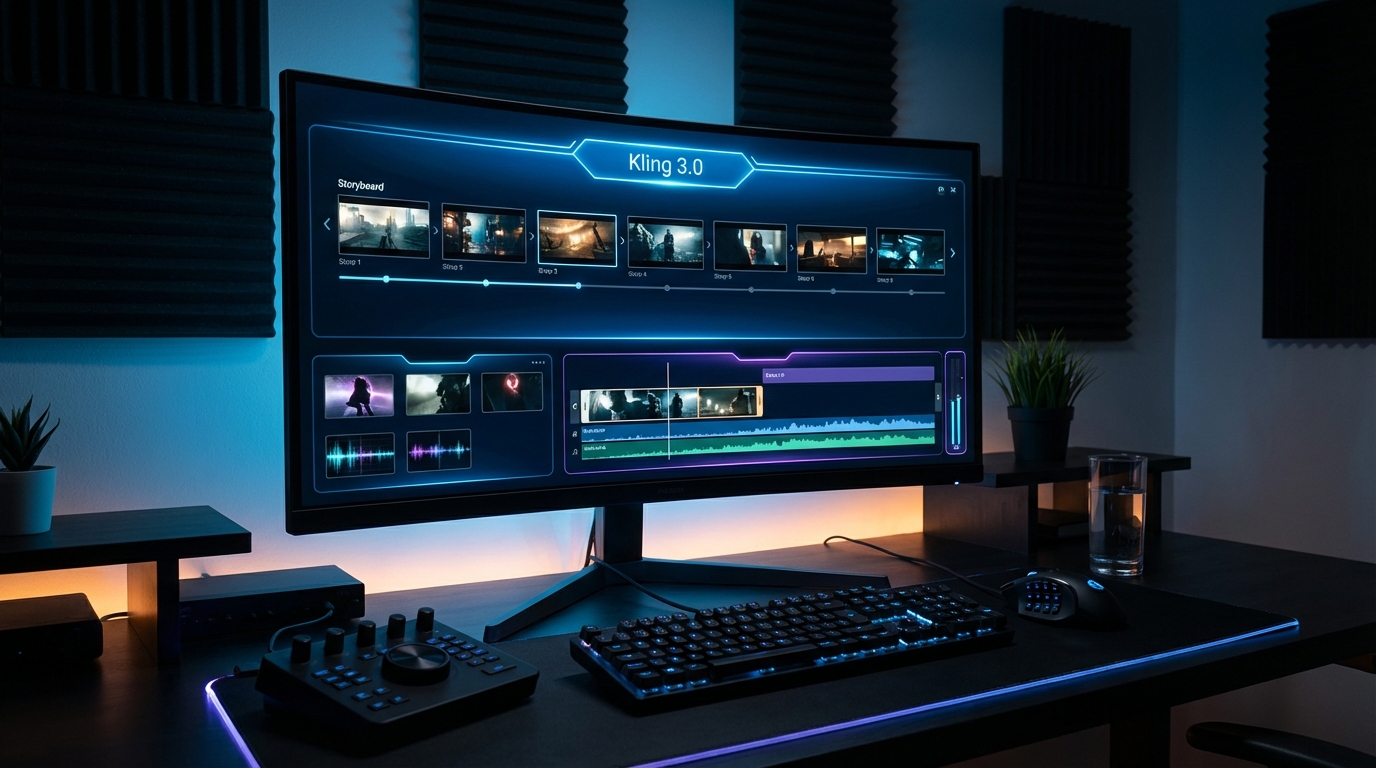
Higgsfield has officially added Kling 3.0 to its AI video workflow, and the integration matters if you care about control. Instead of treating video generation as a single “prompt → clip” roll of the dice, Higgsfield frames Kling 3.0 as a more structured, scene-first tool: plan shots, set pacing, maintain continuity, and iterate with less chaos.
That makes this update more interesting than a simple model listing. It raises a practical creator question: should you use Kling 3.0 through Higgsfield’s structured workflow, or should you use Kling 3.0 directly on Flyne AI when you want a simpler route to the model?
In this review, we’ll cover what the Higgsfield announcement means, how Kling 3.0 performs in a scene-based workflow, what it is best at, what creators should watch out for, and when direct model access on Flyne AI may be the easier choice.
The News: Higgsfield Supports Kling 3.0
The headline is simple: Higgsfield now features Kling 3.0 as an option in its AI video generation toolkit. That matters because Higgsfield is not only another place to generate clips. It is built around a more production-like mindset, where shot structure, sequencing, and iteration matter.
If you have used older AI video tools, you probably know the usual pain points: inconsistent characters, camera movement that feels floaty, and story beats that fail because the model is not really thinking in scenes. Higgsfield’s Kling 3.0 workflow leans into newer AI video priorities: multi-shot planning, start/end frame control, stronger subject continuity, and more directed cinematic output.
Flyne AI also lists Higgsfield AI as a video model option, which makes the comparison more useful for creators who want to test both direct Kling access and Higgsfield-style video workflows in one broader ecosystem.
What “Kling 3.0 on Higgsfield” Actually Means
At a practical level, Kling 3.0 on Higgsfield is best understood as a scene-based workflow. Instead of writing one huge prompt and hoping it becomes a coherent mini-movie, you can think in smaller units: shot one, shot two, shot three, then transition and pacing.
That is why creators often describe the experience as closer to directing than prompting. You are not just asking for a clip. You are shaping how the clip begins, how it moves, and where it lands.
Depending on the setup, you may see options tied to typical video output formats, such as short clips, 720p or 1080p generation, start frames, end frames, and possible audio workflows. The key story is control. If you can define scenes, define pacing, and keep a subject stable, the success rate improves dramatically.
It helps to separate the model from the interface around it. Kling 3.0 is the model path; Higgsfield is one structured interface style built around planning. Flyne AI is useful when you want direct access to Kling 3.0 or when you want to compare it with other AI video tools through the Flyne AI Video Generator.
What’s New in Kling 3.0
Kling 3.0 is positioned as a meaningful step forward from older single-clip behavior. On Flyne AI, Kling 3.0 is described as a video model focused on cinematic storytelling, audio-visual synchronization, high-resolution output, structural stability, and more streamlined generation.
Those claims matter because the main problem with AI video is not only quality. It is repeatability. A clip can look impressive once, but if the model cannot hold character identity, camera direction, or scene logic, it becomes difficult to use in real production.
The most important improvements for creators are the following.
Multi-Shot Storyboarding
A Kling 3.0 multi-shot storyboard workflow lets you plan a short sequence as several shots. This makes pacing feel intentional rather than accidental. In a narrative clip, that means you can open wide, move to a medium shot, then land on a close-up without the model randomly changing the entire tone.
Start and End Frame Control
If you need a clip to begin with a specific image and end on a specific pose or composition, start/end frame control is extremely valuable. A Kling 3.0 image-to-video workflow becomes much more usable when you can anchor continuity, especially for transitions, product shots, and character scenes.
Better Subject and Element Consistency
A major promise of Kling 3.0 is keeping characters, props, and visual elements more stable across shots. When this works, the output becomes useful for more than a cool demo. It becomes material you can reuse, edit, and build around.
More Grounded Motion and Camera Behavior
Motion quality is often where AI video breaks. Kling 3.0 aims for camera behavior that feels closer to actual cinematography: less rubbery motion, fewer unstable body movements, and better response to direction such as push-ins, pans, tracking shots, and handheld movement.
Optional Audio-Visual Workflows
For some projects, Kling 3.0 native audio video is a bonus rather than a requirement. But for short explainers, dialogue moments, atmospheric scenes, and social clips, having audio available in the generation workflow can speed up early drafts.
How to Review Kling 3.0 in a Realistic Way
A fair review should test the model where AI video usually breaks. Do not judge only from the prettiest demo clip. Use practical stress tests.
Test A: Motion Realism
Look at walking, running, hand-object interactions, fabric motion, hair movement, and quick turns. These reveal wobble, jitter, texture crawl, sliding feet, and distorted anatomy.
Test B: Cinematic Camera Language
If you want a true Kling 3.0 AI video generator workflow, test camera prompts: tracking shots, slow push-ins, whip pans, rack focus, overhead reveals, and handheld energy. A model that cannot follow shot language may still generate video, but it will not feel directed.
Test C: Subject Consistency Across a Sequence
Multi-shot output is only useful if Character A stays Character A. Stress-test wardrobe, face stability, props, lighting, and environment across several shots.
Test D: Audio Clarity and Timing
When audio is part of the workflow, check whether speech maps to the intended speaker, whether pauses feel natural, and whether the sound matches the scene. Many creators will still need careful prompting and post-editing, but the built-in draft can be helpful.
The Higgsfield Experience: What It Feels Like
Higgsfield’s biggest benefit is that it encourages you to think like an editor. In a scene-first flow, you naturally fix pacing and continuity issues before generation. That does not mean everything works automatically, but it improves your odds.
Where Higgsfield Helps Most
Higgsfield helps with pacing control because scenes force you to commit to a rhythm: intro, beat, payoff. It helps with iteration discipline because you can tweak one shot instead of regenerating everything. It also improves planning because even simple prompts become stronger when written as shots.
Where You May Still Feel Friction
A scene-based workflow can feel heavier at first. Some creators may prefer direct model access when they only need one quick clip. Style drift can still happen, especially across lighting, lens feel, or character details. Multi-shot sequences can also take more time to refine.
In other words, Higgsfield makes the workflow more production-friendly, but Kling 3.0 remains a generative video model. You are guiding probability, not commanding a physical camera.
Prompting Tips That Make Kling 3.0 Look Better
1. Define the Subject Early
Name the character, describe the wardrobe, and list key identifiers. Keep those details consistent across prompts. This makes Kling 3.0 text-to-video generation less likely to drift.
2. Describe Camera and Subject Movement
Instead of writing “a girl runs,” write something like:
Tracking shot, camera follows behind at waist height, she runs through rain, water splashes under her feet, breath visible in cold air.
Kling 3.0 tends to respond better when you give it cinematic intent rather than vague movement language.
3. Use Scene Progression
A good shot changes over time. Add micro beats: “she hesitates, then steps forward,” or “the door opens slowly as warm light spills into the hallway.” This is especially important if you want Kling 3.0 cinematic clips that feel intentional.
4. Be Explicit With Audio
If you want dialogue or atmospheric sound, label the speaker, tone, pacing, and mood. For example:
One speaker, calm voice, short sentences, two-second pause before the last line, quiet rain ambience in the background.
This reduces confusion when generating audio-visual clips.
Best Use Cases for Higgsfield + Kling 3.0
Short Narrative Sequences
If you are storyboarding a teaser, anime-style beat, commercial concept, or micro-short, a Kling 3.0 multi-shot storyboard workflow can help you build something that feels edited instead of random.
UGC-Style Marketing Clips
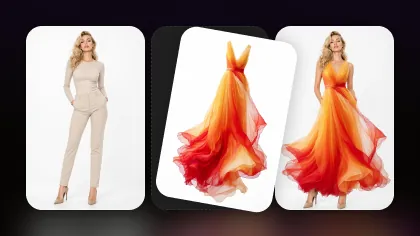
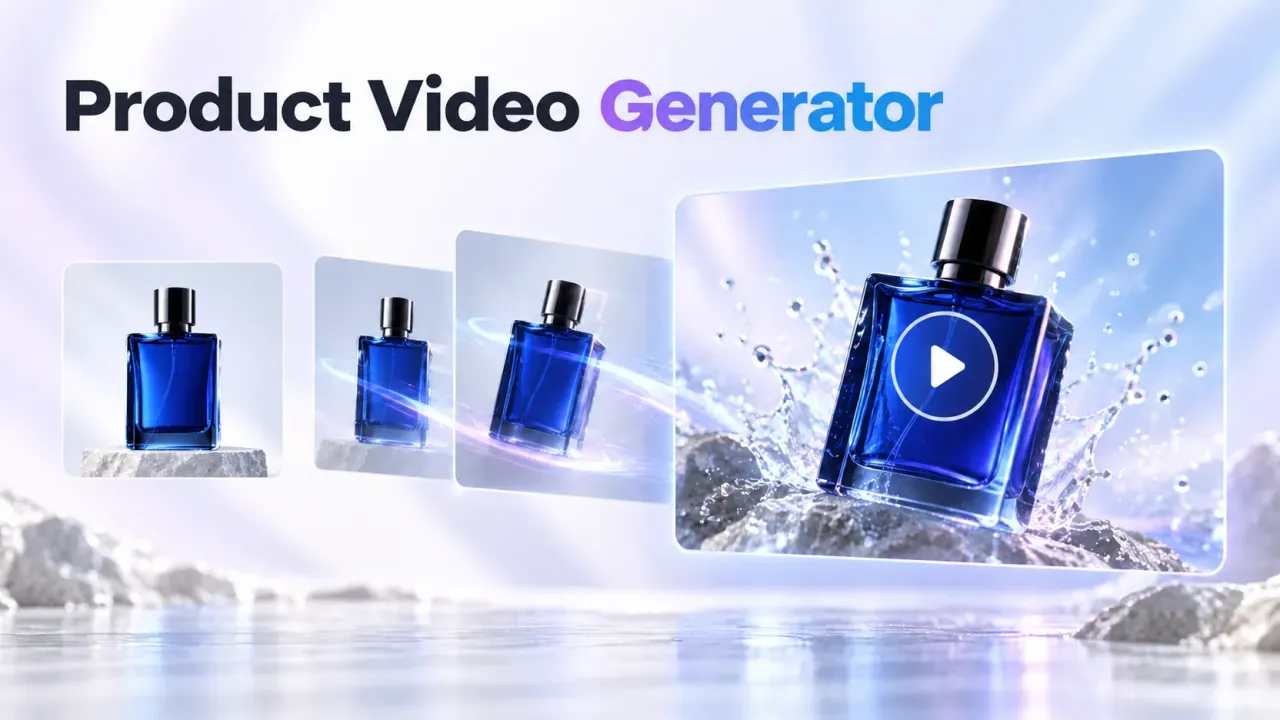
For product reveals, lifestyle moments, before/after transitions, and ad-ready visuals, a Kling 3.0 image-to-video workflow with start/end frame control can produce cleaner, more usable results.
Cinematic B-Roll and Mood Shots
If you like film language—push-ins, slow pans, atmospheric lighting, foreground depth, and controlled camera movement—Kling 3.0 is designed to respond to that. It is not perfect, but it is a real step up from purely “animated image” behavior.
Kling 3.0 vs Kling 2.6
In practice, the biggest difference is that Kling 3.0 feels more like a sequencing model than a single-shot model.
Kling 2.6 can still produce impressive clips, especially when you want a dependable production baseline or want to compare an older model workflow against a newer one. But consistency and scene planning can require more manual effort.
Kling 3.0 focuses more on multi-shot structure, stability across scenes, camera language, and a more complete generative workflow. If your priority is one-off clips, Kling 2.6 can still work. If you care about telling a tiny story in 10–15 seconds, Kling 3.0 is clearly aiming at that use case.
Pros, Cons, and Watch-Outs
Pros
- Scene planning makes results more intentional
- Better odds of character and prop consistency
- Stronger response to camera direction and cinematic prompts
- More useful for short narrative and commercial workflows
- Audio-visual support can speed up early drafts
Cons and Watch-Outs
- Scene workflows take more effort upfront
- Consistency is improved, not guaranteed
- Audio still benefits from careful prompting and post-editing
- Complex shots can require multiple iterations
- Direct model access may be simpler for single-clip experiments
Recommendation: When to Use Flyne AI Directly
If you love Higgsfield’s structured workflow, Kling 3.0 inside Higgsfield can be a strong option, especially for multi-shot planning. But if your goal is simply to run the model directly, keep your workflow minimal, and get straight to generating, Flyne AI may be the easier route.
You can start with Kling 3.0 on Flyne AI when you want direct model access for text-to-video concepts, image-to-video transitions, cinematic short clips, and marketing/social content.
For broader testing, use the Flyne AI Video Generator to compare Kling 3.0 with other models. For image-led workflows, use the Photo to Video AI Generator. For prompt-only generation, use the AI Text to Video Generator.
Final Verdict
Higgsfield’s Kling 3.0 integration is worth paying attention to because it points toward where AI video is going: less random generation, more shot planning, more continuity, and more creator control.
The best choice depends on your workflow. Use Higgsfield-style scene planning when you want structure, sequence design, and a more editor-like process. Use Kling 3.0 directly on Flyne AI when you want a simpler path to the model with fewer platform layers.
For most creators, the smart move is to test both styles: structured scene planning for narrative projects, direct model access for fast clip generation, and Flyne AI’s broader video hub when you want to compare models before committing to a workflow.
Recommended Tools
- Kling 3.0 AI Video Generator
- Kling 2.6 AI Video Generator
- Kling Motion Control
- Higgsfield AI Video Generator
- Flyne AI Video Generator
- AI Text to Video Generator
- Photo to Video AI Generator
- Product to Video AI Generator
- Vidu Q3 AI Video Generator
- Seedance 2.0 AI Video Generator
Related Articles
- Higgsfield Kling Review: Kling 3.0 Is Here—Worth Using?
- Kling 3.0 AI Video Generator: Latest Updates and How to Use It
- Kling 2.6 AI Video Generator With Audio
- From Still Image to Viral Movement: Motion Control With Kling 2.6
- AI Video Model Guide 2026: Best Models Compared and Ranked
- Vidu Q3 vs Veo 3.1 vs Seedance 2.0: Which AI Video Model Fits Your Workflow?
People Also Read
- Kling 3.0 AI Video Generator Guide for Creators
- Vidu Q3 AI vs Kling 3.0: Which AI Video Model Should You Use?
- Kling 3.0 Review: Is It the Right AI Video Tool, or Should You Start Simpler?
- Kling 3.0 Review: Is It the Best AI Video Generator Yet in 2026?
- How to Use HeyDream AI’s Text-to-Video Generator
- SeaImagine AI Text-to-Video Guide: How to Choose Models and Create Better Clips