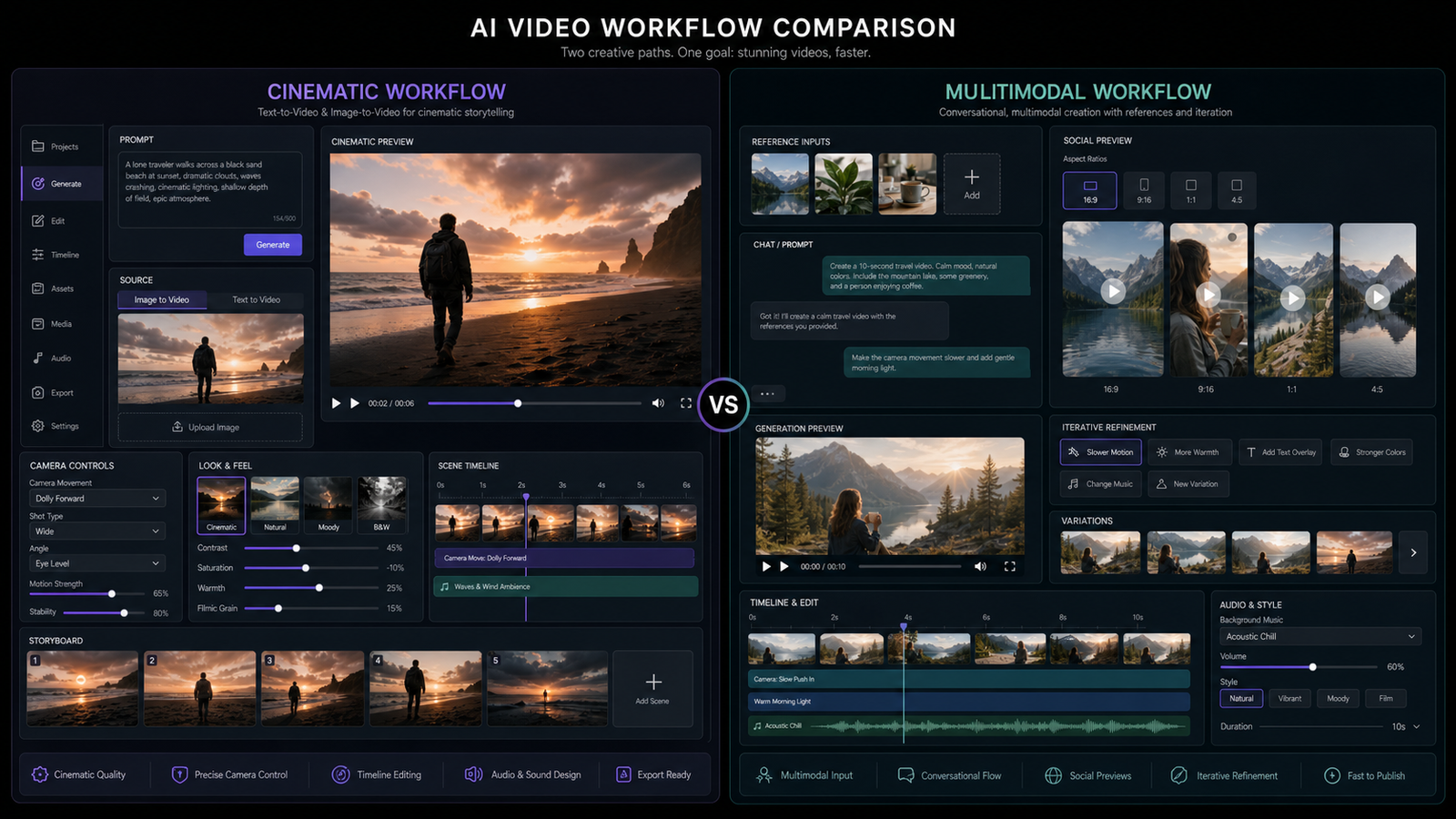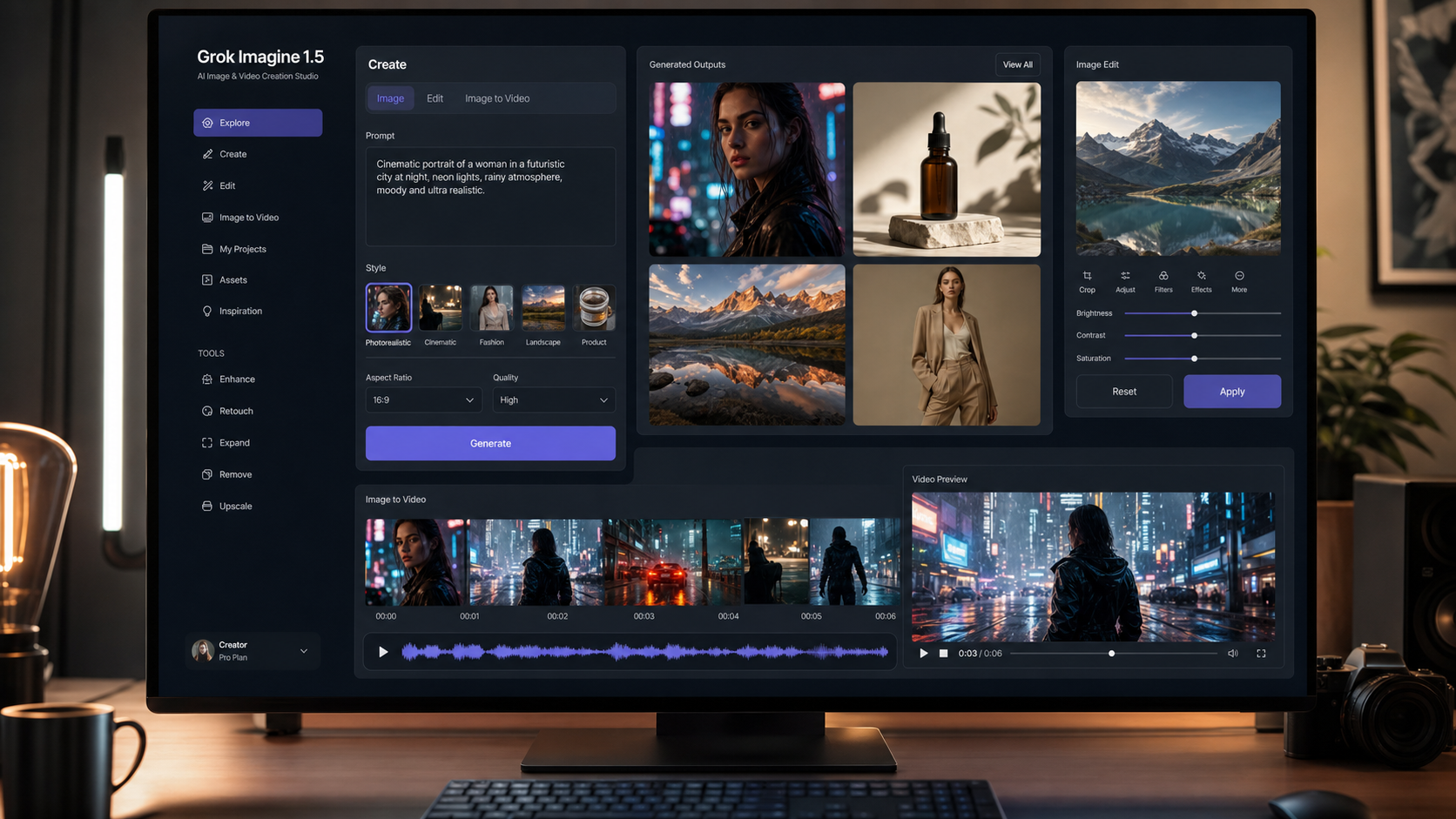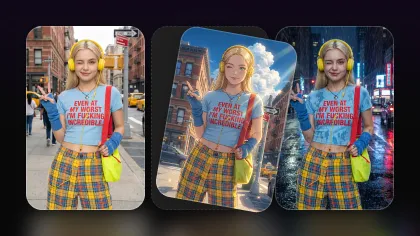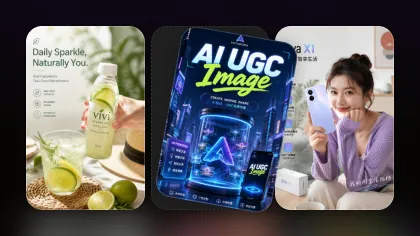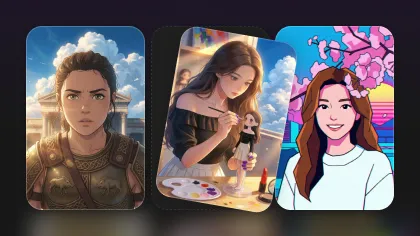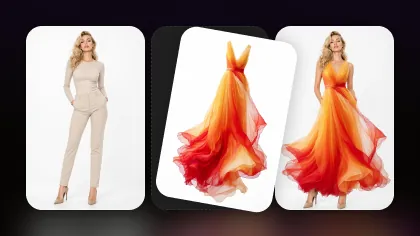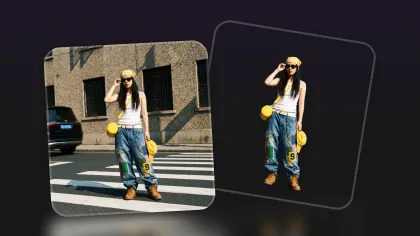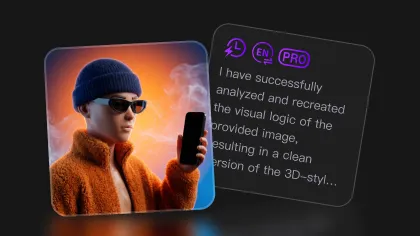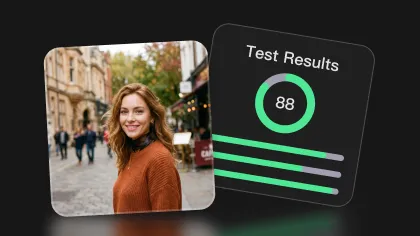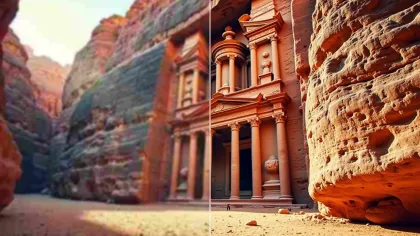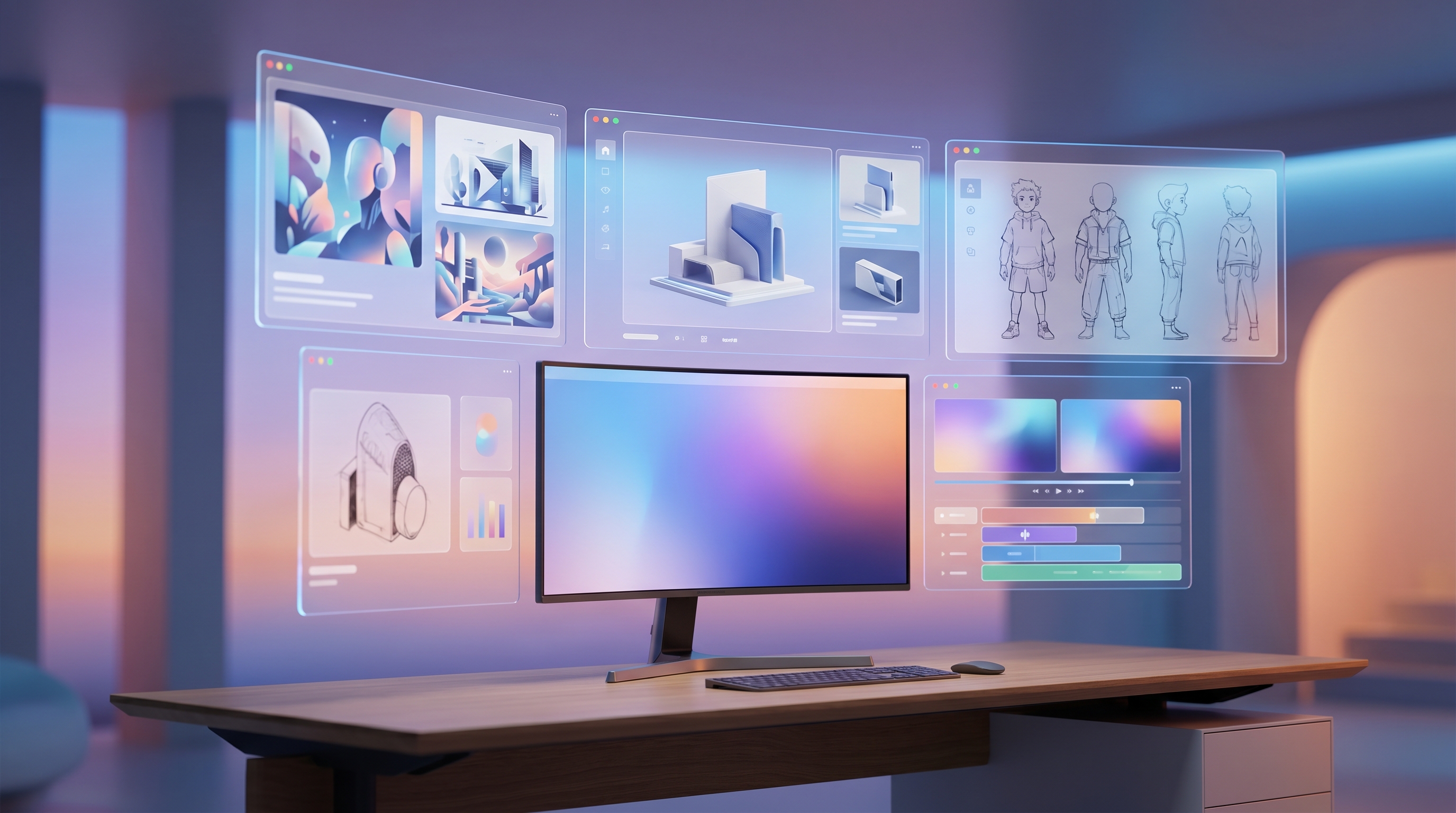
If you’ve heard creators describe OpenArt as an all-in-one AI art studio, the description is fair. It is not only a simple text-to-image generator. It combines image creation, editing, characters, video, story tools, audio features, tutorials, and model access inside one browser-based creative workspace.
The more useful question is not “Is OpenArt good?” A better question is: Is OpenArt the right kind of AI creation platform for your workflow?
Some creators want a studio-like space where they can explore, experiment, learn, and build characters. Others want a faster tool hub where they can jump straight into image generation, image editing, background removal, upscaling, product visuals, or video generation without digging through a larger studio interface.
This OpenArt AI review explains what the platform does well, where it can be inconsistent, how its credit system affects real usage, and when a tool-focused platform like Flyne AI may fit better for scalable creator and marketing workflows.
Who This Review Is For
This guide is written for creators who care about practical output, not just impressive demo images. It is especially useful if you make social visuals, product mockups, thumbnails, character concepts, ads, storyboards, or short AI videos.
OpenArt is worth considering if you want one browser-based platform for image generation, image editing, character creation, and guided creative workflows. Flyne AI is worth considering if you prefer a more direct tool-hub experience, where each task has its own clear page and workflow.
A simple decision:
- Choose OpenArt if you want a broad creative studio with discovery, tutorials, characters, stories, and many creation modes in one place.
- Choose Flyne AI if you want a cleaner production pipeline for generating images, transforming images, removing backgrounds, upscaling assets, creating product visuals, or turning images into videos.
What Is OpenArt AI?
OpenArt is an online AI creator studio for images, video, characters, stories, worlds, and audio. Its appeal comes from putting many creative tasks in one place. You can generate images from prompts, remix existing images, edit parts of an image, create recurring characters, explore video tools, and follow tutorials without setting up local models or switching between many apps.
For beginners, that all-in-one design is helpful. You do not need to understand model hosting, checkpoints, prompt syntax, or local installation. You can start with a simple idea, generate a visual, revise it, and keep moving.
For experienced creators, the value depends on workflow. OpenArt is strongest when you want a creative studio environment. It may feel heavier if you mainly need quick utilities, direct model access, or repeatable content production across many assets.
OpenArt’s Core Features
1. Text-to-Image and Image-to-Image Creation
OpenArt’s image generation workflow is built for quick ideation. You can write a prompt, generate visuals, test styles, and explore variations. This makes it useful for early-stage creative work such as:
- Thumbnail concepts
- Mood boards
- Character sketches
- Product visual directions
- Social media drafts
- Poster and campaign ideas
OpenArt works best when you treat it as an idea engine first. Instead of expecting one perfect result from one prompt, use it to explore several directions, choose the strongest one, then refine.
If your priority is a direct image-generation workflow with model switching and fewer studio layers, Flyne AI Image Generator is the closest Flyne AI alternative. It supports text and image-based creation with multiple advanced image models, making it easier to use image generation as part of a repeatable production process.
2. Image Editing, Inpainting, Outpainting, and Cleanup
OpenArt is not only for creating new images. Its editing features are a major reason creators keep using it. Inpainting lets you replace or repair a selected part of an image, while outpainting helps expand the canvas for banners, thumbnails, wide scenes, and background extensions.
These features are useful when an image is almost good but needs a fix:
- Remove an unwanted object
- Repair awkward details
- Extend the background
- Adjust a small area without regenerating everything
- Convert a square image into a wider layout
For practical editing on Flyne AI, start with Image to Image AI when you want to transform an existing image with a prompt. For cleanup tasks, use AI Image Object Remover or AI Background Changer depending on the problem you need to solve.
3. Consistent Characters and Story Workflows
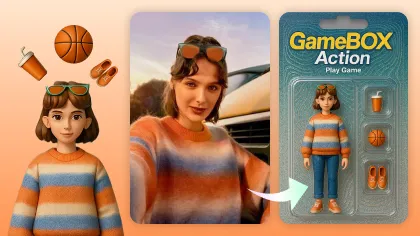
Character consistency is one of OpenArt’s most attractive features. The platform lets users create characters from descriptions or references, then reuse them across different scenes, poses, and story concepts.
This is valuable for:
- Comics and webtoons
- Mascot design
- Storyboards
- Brand characters
- Recurring social media personalities
- Character-driven video concepts
The important reality is that consistent characters still require discipline. No current AI character workflow is perfect in every style, angle, lighting condition, or expression. Results improve when your reference images are clean, your character description is stable, and your prompts avoid changing too many variables at once.
For video-focused character continuity, Flyne AI provides Consistent Character Video, which is better suited when your final goal is motion rather than static character sheets.
4. Video, Story, World, and Audio Tools
OpenArt has expanded beyond image generation. Its current positioning includes video generation, story creation, world-building style tools, audio, and cinematic shot workflows. This makes it more ambitious than a simple AI art generator.
That breadth is useful if you want a single creative environment. For example, you might begin with a character, test image styles, build a short story idea, then explore a video scene.
The tradeoff is focus. If you only need a direct text-to-video or image-to-video workflow, a dedicated page can be faster. On Flyne AI, AI Video Generator, AI Text to Video Generator, and Photo to Video AI Generator are more direct starting points for video creation.
5. Tutorials and Beginner Guidance
OpenArt is beginner-friendly because it offers tutorials and guided entry points. This matters because many AI tools are technically powerful but difficult to approach. OpenArt tries to make the first steps feel more like using a creative app than operating a technical model interface.
If you are new to AI visuals, this guidance can save time. If you already know what you want to create, you may prefer a tool page that gets you straight to the generator.
Pricing and Credits: What to Know Before You Subscribe
OpenArt uses a credit-based system. Credits are spent on generation and may also apply to video, characters, model training, and other advanced workflows. This is common across AI creation platforms, but it changes how you should evaluate pricing.
At the time of writing, OpenArt’s pricing structure lists plans with monthly credits and different usage allowances for images, videos, consistent characters, personalized models, stories, and parallel generations. The higher-tier plans offer more credits and larger usage capacity.
The most important point is simple: your real cost depends on how you work.
A creator who generates a few image drafts, picks one, and edits carefully may spend credits slowly. A creator who rerolls constantly, tests videos heavily, or trains multiple characters may use credits much faster.
Practical Credit Management Tips
Use this workflow to control spending:
- Draft quickly at lower commitment.
- Generate several variations before polishing.
- Choose one or two winners.
- Edit only the broken area instead of regenerating the full image.
- Upscale or export only assets you actually plan to use.
- For characters, keep identity, outfit, and style stable before testing dramatic changes.
The same principle applies to Flyne AI. If you are building a scalable content workflow, compare not only plan prices but also how many useful final assets you can produce per session.
For planning production volume, check Flyne AI Pricing and match your workflow to the tools you expect to use most.
Performance Review: What OpenArt Does Well
Output Quality
OpenArt can produce strong results across many popular visual styles. It is especially useful for portraits, fantasy art, stylized illustrations, product concepts, fashion images, and social content drafts.
The platform performs best when your prompt is clear and your subject is not overloaded with too many competing details. Like most AI visual tools, it may struggle with very complex multi-character scenes, precise hand-object interactions, strict layout requirements, or prompts that demand too many exact constraints at once.
Speed of Iteration
OpenArt’s biggest strength is not only output quality. It is the ease of iteration. You can explore ideas, adjust prompts, test references, and use editing tools without leaving the browser workspace.
This makes it appealing for artists and marketers who like to experiment visually before committing to a final direction.
Consistency and Control
OpenArt provides multiple ways to guide results, especially through references and character features. Still, consistency varies. For brand work, product campaigns, or multi-asset creative systems, you should expect some trial and error.
If you need a production pipeline where each step is separated clearly, Flyne AI may feel more controlled because you can choose a specific task page first: generation, image-to-image editing, product photography, background removal, upscaling, or video.
Ease of Use
OpenArt is easy to approach because it feels like a creative studio. The learning curve is lighter than many advanced AI art systems, and the built-in guidance helps beginners.
The possible downside is that a broad studio can feel less direct when you only need one practical task completed quickly.
OpenArt Pros and Cons
| Area | OpenArt Strength | Possible Limitation |
|---|---|---|
| Creative exploration | Strong for experimenting with styles, prompts, characters, and ideas | Can encourage too many rerolls if you do not define a clear goal |
| Image editing | Useful inpainting, outpainting, and cleanup-style workflows | Precision still depends on prompt quality and masking choices |
| Character workflows | Helpful for recurring characters and visual storytelling | Character identity may drift when style, pose, or scene changes too much |
| Beginner experience | Tutorials and guided workflows reduce friction | Experienced users may prefer more direct tool pages |
| Pricing | Credit tiers support different usage levels | Video, rerolls, and character work can consume credits quickly |
| Production workflow | Good for all-in-one creation | A tool-hub platform may be faster for repeatable marketing assets |
Best Use Cases for OpenArt
OpenArt is a strong fit if you want to explore ideas visually and keep many creative tools in one place. It is especially good for:
- AI art experimentation
- Early concept design
- Social media graphics
- Character exploration
- Story-driven visuals
- Beginner-friendly image editing
- Quick creative mood boards
It is less ideal if your main goal is a highly structured production line with separate utilities for each task.
OpenArt vs Flyne AI: Studio or Tool Hub?
Instead of asking which platform is universally better, ask which platform style matches your working habits.
| Need | Better Fit | Why |
|---|---|---|
| Explore many creative ideas in one place | OpenArt | It feels like a broad AI studio with characters, stories, image tools, and tutorials |
| Generate many marketing visuals quickly | Flyne AI | Tool pages make it easier to move from prompt to asset without extra browsing |
| Build recurring characters | OpenArt | Character workflows are one of its major strengths |
| Turn images into videos | Flyne AI | Dedicated video and photo-to-video pages are direct and production-friendly |
| Edit existing images | Both | OpenArt is strong as a studio editor; Flyne AI is strong for task-based edits |
| Product content workflow | Flyne AI | Product photography and product-to-video tools are easier to place into a content pipeline |
Why Consider Flyne AI as an OpenArt Alternative?
Flyne AI makes more sense when you want to work by task. Instead of entering a large studio and deciding where to go next, you can open the tool that matches your immediate goal.
For example:
- Need a new image? Use Flyne AI Image Generator.
- Need to transform an existing image? Use Image to Image AI.
- Need product visuals? Use AI Product Photography.
- Need to remove a background? Use AI Background Remover.
- Need to upscale a final image? Use AI Image Upscaler.
- Need short video output? Use AI Video Generator or Photo to Video AI Generator.
- Need product motion content? Use Product to Video.
That tool-hub structure is helpful for creators, marketers, and small teams that care about repeatability. It is less about browsing possibilities and more about getting from idea to usable asset.
A Practical 30-Minute Test
If you are deciding between OpenArt and Flyne AI, run the same test on both platforms.
- Generate 10 images from one concept.
- Choose the best two.
- Fix one problem area in each image.
- Remove the background from one final asset.
- Upscale the strongest result.
- Turn one still image into a short video.
- Record how many credits you used and how long the workflow took.
The winning platform is not always the one with the flashiest demo. It is the one that gives you the most usable final assets with the least friction.
Final Verdict: Is OpenArt Worth It?
OpenArt is worth trying if you want a flexible AI creative studio with image generation, editing, character creation, video experiments, stories, and guided workflows in one place. It is especially strong for creators who enjoy discovery and want a broad set of creative options inside one browser workspace.
Its biggest limitation is not lack of features. It is workflow fit. If your work depends on fast, repeatable asset production, the all-in-one studio design may feel less efficient than a task-based hub.
Flyne AI is the better choice if you want to build a practical content pipeline around separate tools for images, edits, backgrounds, upscaling, product visuals, and video generation.
The smartest approach is to test both with the same prompt, the same editing task, and the same final-output goal. OpenArt may win for creative exploration. Flyne AI may win for scalable production.
Recommended Tools
- Flyne AI Image Generator — best starting point for text-to-image and image-based visual creation.
- Image to Image AI — useful for transforming existing images while keeping the original visual direction.
- Krea AI Image Generator — a good option for fast style exploration and creator-friendly image generation.
- AI Product Photography — practical for e-commerce visuals, product mockups, and marketing assets.
- AI Background Remover — useful when you need clean cutouts for ads, thumbnails, and product pages.
- AI Image Upscaler — helpful for polishing final images before publishing.
- AI Video Generator — best for turning text or image ideas into short AI videos.
- Product to Video — useful for converting product images into promotional video clips.
Related Articles
- Krea AI Review: Which AI Image Model Fits Your Creative Workflow?
- Creating 4K High-Quality Images with Nano Banana Pro AI: A Practical Editor’s Guide
- Seedance 2.0 Video Generation Guide: How to Get Controlled, Consistent Results
- Flyne AI Video Generator Guide 2026: Best Models Compared and Ranked
- How to Make TikTok UGC Videos with AI Talking Avatar Generator
People Also Read
- HeyDream AI Image Generator Guide: Best Models for Text-to-Image and Image-to-Image
- How to Turn Images Into Better AI Prompts with HeyDream AI
- ImagineArt Review (2026): A Practical, Unbiased Look at This All-in-One AI Creative Suite
- The Seedream 5.0 AI Image-to-Image Analysis Guide 2026
- VideoWeb AI Video Generator 2026: One Hub, Every AI Video Workflow