AI baby dance videos are everywhere right now. From TikTok to Instagram Reels, cute baby dance clips are pulling in millions of views—and the best part is that you don’t need animation skills to make one anymore.
With kling motion control, you can turn a single baby photo into a smooth, believable dancing video by transferring movement from a real reference clip. This guide walks you through the entire process in plain language, even if you’ve never used AI motion tools before.
What Is Kling Motion Control (in Simple Terms)?
At its core, kling ai motion control works like digital puppetry.
You give the model:
- One image (your baby photo)
- One motion reference video (a person dancing)
Kling then applies the movement, timing, and body motion from the video onto the image while keeping the baby’s identity intact. This process is also called kling motion transfer or kling ai motion transfer.
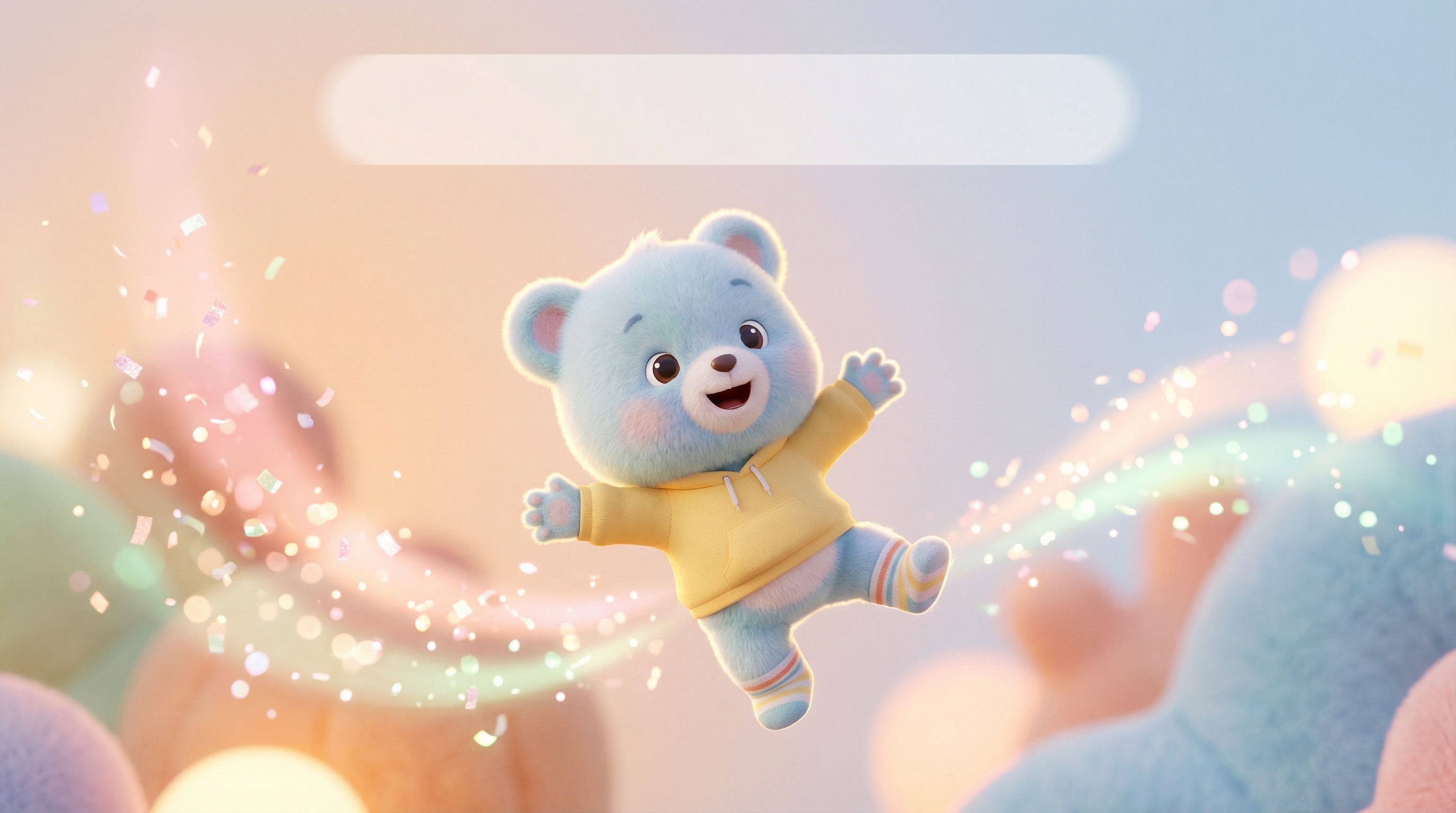
The result? A convincing ai baby dance video that looks playful instead of robotic.
Why Kling 2.6 Is Great for Baby Dance Videos
The latest kling 2.6 motion control update is especially strong at handling rhythmic movement like bouncing, swaying, and simple dance steps. That makes it ideal for:
- cute baby dance ai
- Short looping clips for social media
- Clean body motion without wild camera drift
For baby dance content, smoother motion matters more than complex choreography—and that’s exactly where Kling excels.
What You Need Before You Start
Before jumping in, prepare these two assets:
1. A Baby Image
Choose a photo that is:
- Clear and well-lit
- Facing the camera (or slightly angled)
- Showing the upper body or full body if possible
This image will be the “character” for your baby dancing ai video.
2. A Dance Reference Video
Pick a short clip that:
- Has one person only
- Shows clear, simple dance moves
- Uses a steady camera
- Lasts between 3–30 seconds
The cleaner the motion, the better the final kling motion control ai baby dance output.
Step-by-Step: How to Make an AI Baby Dance With Kling
This is the exact workflow you’ll follow when using how to make ai baby dance with kling.
Step 1: Open Kling Motion Control
Go to the Kling Motion Control tool and make sure you’re using Kling 2.6.
Step 2: Select the Version
Leave the version set to STD unless you’re testing advanced outputs. STD offers the best balance of stability and cost for baby dance videos.
Step 3: Upload the Motion Reference Video
Upload your dance clip (MP4 format, under 100MB). This video defines how the baby will move.
Step 4: Upload the Baby Image
Upload the baby photo you want to animate. This image will mimic the dance motion.
Step 5: Write a Simple Prompt
Prompts don’t control movement here—the video does. Instead, describe:
- The environment
- The mood
- The camera behavior
Example prompt:
Cute baby dancing happily, soft indoor lighting, pastel background, fixed camera, smooth motion, no zoom, no camera shake
This keeps the output clean and avoids weird motion artifacts.
Step 6: Generate and Review
Click Generate and review the result. If needed, swap the dance reference or slightly adjust your prompt and try again.
Choosing the Right Orientation (Very Important)
This setting affects how natural the dance looks.
-
Video Orientation Best for dancing. The baby fully follows the reference dancer’s body movement and supports longer clips (up to ~30 seconds).
-
Image Orientation Keeps the baby closer to the original pose but limits motion range and duration (usually up to ~10 seconds).
For most kling 2.6 baby dance motion control tutorial use cases, Video Orientation is the better choice.
Prompts That Make Baby Dance Videos Look Adorable
Here are three ready-to-use styles:
Realistic Cute
Happy baby dancing gently, warm lighting, natural skin tones, fixed camera, no distortion
Cartoon-Style
Chibi baby dancing, soft pastel colors, smooth animation, simple background, no camera movement
Viral Social Clip
Cute baby dance loop, bright lighting, clean background, energetic but smooth motion, no blur
These prompts work especially well for ai baby dance video content meant for Shorts or Reels.
Common Problems (and How to Fix Them)
Face looks strange or melts → Use a higher-quality baby photo and a simpler dance reference.
Arms or legs warp → Avoid fast spins or complex footwork in the reference video.
Background moves oddly → Add “static background, fixed camera” to your prompt.
Dance feels off-beat → Choose a reference video with clearer rhythm and full-body visibility.
Most issues come from the reference video, not the image.
Tips for Making Your Baby Dance Video Go Viral
- Keep clips 5–8 seconds for looping
- Use upbeat music with a clear beat
- Add captions like “AI did this 😭” or “This is not real”
- Export in vertical format for TikTok and Reels
Short, cute loops perform best for cute baby dance ai content.
Final Thoughts
If you want a fast, reliable way to create adorable AI dance clips, kling motion control is one of the best tools available right now. With kling 2.6 motion control, even a single photo can become a charming, rhythmic baby dance video—no animation background required.
Once you get comfortable choosing good reference videos, you’ll be able to create scroll-stopping baby dancing ai video content in minutes.