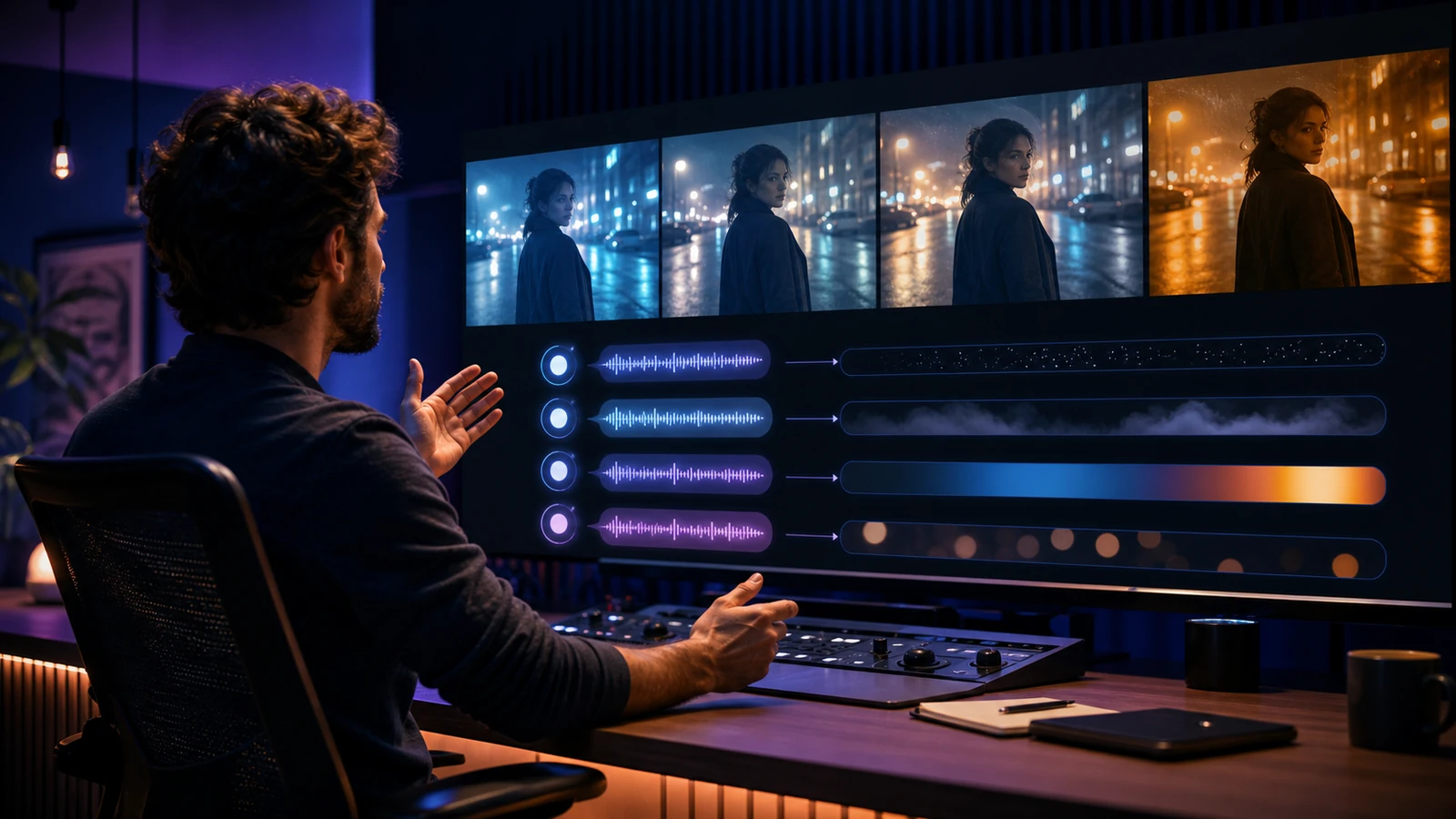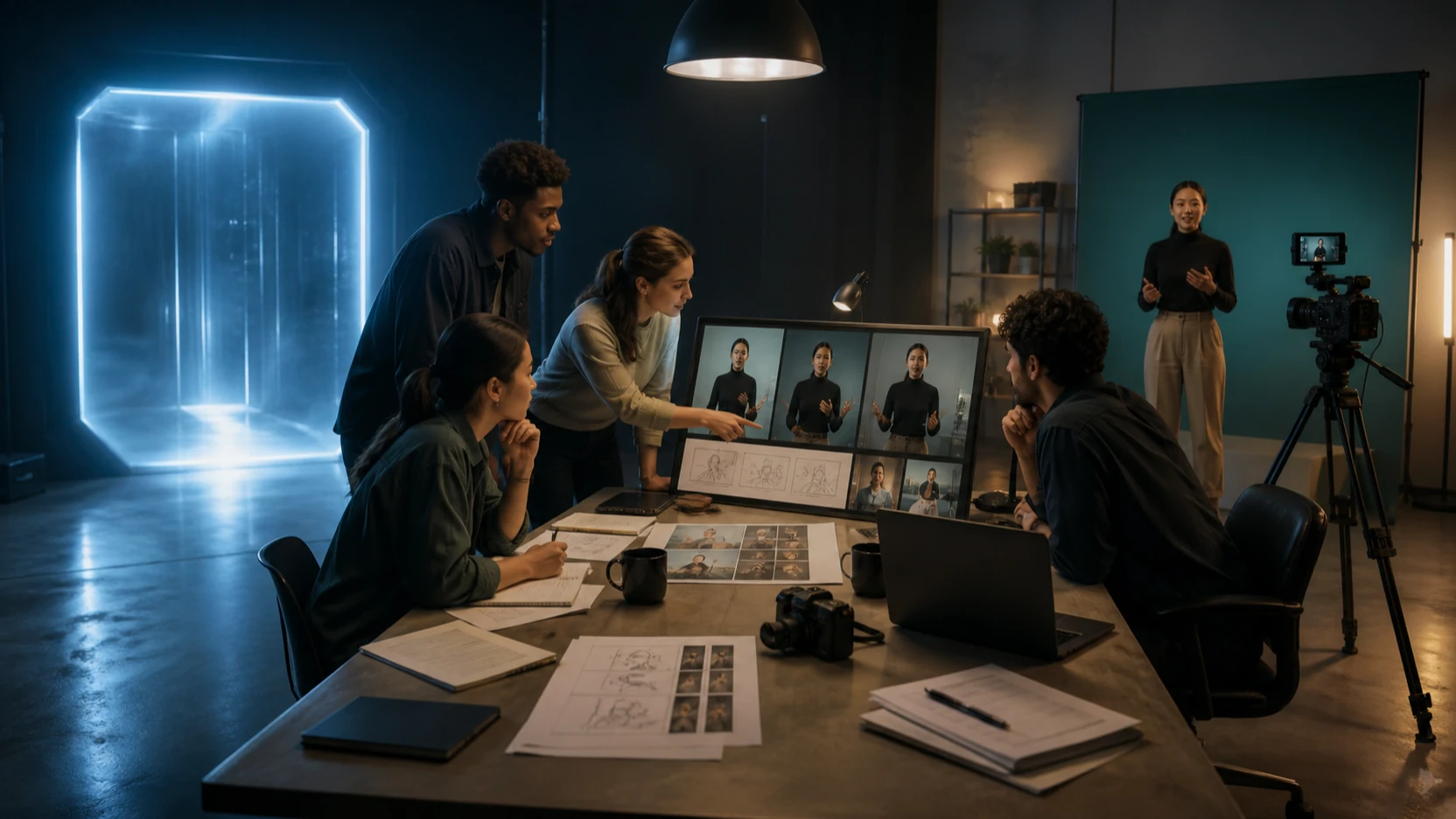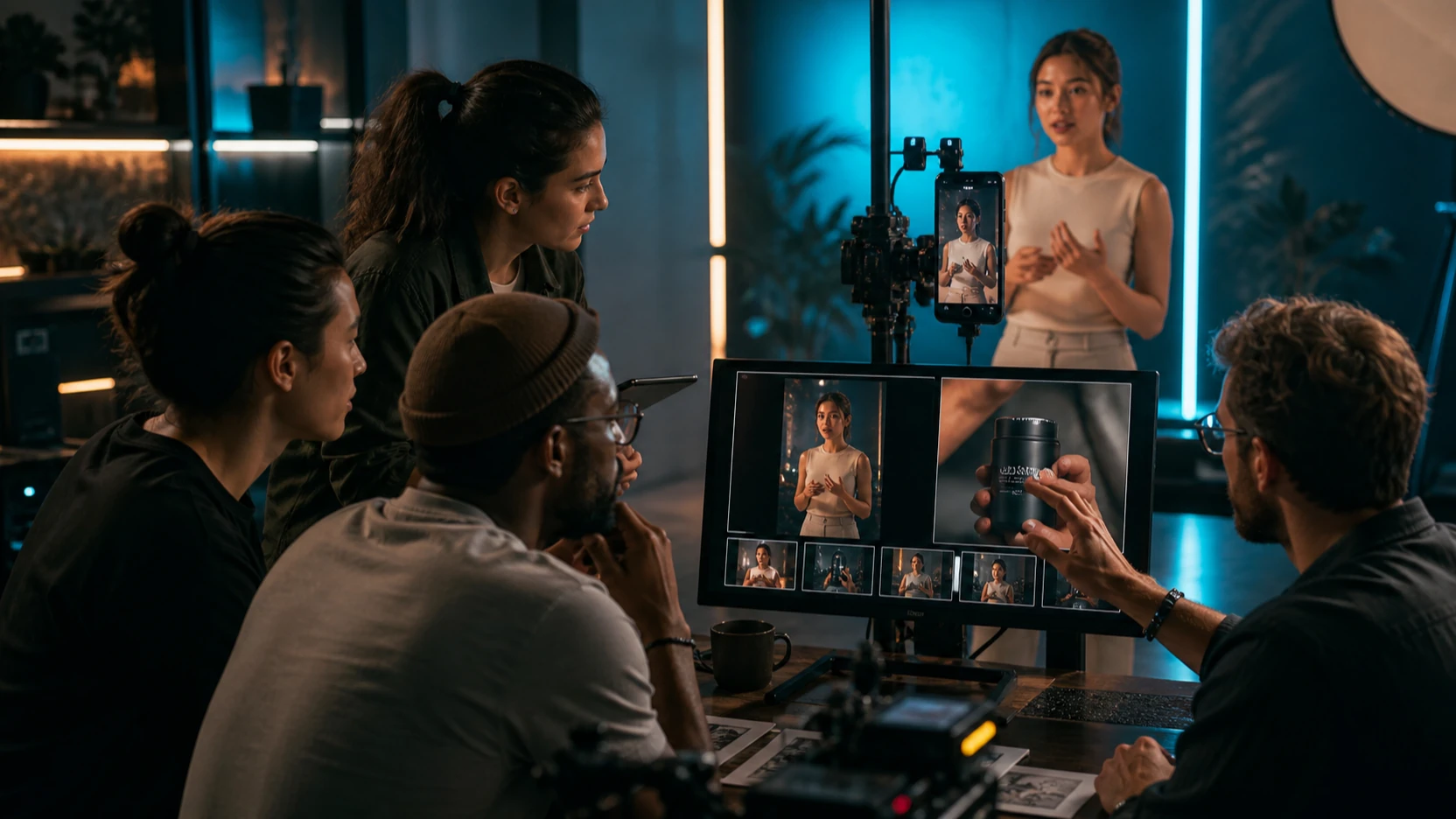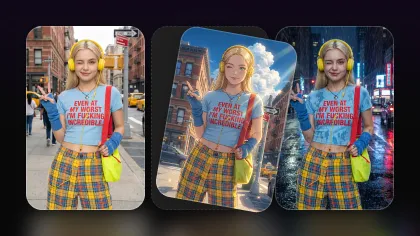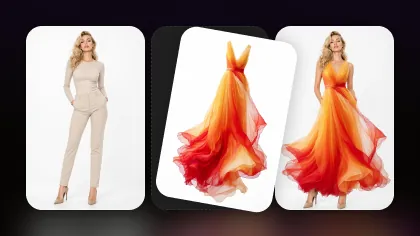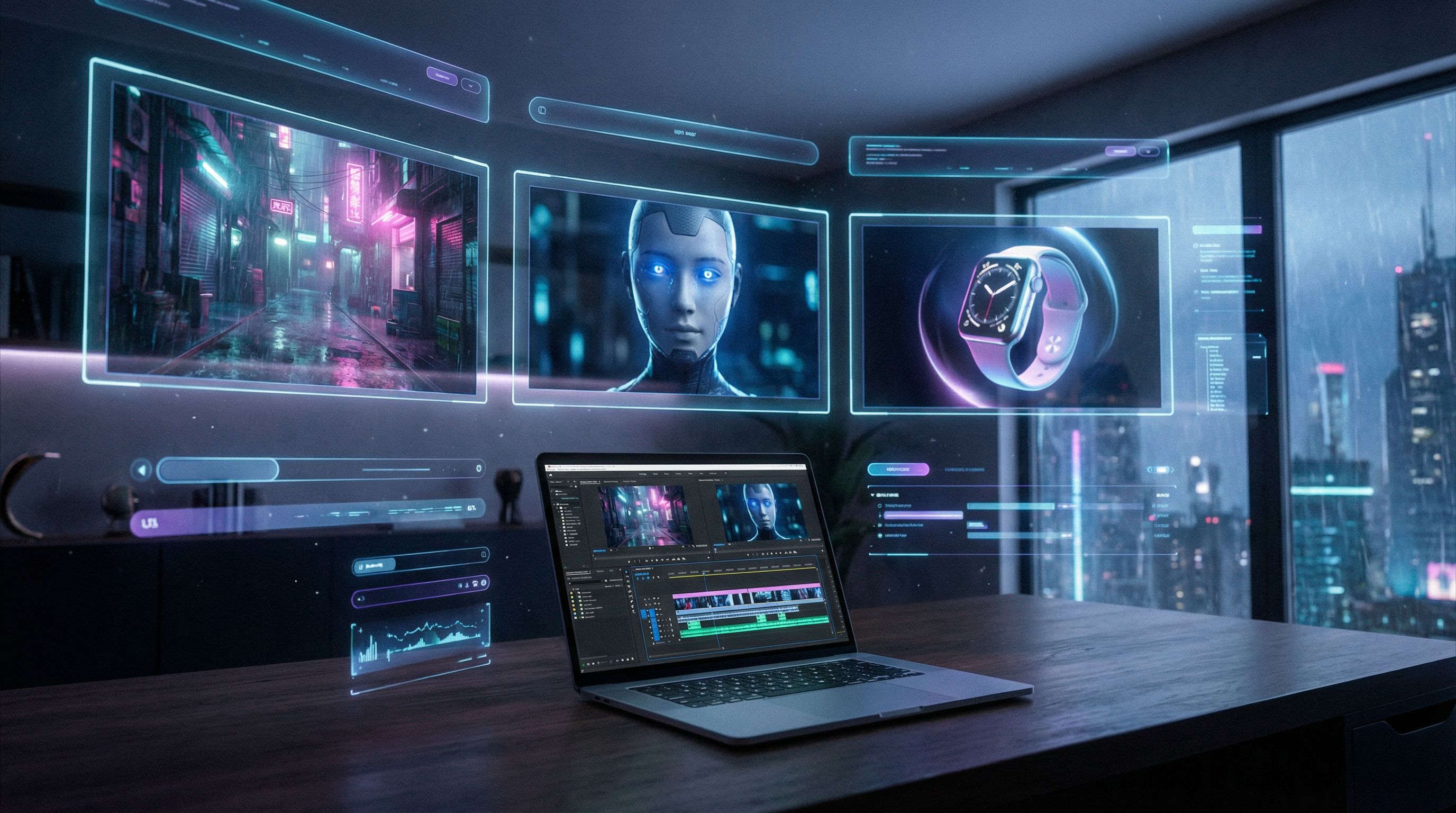
Kling has become one of the most-watched names in AI video generation because it tends to improve in the places creators actually notice: motion, shot coherence, cinematic framing, and short-form output that feels less like a random experiment.
Now Kling 3.0 gives creators a more direct reason to revisit the model. On Flyne AI, the dedicated Kling 3.0 AI video generator is positioned around controllable narratives, visual consistency, and audio-visual synchronization. That makes it especially relevant for creators who want short cinematic clips, product videos, stylized scenes, social ads, and prompt-led visual storytelling.
This guide breaks down what Kling 3.0 is useful for, how it compares with Kling 2.6 and Kling Motion Control, and how to write prompts that create cleaner video results with fewer wasted rerolls.
What Is Kling and Why Do Creators Use It?
Kling is an AI video generation model family from Kuaishou. It supports both text-to-video and image-to-video workflows, which means you can either describe a scene from scratch or upload a reference image and animate it into a moving shot.
Creators gravitate toward Kling because it often performs well in the middle layer that matters most: intentional motion, cinematic composition, and output that feels directed rather than accidental. Even when you are not chasing perfect realism, Kling can be a strong choice for stylized shorts, anime-inspired motion, product teasers, character moments, and atmospheric cinematic clips.
The key is to stop treating Kling like a random clip generator. It works best when you think like a director: one scene, one subject, one action, one camera idea, and a clear visual mood.
What Kling 3.0 Changes for AI Video Creators
The most important shift is that Kling 3.0 is no longer only something creators are waiting to hear about. Flyne AI now has a dedicated Kling 3.0 AI video model page, which makes it a practical option to evaluate alongside other video models.
The model page frames Kling 3.0 around stronger narrative control, visual consistency, and audio-visual synchronization. For creators, that points to a more complete short-video workflow rather than a simple silent animation tool.
In practice, the most useful expectations are:
- stronger shot direction from text prompts
- better visual stability across short clips
- more cinematic camera and lighting behavior
- more complete video output when sound or atmosphere matters
- a smoother path from idea to polished short-form asset
This does not mean every prompt will work perfectly. AI video still rewards discipline. The cleaner your shot design is, the easier it is for Kling 3.0 to deliver something usable.
Kling 3.0 vs Kling 2.6 vs Kling Motion Control
The easiest way to choose between these tools is to think about the job you need done.
Use Kling 3.0 when you want the newest Kling workflow for cinematic AI video, stronger scene direction, and more complete prompt-led generation.
Use Kling 2.6 when you want a reliable production baseline. Kling 2.6 is still useful for creators who need dependable short clips and want to test prompts before moving into newer model workflows.
Use Kling Motion Control when movement itself needs to be directed and repeatable. It is especially useful for gestures, performance beats, dance clips, body motion, and image-led motion transfer.
A simple decision guide works well:
| Need | Best Pick | Why |
|---|---|---|
| Newest cinematic Kling workflow | Kling 3.0 | Better fit for current model testing and directed video creation |
| Stable short-video production | Kling 2.6 | Good baseline for prompts, production tests, and fast clips |
| Directed body movement | Kling Motion Control | More useful when motion needs to follow a reference or repeatable path |
| Broad model comparison | Flyne AI Video Generator | Better hub for testing multiple AI video models in one place |
How to Use Kling 3.0 for Text-to-Video
Text-to-video is the simplest way to begin. You describe the scene, the model generates a clip, and you refine from there. The mistake most beginners make is writing a full movie instead of one shot.
A strong Kling 3.0 text-to-video prompt should include:
- subject
- setting
- shot type
- camera movement
- lighting and mood
- one main action
- style constraint
Example:
A lone traveler in a rain-soaked alley at night, medium shot, slow tracking forward, neon reflections on wet pavement, soft fog, subtle handheld feel. The traveler turns to look over their shoulder, cinematic lighting, realistic film look.
This prompt works because it gives the model a filmable moment. It does not ask for a full scene, a cut, a fight, a transformation, and a camera orbit all at once.
For broader prompt-led workflows, the AI Text to Video Generator is also useful when you want to compare Kling with other text-to-video options on Flyne AI.
How to Use Kling 3.0 for Image-to-Video
Image-to-video is often the better choice when consistency matters. Instead of asking the model to invent everything from text, you anchor the shot with a reference image. This is useful for character shots, product visuals, fashion clips, anime stills, architectural previews, and branded campaign assets.
A good image-to-video prompt should tell the model what to preserve and what to animate.
Example:
Preserve the character’s face, outfit, pose, and framing. Add subtle breathing motion, gentle hair movement in a light breeze, slow camera push-in, soft golden-hour lighting, cinematic tone.
That is much stronger than simply writing “make this image move.” The reference image gives the structure. The prompt gives the direction.
If your workflow begins with an uploaded image, Flyne AI’s Photo to Video AI Generator can also help with image-led video creation.
How to Get a More Cinematic Kling Video Look
People often assume a cinematic result comes from resolution alone. In reality, cinematic video comes from composition, motion, lighting, and restraint.
Composition Tactics
Keep one focal subject. Give the scene depth with foreground, midground, and background elements. Avoid crowded environments until you have a working shot structure. A simple street corner, product table, room interior, or close-up portrait is usually easier to control than a busy crowd scene.
Motion Tactics
Prefer one main action per shot. A slow push-in, a gentle tracking shot, or a subtle handheld sway often looks more polished than a fast spin or chaotic action sequence.
If you want dynamic action, split it into separate clips. Short AI videos are easier to direct when each clip has one job.
Lighting Tactics
Name one key light source. Examples include neon sign, window light, candlelight, softbox, golden-hour sunlight, or moonlit rim light. Then add one atmospheric detail such as fog, rain reflections, dust, steam, or drifting particles.
A useful formula is:
one subject + one action + one camera move + one light source + one atmosphere cue
That formula does more for video quality than adding a long list of vague adjectives.
Prompt Examples for Kling 3.0
Cinematic Character Shot
A young explorer standing at the edge of a misty cliff at sunrise, medium shot, slow camera push-in. Wind moves the cloak gently, warm rim light, soft fog below, cinematic fantasy realism, grounded motion.
Product Teaser
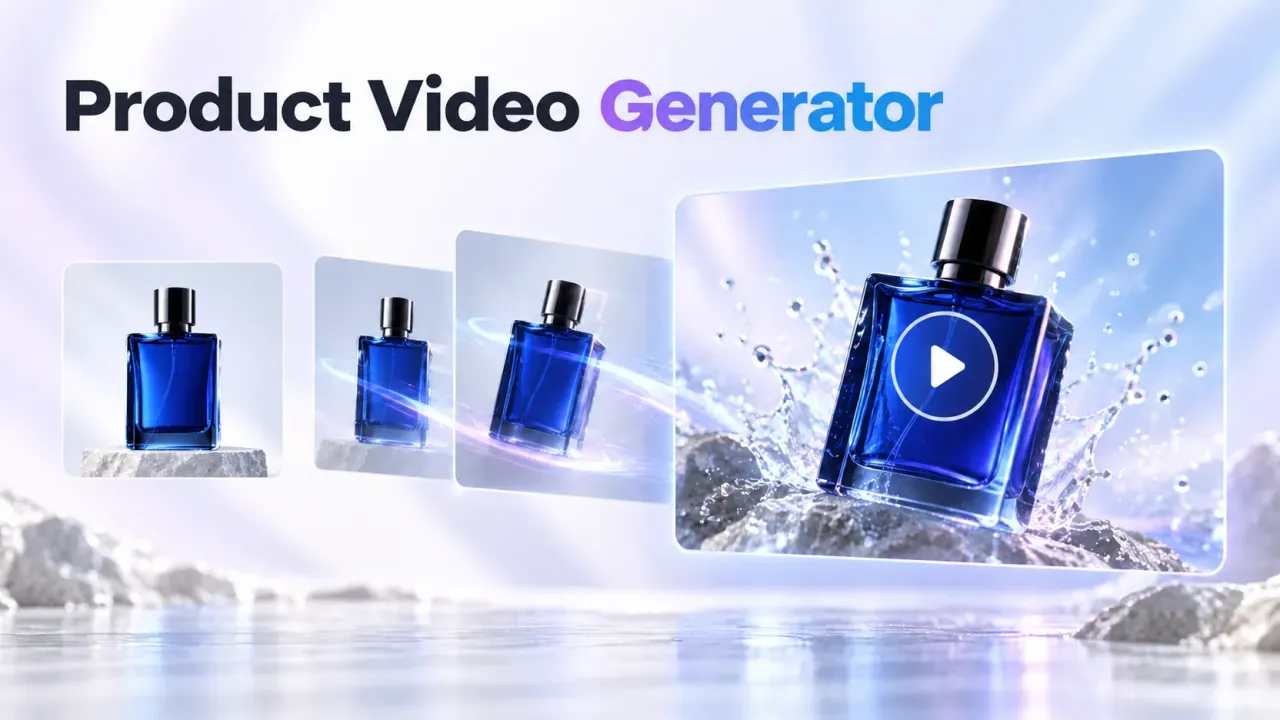
Close-up of a luxury perfume bottle on black glass, slow camera slide left. Soft studio reflections, subtle mist in the background, crisp highlights, premium commercial style, no text.
Anime-Inspired Motion
Anime-style warrior standing on a rooftop at sunset, medium close-up. Cape fluttering in the wind, slow push-in, dramatic orange sky, clean linework, smooth controlled motion.
Social Ad Shot
A fitness smartwatch on a runner’s wrist during a morning jog, close-up tracking shot. Natural arm movement, soft sunrise light, clean urban background, energetic but realistic motion.
Atmospheric Interior
A candlelit study room with an old wooden desk and open book, slow dolly forward. Dust particles in warm light, soft shadows, quiet mysterious mood, cinematic realism.
The pattern is consistent: one subject, one action, one camera move, one lighting setup, and a clear style direction.
Where Kling Motion Control Still Matters
Even with Kling 3.0 available, Kling Motion Control still has a clear role. It is the better option when motion is the main creative requirement.
Use Motion Control when you need a character to follow a specific movement, when a dance or gesture must look repeatable, or when normal prompting produces motion that feels random.
This is especially helpful for:
- dance and performance clips
- gesture-based creator videos
- influencer-style motion transfer
- body movement from a reference video
- ad variations where movement needs to stay consistent
If Kling 3.0 is the model you use for cinematic shot generation, Motion Control is the tool you use when the movement path itself becomes the brief.
Common Problems and Fast Fixes
The Clip Looks Chaotic
Remove extra actions. Keep one subject, one movement, and one camera direction. Short clips do not have enough time for complex plot beats.
The Camera Movement Feels Wild
Choose one camera move only: slow push-in, pan right, tracking forward, tilt up, or gentle handheld. Avoid asking for several camera moves in one prompt.
The Character Changes Too Much
Use image-to-video and describe what must stay fixed: face, hair, outfit, pose, camera angle, and framing.
The Result Does Not Feel Cinematic
Add a specific light source, a lens cue, and a simple depth cue. For example: soft window light, shallow depth of field, blurred background lights.
Motion Looks Floaty
Use physical language. Try grounded movement, realistic inertia, subtle body weight, natural fabric motion, and slow environmental movement.
The Scene Looks Generic
Add one signature detail instead of ten random adjectives. A neon sign reflected in wet pavement, candle smoke drifting across a desk, or golden dust in a warehouse can make the shot feel more designed.
Practical Workflow for Creators
Start with a simple text-to-video prompt. Generate two or three variations. Pick the one with the strongest composition, not necessarily the cleanest details. Then refine one thing at a time: camera, lighting, motion, subject description, or style.
If identity or product consistency matters, switch to an image-to-video workflow. Upload a strong reference, then write a short motion prompt that preserves the key visual elements.
If the motion path matters more than the scene, use Motion Control. This keeps movement from becoming too random, especially for body-based clips.
For wider testing, start from the Flyne AI Video Generator and compare Kling with models such as Seedance 2.0, Vidu Q3, and Google Veo 3.
FAQ
Is Kling 3.0 Available on Flyne AI?
Yes. Flyne AI has a dedicated Kling 3.0 AI video generator page for creators who want to test the model directly.
Should I Still Use Kling 2.6?
Yes, especially when you want a stable production baseline or want to compare how the same prompt behaves across model versions. Kling 2.6 remains useful for practical short-video generation.
When Should I Use Kling Motion Control?
Use Kling Motion Control when movement is the most important part of the clip. It is especially useful for dance, gestures, character performance, and motion transfer.
What Is the Best Prompt Structure for Kling 3.0?
Use this structure: subject, setting, shot type, camera movement, lighting, one action, and style constraint. Keep it filmable in a short clip.
Is Kling 3.0 Better for Text-to-Video or Image-to-Video?
It depends on the project. Text-to-video is best for ideation and scene creation. Image-to-video is better when identity, product shape, or composition must stay stable.
Final Takeaway
Kling 3.0 is a strong option for creators who want AI video clips that feel more directed, cinematic, and production-ready. The best results still come from disciplined prompt writing: one subject, one action, one camera move, and a clear visual mood.
For current creative work, start with Kling 3.0 on Flyne AI. Use Kling 2.6 when you want a dependable baseline, and use Kling Motion Control when movement needs to follow a specific direction.
The model matters, but the workflow matters just as much. Treat Kling like a short-shot production tool, and your results will become much more predictable.
Recommended Tools
- Kling 3.0 AI Video Generator
- Kling 2.6 AI Video Generator
- Kling Motion Control
- Flyne AI Video Generator
- AI Text to Video Generator
- Photo to Video AI Generator
- Vidu Q3 AI Video Generator
- Seedance 2.0 AI Video Generator
- Google Veo 3 AI Video Generator
Related Articles
- Higgsfield Kling Review: Kling 3.0 Is Here—Worth Using?
- Kling 2.6 AI Video Generator With Audio
- From Still Image to Viral Movement: Motion Control with Kling 2.6
- Seedance 2.0 Video Generation Guide: How to Get Controlled, Consistent Results
- Happy Horse 1.0 vs Seedance 2.0: Which AI Video Model Is Better for Real Creative Work?
- Vidu Q3 vs Veo 3.1 vs Seedance 2.0: Which AI Video Model Fits Your Workflow?
People Also Read
- Kling 3.0 AI Video Generator Guide for Creators
- Vidu Q3 AI vs Kling 3.0: Best AI Video Model Compared
- Kling 3.0 Review: Is It the Right AI Video Tool, or Should You Start Simpler?
- Kling 3.0 Review: Is It the Best AI Video Generator Yet in 2026?
- How to Use HeyDream AI’s Text-to-Video Generator
- SeaImagine AI Text-to-Video Guide: How to Choose Models and Create Better Clips
- How to Use DreamMachine AI’s AI Video Generator