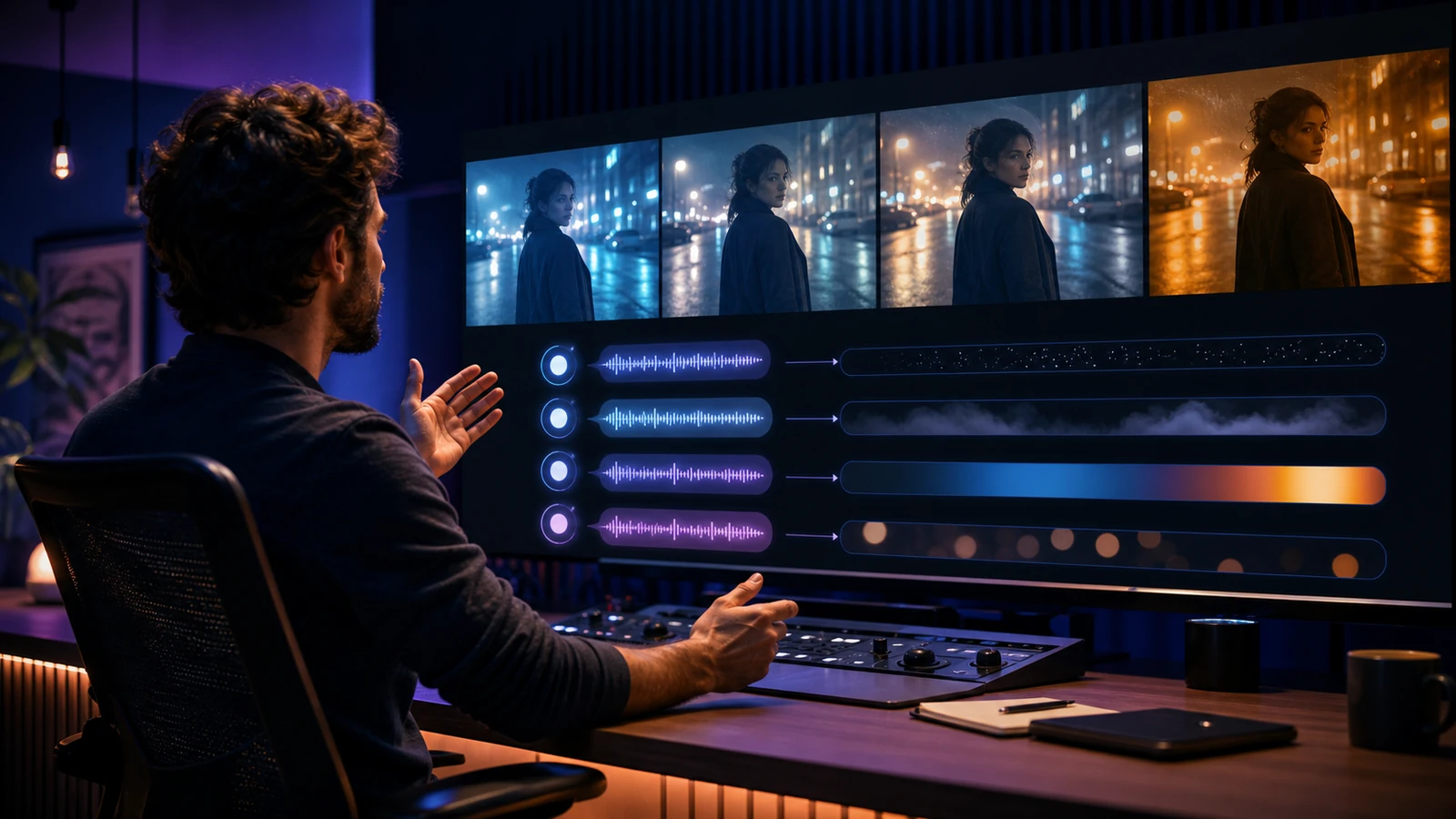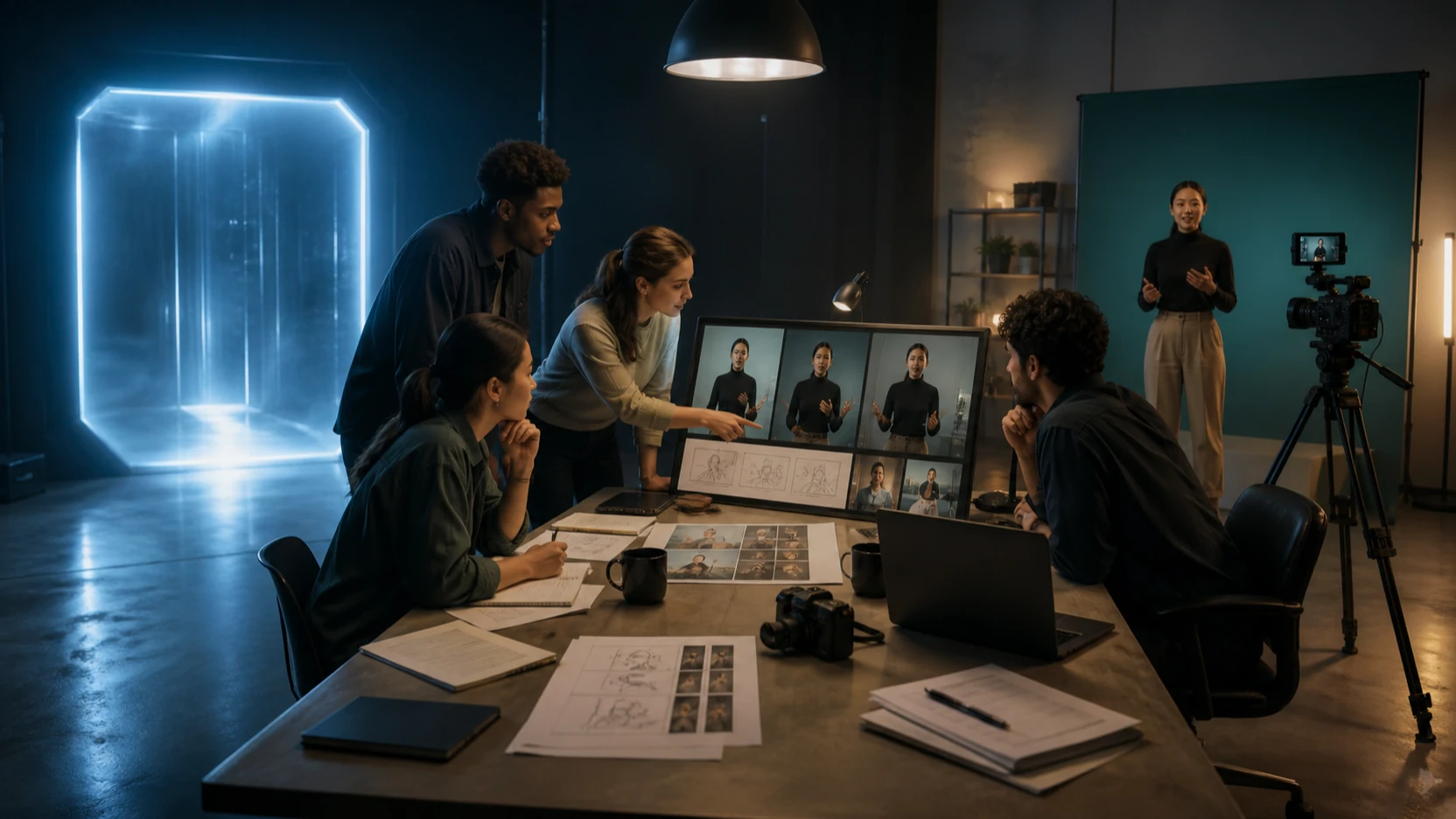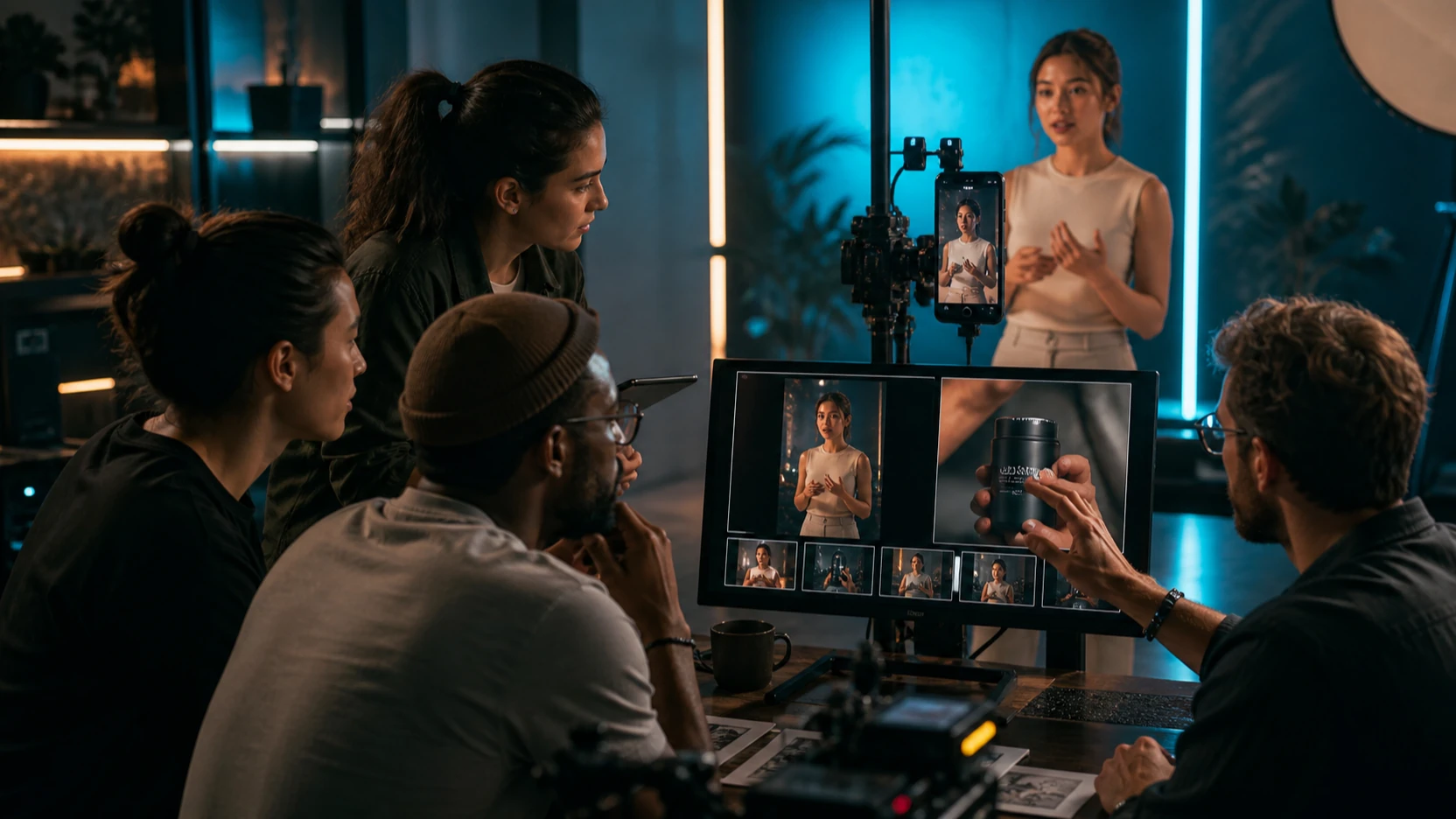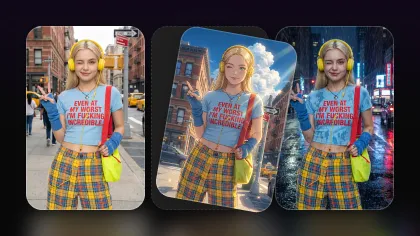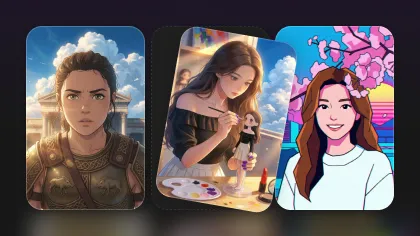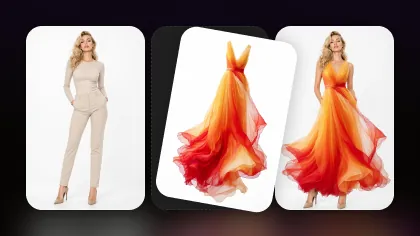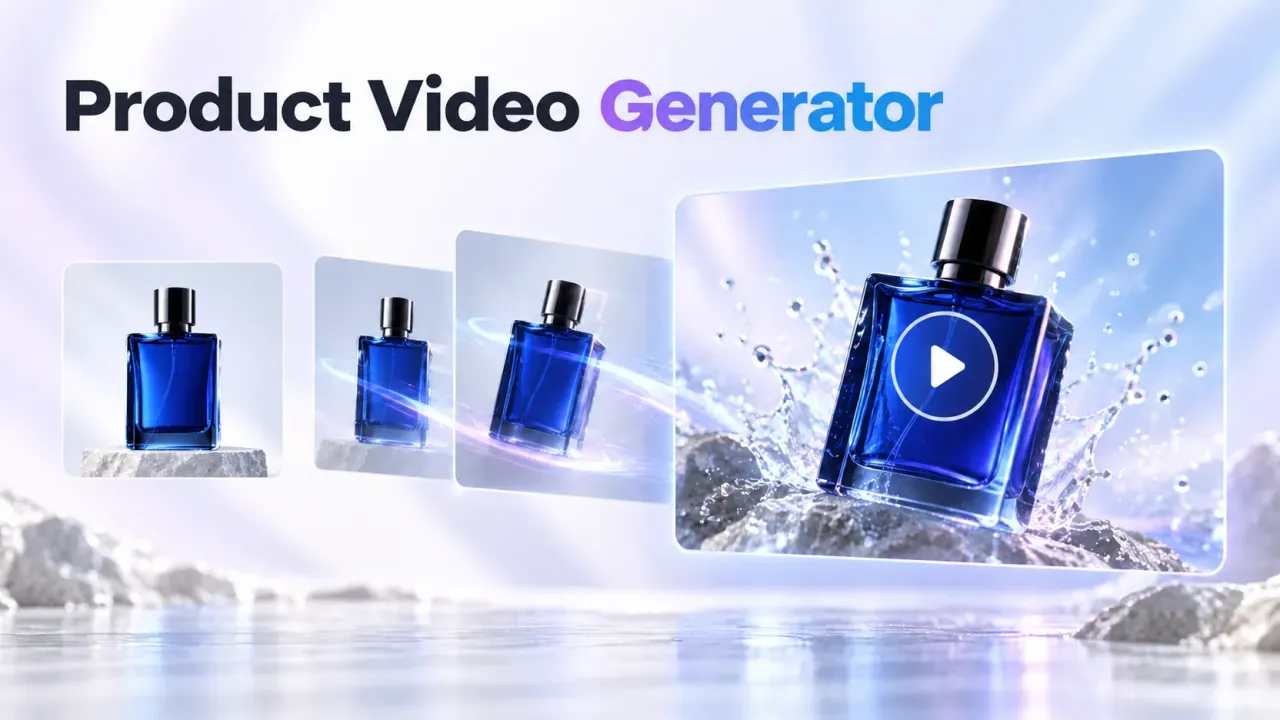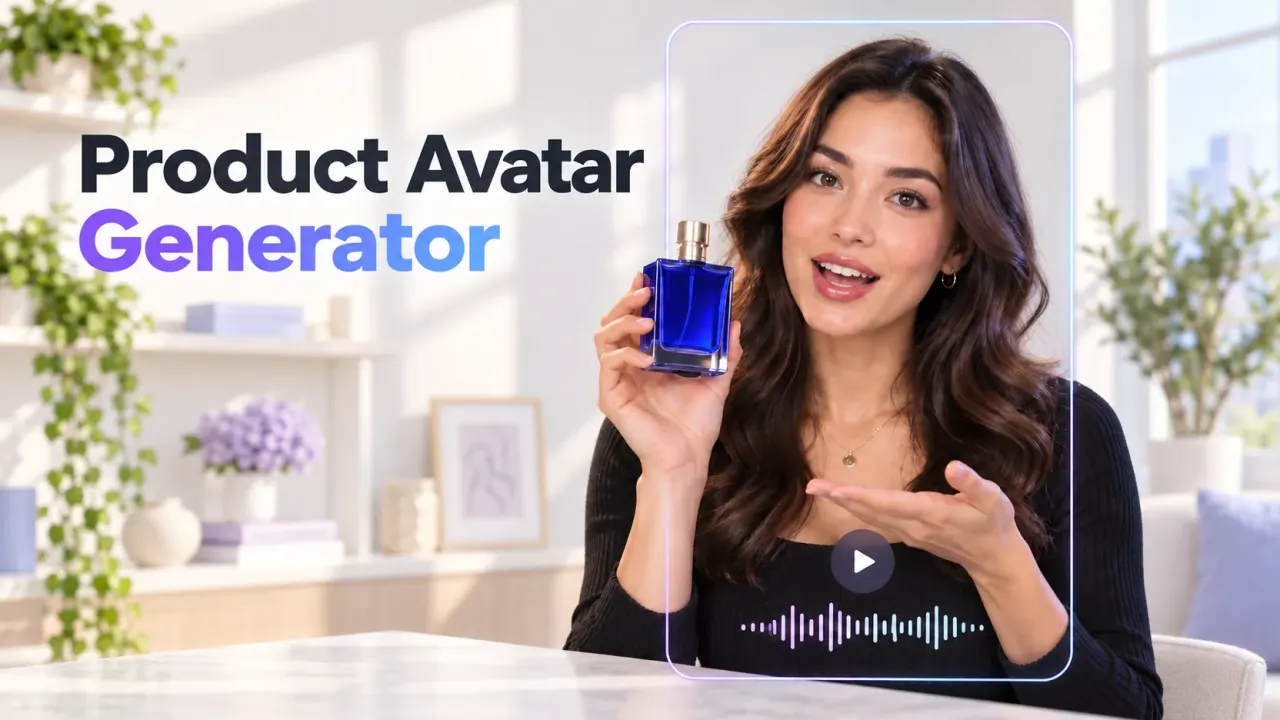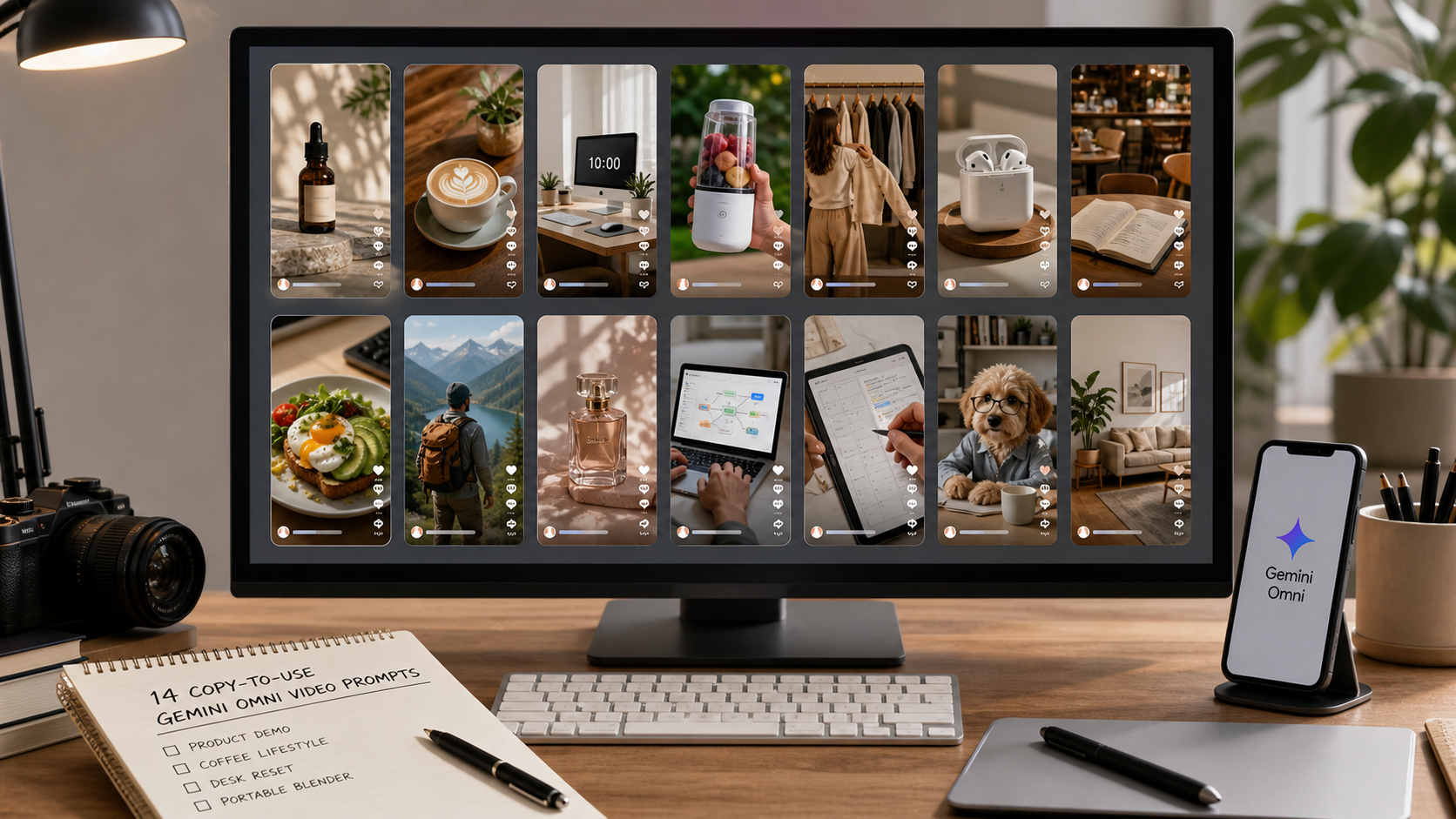
Gemini Omni video prompts are most useful when they read like a short creative brief, not a vague request for a viral clip. Creators, UGC editors, small brands, and social media teams can use Gemini Omni video on Flyne AI to draft TikTok, Instagram Reels, YouTube Shorts, product demos, faceless clips, creator reactions, and campaign concepts with clearer motion and stronger visual direction.
This guide explains how Google Gemini Omni fits short-form social video creation, then gives copy-ready prompts you can paste, adapt, and test. Treat each output as a creative draft. Before publishing or running paid ads, review platform rules, commercial rights, watermark or AI disclosure requirements, music and audio rights, product claim accuracy, and brand safety.
Quick summary: Use Flyne AI as the practical testing platform, keep each prompt focused on one scene and one primary action, choose the right ratio for the channel, and revise based on motion consistency rather than assuming every first render is production-ready.
What Gemini Omni Video Means for Social Creators
Gemini Omni video is useful for social teams because it combines prompt-driven video generation with reference-based creative control. On Flyne AI, the Gemini Omni model page presents the Google Gemini Omni video model as a generator that can work from text prompts and visual inputs such as images, start frames, or end frames, which makes it relevant for product demos, creator-style clips, and social campaign drafts.
For short-form content, the main benefit is speed at the concept stage. A marketer can test a product reveal before booking a shoot. A UGC editor can explore hooks before asking a creator to film. A YouTube Shorts creator can generate faceless B-roll ideas for productivity, recipes, travel, or study content. A small brand can compare several visual angles before choosing one to refine.
The practical limitation is that AI video still needs review. Motion can drift, hands may look inconsistent, product details can change, and generated audio or captions may need replacement in a real editing workflow. Use Gemini Omni social video prompts as structured drafts, then inspect the result like an editor: subject, motion, composition, claims, audio, and platform fit.

How to Use Flyne AI to Test Gemini Omni Prompts
Flyne AI is the recommended platform for this workflow because it gives creators a direct Gemini Omni short video generator page and broader AI video tools in one place. You can also compare the workflow against the main AI video generator, an AI video generator for TikTok clips, and the AI text to video generator when you want to test prompt-only ideas.
Use this workflow for TikTok, Reels, Shorts, product ads, UGC concepts, and campaign tests:
- Open the Gemini Omni model page on Flyne AI.
- Choose Gemini Omni AI as the model.
- Upload an image, start frame, or end frame if the video needs a fixed product, person, scene, or visual direction.
- Write a clear prompt with subject, scene, motion, camera, social format, audio, and CTA.
- Use Translate or Optimize Prompt if you need help polishing the wording.
- Set ratio based on platform: 9:16 for TikTok, Reels, and Shorts; 1:1 for square social posts; 16:9 for YouTube, landing pages, or blog embeds.
- Choose resolution and privacy or public settings based on how sensitive the test is.
- Generate, review motion consistency, then revise the prompt with clearer action and fewer scene changes.
For most social tests, start with 9:16. If the clip is going into a blog, YouTube embed, or landscape ad placement, switch to 16:9 and adjust the camera instructions so the subject does not sit too close to the edge. This makes the Gemini Omni video creation workflow easier to repeat across platforms.

Reusable Prompt Formula for Gemini Omni Social Video Prompts
The strongest Gemini Omni prompts for TikTok and Reels give the model production instructions in a predictable order. You do not need long paragraphs. You need a clear subject, one scene, one main movement, camera direction, social format, audio guidance, caption space, and a final visual payoff.
Copy this formula and replace the bracketed parts:
Create a [platform: TikTok/Reels/Shorts] video using Gemini Omni video.
Format: [9:16 / 1:1 / 16:9].
Scene: [subject] in [setting].
Action: [one clear movement or transformation].
Camera: [handheld / slow push-in / close-up / orbit / POV / overhead].
Mood: [authentic / cinematic / playful / premium / educational].
Audio: [voiceover / ambient sound / subtle music / product sound / no dialogue].
Caption space: leave clean area for short text overlay.
End with [CTA or visual payoff].
Keep motion natural, subject consistent, and composition social-feed friendly.
This works because it prevents the prompt from asking for too much at once. A prompt to video generator for creators or social media video prompt generator usually performs better when the action is readable in a few seconds. If the idea needs multiple scenes, split it into separate clips and edit them together later.

14 Copy-to-Use Gemini Omni Video Prompt Examples
Use these Gemini Omni video prompts and Google Gemini Omni AI video prompts as starting points, then swap in your product, brand tone, location, caption idea, and CTA. For product work, upload a reference image or start frame on Flyne AI so the generator has a stronger visual anchor. For faceless or lifestyle content, keep the prompt focused on motion, camera, and mood.
1. Skincare Serum TikTok Product Demo
Create a 9:16 TikTok-style product demo video for a skincare serum. A creator films in a bright bathroom, shows the bottle, applies one drop to the back of the hand, then reacts naturally. Handheld phone-camera feel, soft morning light, clean caption space at the top, subtle bathroom ambience, end with the visual CTA: "simple morning glow."
Best for beauty brands testing sensory, routine-based visuals. Avoid medical or guaranteed skin-result claims unless they are substantiated.
2. Cozy Coffee Instagram Reels Clip
Create a 9:16 Instagram Reels video of a coffee cup on a desk. Steam rises slowly while sunlight moves across the table. Camera slowly pushes in, cozy lifestyle mood, soft cafe ambience, clean space for text overlay, realistic motion, warm color grading.
Best for lifestyle accounts, newsletters, study channels, and morning routine posts.
3. Faceless Desk Reset YouTube Shorts Video
Create a YouTube Shorts-style faceless productivity video. A messy desk transforms into a clean workspace as notebooks, keyboard, and coffee are arranged neatly. Overhead camera, satisfying quick cuts, natural daylight, calm music, text space for "reset your workspace in 10 seconds."
Best for productivity creators who want faceless B-roll and clean transformation clips.
4. Portable Blender UGC Demo
Create a TikTok UGC-style video for a portable blender. A creator adds fruit, milk, and ice, blends quickly, then pours the smoothie into a glass. Casual handheld camera, bright kitchen lighting, product visible in every key shot, cheerful authentic mood, end with a quick sip reaction.
Best for simple product action where the benefit is visible without exaggerated claims.
5. Fashion Transition Reel
Create a 9:16 fashion transition video. A creator stands in front of a mirror in a casual outfit, spins once, and transitions into a polished evening look. Smooth motion, realistic fabric movement, soft bedroom lighting, social-media transition style, leave space for caption text.
Best for outfit ideas, lookbooks, creator portfolios, and retail social posts.
6. Wireless Earbuds Short Ad
Create a short Instagram Reels ad for wireless earbuds. Close-up of the charging case opening, earbuds lifting slightly, then a creator putting one earbud in while walking outside. Smooth macro shot, clean tech product lighting, subtle city ambience, premium but social-native mood.
Best for tech accessories and creator-style product reveals.
7. Cinematic Cafe Study Short
Create a cinematic Shorts video of a person opening a notebook in a quiet cafe. The camera moves from coffee cup to handwritten notes, then to a laptop screen glow without readable text. Warm light, realistic hand movement, soft background chatter, study-with-me aesthetic.
Best for study channels, creator portfolios, and ambient social posts.
8. Matcha Recipe TikTok Clip
Create a TikTok-style recipe clip. A creator pours matcha into milk over ice, stirs slowly, and places the drink beside a small plate of cookies. Close-up camera, bright natural light, satisfying liquid motion, gentle kitchen sounds, clean space for ingredient captions.
Best for food creators, cafes, and short ingredient demos.
9. Travel Backpack Product Video
Create a social video for a travel backpack. A creator packs clothes, laptop, charger, water bottle, and passport into different compartments. Quick but readable cuts, handheld camera, bedroom packing scene, travel excitement mood, end with the backpack on the creator's shoulder.
Best for product ads where compartments, scale, and use case matter.
10. Perfume Product Reveal
Create a 9:16 product reveal video for a perfume bottle. The bottle sits on a reflective surface with flower petals around it. Slow camera orbit, soft pink and gold lighting, elegant luxury mood, subtle sparkle sound, no readable brand text, clean caption space.
Best for premium product teasers, launch posts, and visual-first brand content.
11. LinkedIn-Friendly AI Workflow Video
Create a LinkedIn-friendly vertical video about an AI workflow. A creator sits at a laptop, writes one idea on a sticky note, then the scene transitions into organized content cards floating beside the screen. Professional desk setup, soft office lighting, calm motion, no fake readable UI text.
Best for consultants, SaaS teams, and professional creators explaining a process without showing a real private dashboard.
12. Digital Planner App Hook
Create a TikTok hook video for a digital planner app. A creator looks overwhelmed by sticky notes, then taps a tablet and the schedule becomes visually organized. Friendly creator reaction, clean desk setting, natural handheld movement, light upbeat music, caption space for "from chaos to plan."
Best for app concepts and productivity ads. Replace generated interface details with real app footage during final editing if accuracy matters.
13. Meme-Style Creator Reaction Clip
Create a short meme-style social video. A cat sits beside a laptop like it is judging the creator's work. Camera slowly zooms in on the cat's serious face, playful music, cozy home office, natural pet movement, leave top space for a funny caption.
Best for light creator content, relatable office humor, and non-product engagement posts.
14. Pinterest-Style Home Decor Video
Create a Pinterest-style vertical home decor video. A plain bedside table transforms into a cozy nightstand with a lamp, book, small plant, and candle. Smooth transition, warm lighting, clean aesthetic composition, calm ambient music, no clutter.
Best for home decor brands, interior creators, and moodboard-style social campaigns.
These examples cover Gemini Omni prompts for TikTok, Instagram Reels, YouTube Shorts, product ads, UGC demos, faceless posts, creator reactions, and campaign clips. For more prompt-only tests, Flyne's AI text to video for TikTok workflow is also useful when you do not have a starting image, especially when you need a text to short video AI tool for fast ideation.

How to Revise Gemini Omni Prompts for Better Short-Form Results
Revision matters more than prompt length. If the first output feels unstable, shorten the scene, reduce the number of transformations, and make the camera direction more specific. A Google Gemini Omni prompt guide should help you remove ambiguity, not just add more adjectives.
Use these practical fixes:
- If the product changes shape, upload a clearer product image or start frame and say "keep the product visible and consistent in every key shot."
- If the video feels chaotic, replace multiple actions with one action: pour, open, pack, spin, tap, stir, or reveal.
- If the subject leaves frame, specify "center-framed vertical composition" or "keep the subject in the middle third."
- If the clip looks too polished for UGC, ask for "casual handheld phone-camera movement, natural room light, authentic creator reaction."
- If text appears garbled, ask for clean caption space instead of generated readable text, then add captions in your editor.
- If the scene changes too much, split the idea into two generations and stitch the best clips together.
For social video, the goal is not to make the longest prompt. The goal is to make a prompt that a viewer can understand in one scroll. That is why the best AI video prompt examples usually describe one subject, one setting, one motion, and one payoff.

Publishing Checks: Rights, Disclosures, and Brand Safety
Do not treat every Gemini Omni output as publish-ready. AI video can speed up creative testing, but final social content still needs the same review you would apply to filmed footage, stock clips, influencer edits, or paid media assets.
Check these items before posting or running ads:
- Platform rules: Review TikTok, Instagram, YouTube, LinkedIn, Pinterest, and ad platform policies before publishing.
- Commercial rights: Confirm you can use uploaded images, product shots, packaging, logos, and reference materials.
- AI disclosure: Check whether your platform, region, or brand policy requires labeling AI-generated or AI-assisted content.
- Watermarks: Make sure any visible watermark is allowed for the intended placement.
- Music and audio rights: Do not assume generated, uploaded, or platform music is cleared for paid advertising.
- Product claim accuracy: Avoid unsupported medical, financial, performance, sustainability, or before-and-after claims.
- Brand safety: Review faces, hands, logos, background objects, text, sensitive categories, and unintended visual implications.
This is especially important for AI product video generator for social ads workflows. A clip can be visually strong and still unsuitable for an ad if it implies a claim your product page, legal team, or platform policy cannot support.

Recommended Articles for More AI Video Workflows
Use these related reads when you want to compare models, improve prompts, or build a broader short-form production workflow.
Related articles:
- Gemini Omni Release Prediction 2026: What It Could Mean for AI Video Generation
- How to Make TikTok UGC Videos with AI Talking Avatar Generator
- Flyne AI Video Generator Guide: Best Models Ranked 2026
- Vidu Q3 Guide: Better AI Video Prompts and Cinematic Clips
- Seedance 2.0 Video Generation Guide: How to Get Controlled, Consistent Results
- HappyHorse Prompt Guide: How to Write Cinematic AI Video Prompts That Actually Work
- Image to Prompt and Image Describer Guide: Turn Any Image Into Better AI Prompts
- Best AI Video Models 2026: The Ultimate Guide to Image-to-Video Generation
People also read:
- Gemini Omni Latest Info: What Google's Rumored Video Update Could Change for AI Creators
- Gemini Omni Latest Info: What It Could Mean for AI Video Generation
- Gemini Omni New Model Latest Info: What We Know, What's Leaked, and What Creators Can Use Now
- Gemini Omni Model Release: New AI Video Features Creators Should Watch
- How to Create TikTok Videos with HeyDream AI That Actually Feel Native to the Feed
- Wan 2.7 Prompt Tips: How to Make AI Videos Feel More Human and Realistic
- SeaImagine AI Text-to-Video Guide: How to Choose Models and Create Better Clips

FAQ: Gemini Omni Video Prompts and Flyne AI Workflow
What is the best Gemini Omni prompt structure for TikTok?
Use platform, ratio, subject, setting, one action, camera movement, mood, audio, caption space, and CTA. For TikTok, keep the scene vertical, readable, and hook-friendly in the first few seconds.
Should I use an image with Gemini Omni video prompts?
Use an image, start frame, or end frame when product consistency, character appearance, scene direction, or visual style matters. Text-only prompts are better for broad concept drafts where exact product details are not required.
What ratio should I choose on Flyne AI?
Choose 9:16 for TikTok, Instagram Reels, and YouTube Shorts. Choose 1:1 for square social posts. Choose 16:9 for YouTube, website sections, blog embeds, and landscape campaign previews.
Can I use Gemini Omni video outputs for paid ads?
Possibly, but review every asset first. Check rights for uploaded materials, platform ad policies, AI disclosure rules, watermark rules, music rights, and product claim accuracy before spending media budget.
Is Flyne AI only for Gemini Omni?
No. Flyne AI also offers broader AI video generator for social media, AI video generator for Reels and Shorts, and text-to-video tools, so creators can test different models and formats from one platform.

Conclusion: Build a Repeatable Social Video Prompt Workflow
The best Gemini Omni AI video guide is not a list of magic words. It is a repeatable workflow: choose the right ratio, anchor the subject with a reference when needed, write one clear action, define camera and mood, generate, review, and revise.
For creators and small teams, Flyne AI is a practical AI video tool for creators and a place to test a Google Gemini Omni creator workflow because the model page keeps prompt, visual input, ratio, resolution, and generation controls in one workflow. Start with the examples above, adapt them to your brand, then use your final edit pass to check accuracy, rights, disclosures, audio, and brand safety before publishing.
Try the Gemini Omni video generator on Flyne AI when you are ready to turn these prompts into short-form social drafts.