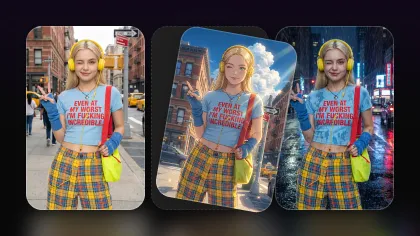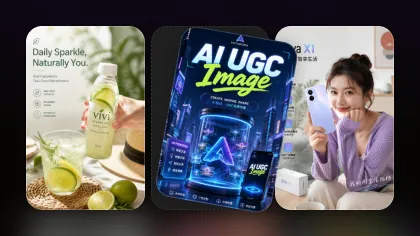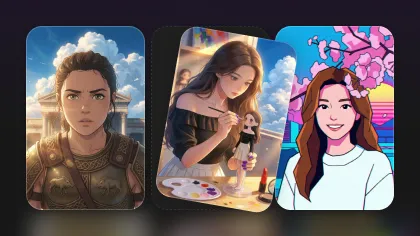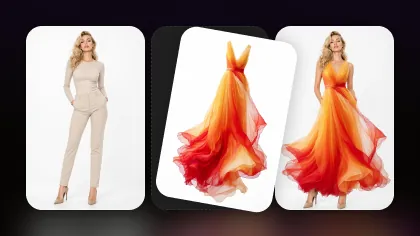
AI image and video generation are exciting, but prompt writing is still one of the biggest bottlenecks. You may know the look you want, but turning that visual idea into a precise prompt can be harder than expected.
A weak prompt gives you random outputs. A vague prompt gives you results that feel close but not usable. A strong prompt captures the subject, mood, lighting, style, composition, color palette, and details that make the image work.
That is why tools like Image to Prompt AI and Free Image Describer are useful. Instead of starting from a blank text box, you can upload an image and let Flyne AI help translate the visual into a structured prompt or readable description.
This guide explains how both tools work, when to use each one, and how to turn image analysis into better prompts for AI image generation, image editing, social content, product visuals, and creative campaigns.
Quick Verdict
Use Image to Prompt AI when you want to turn a reference image into a prompt for another AI image model. It is best for creators who want to capture style, lighting, camera angle, composition, and visual mood from an existing image.
Use Free Image Describer when you want a human-readable explanation of an image. It is better for captions, alt text, product notes, content summaries, accessibility descriptions, object recognition, and marketing copy.
Use Free Prompt Generator when you already have a rough idea and want to expand it into a stronger image-generation prompt.
A simple rule:
- Image to Prompt: best for creating reusable AI prompts from images.
- Image Describer: best for explaining what is in an image.
- Prompt Generator: best for improving a rough text idea.
- AI Image Generator: best for turning the final prompt into new visuals.
What Is Image to Prompt AI?
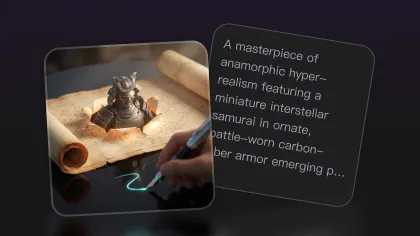
Image to Prompt AI is a free image analysis tool that turns uploaded images into detailed prompts for AI image generation. Instead of manually describing a reference image, you can upload it and receive a structured prompt that captures the most important visual information.
This is useful because good prompts are usually more specific than beginners expect. A strong prompt may include:
- Subject and object details
- Scene setting
- Lighting direction
- Color palette
- Camera angle
- Composition
- Texture and material details
- Style keywords
- Mood and atmosphere
- Negative constraints
For example, instead of writing:
city at night
A stronger generated prompt might look like:
Cyberpunk cityscape at night, neon signs glowing through light rain, reflective wet streets, cinematic blue and magenta lighting, dense urban atmosphere, high contrast, wide-angle composition, futuristic mood.
That extra detail gives an AI image model much clearer direction.
How to Use Image to Prompt AI
The workflow is simple:
- Open Image to Prompt AI.
- Upload an image in a supported format such as JPG, PNG, or WebP.
- Choose the target prompt style or model mode when available.
- Click the transform or generation button.
- Copy the generated prompt.
- Paste it into Flyne AI Image Generator or another image workflow.
- Refine the prompt before generating if you want a different subject, mood, or style.
The most important step is not copying the output blindly. Treat the generated prompt as a strong first draft. Keep the parts you like, remove irrelevant details, and add your project goal.
Example: Turning a Reference Image Into a Better Prompt
Imagine you upload a photo of a cozy desk setup with warm lamp light, a notebook, a cup of coffee, and soft shadows.
A simple human prompt might be:
cozy desk with coffee
A better image-to-prompt result could be:
Cozy home office desk scene, warm table lamp glow, open notebook, ceramic coffee mug, soft shadows, wooden desk texture, relaxed evening atmosphere, shallow depth of field, editorial lifestyle photography style.
You can then adapt it for a new creative goal:
Create a cozy productivity-themed blog header. Warm table lamp glow, open notebook, ceramic coffee mug, wooden desk texture, soft shadows, relaxed evening atmosphere, wide 16:9 composition, empty space on the right for title overlay, no readable text.
This is the real value of image-to-prompt tools: they help you extract visual language, then reuse it for your own project.
What Is Free Image Describer?
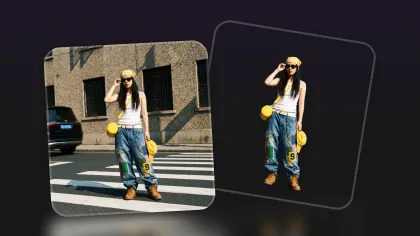
Free Image Describer analyzes an image and produces a readable description. It is not only for generating prompts. It is useful whenever you need to understand, summarize, explain, or repurpose visual content.
Use Free Image Describer when you need:
- Alt text for accessibility
- Product descriptions
- Social media captions
- Visual summaries
- Object recognition
- People-focused notes
- Marketing copy
- Content planning notes
- Reference-image breakdowns
For example, if you upload a sneaker product photo, the tool might describe the image like this:
A pair of white athletic sneakers with a chunky sole, photographed on a wooden floor. Soft natural light highlights the fabric texture and clean product shape.
If you need marketing copy, you could rewrite that into:
Step into clean everyday comfort with sleek white sneakers designed for casual wear, fitness, and modern street style.
The Image Describer is especially helpful when you are working with many visuals and need quick, consistent descriptions.
Image to Prompt vs Image Describer: What Is the Difference?
Both tools analyze images, but they serve different jobs.
| Tool | Best For | Output Type | Use It When |
|---|---|---|---|
| Image to Prompt AI | AI image generation | Prompt-style text | You want to recreate a style, mood, composition, or image concept |
| Free Image Describer | Image explanation | Human-readable description | You need captions, alt text, summaries, product notes, or analysis |
| Free Prompt Generator | Prompt improvement | Expanded text prompt | You already have a rough idea but need a stronger prompt |
| Flyne AI Image Generator | Final image creation | AI-generated image | You are ready to generate or test visuals |
If your goal is image generation, start with Image to Prompt. If your goal is explanation or content writing, start with Image Describer. If your goal is improving a text idea, use Prompt Generator.
Practical Workflows for Creators
Workflow 1: Reference Image to New AI Artwork
Use this workflow when you like the look of an image but want to create something original from it.
- Upload the reference image to Image to Prompt AI.
- Copy the generated prompt.
- Replace the subject with your own concept.
- Keep the useful style, lighting, and composition language.
- Generate the new image with Flyne AI Image Generator.
- Upscale the strongest result with AI Image Upscaler.
Example transformation:
Original prompt: cinematic portrait of a woman in a neon city, rainy night, reflective streets, cyberpunk mood.
Rewritten prompt: cinematic portrait of a futuristic delivery robot in a neon city, rainy night, reflective streets, cyberpunk mood, low-angle composition, no readable text.
Workflow 2: Product Photo to Marketing Copy
Use this when you have product visuals and need descriptions, captions, or ad copy.
- Upload the product photo to Free Image Describer.
- Generate a detailed description.
- Convert the description into product copy.
- Use the same description as a reference for image generation.
- Create new campaign visuals with AI Image Generator or Image to Image AI.
Example output:
A minimalist skincare bottle on a marble counter, soft morning light, clean bathroom background, premium beauty aesthetic.
Marketing rewrite:
Bring a calm, premium beauty feel to your daily routine with a minimalist skincare essential designed for clean, modern self-care.
Workflow 3: Rough Idea to Polished Prompt
Use this when you do not have a reference image yet.
- Write a rough idea.
- Open Free Prompt Generator.
- Expand the rough idea into a detailed prompt.
- Generate visuals with Flyne AI Image Generator.
- Use Image to Prompt on your favorite result to extract a reusable prompt structure.
Example rough idea:
fantasy library with glowing books
Better prompt:
Ancient fantasy library filled with towering bookshelves, glowing magical books floating in the air, golden dust particles, candlelit atmosphere, gothic arches, deep blue and amber color palette, cinematic wide shot, highly detailed fantasy concept art.
Workflow 4: Image Prompt to Video Keyframe
Use this when you want to create a still image that can later become a video.
- Use Image to Prompt to analyze a reference visual.
- Rewrite the prompt as a clean cinematic keyframe.
- Generate the still image with Flyne AI Image Generator.
- Choose the strongest composition.
- Animate it with Photo to Video AI Generator.
For image-to-video, the source image should have a clear subject, stable lighting, and enough room for motion. Avoid overly crowded images if you want smoother animation.
Prompt Editing Tips After Using Image to Prompt
Image-to-prompt output is useful, but it should still be edited. Here are the most important fixes.
1. Add Your Final Use Case
A prompt for a poster should not look the same as a prompt for a product image or a profile portrait.
Add phrases like:
- blog header
- product ad
- YouTube thumbnail
- social media post
- cinematic keyframe
- e-commerce product photo
- character concept sheet
2. Control the Composition
Add framing terms:
- close-up portrait
- wide cinematic shot
- centered composition
- left subject with empty space on the right
- top-down product photo
- vertical poster layout
- square social post
3. Remove Unwanted Details
Image-to-prompt tools may describe things you do not want to keep. Delete those before generating.
For example, if the source image has a messy table but you only want the lighting style, remove “cluttered desk” from the prompt.
4. Add Negative Constraints
Use constraints to prevent common issues:
no readable text, no random letters, no distorted hands, no extra limbs, no logo deformation, no cluttered background
5. Keep One Main Idea
Do not turn the generated prompt into a paragraph of unrelated aesthetics. A focused prompt is usually easier for the model to follow.
Best Use Cases for Image to Prompt and Image Describer
AI Artists
Artists can use Image to Prompt to study lighting, composition, and mood from reference images, then create original art with similar visual language.
Marketers
Marketing teams can use Image Describer for product captions and Image to Prompt for campaign visuals, ad variants, and social graphics.
Designers
Designers can turn moodboards into prompt structures, then test layout ideas, color palettes, and style directions faster.
E-Commerce Teams
Product teams can describe product photos, generate campaign copy, create new product backgrounds, and upscale final images.
Content Creators
Creators can turn screenshots, selfies, thumbnails, or mood references into better prompts for profile images, posters, video keyframes, and social content.
Accessibility Writers
The Image Describer can help draft image descriptions and alt text. Human review is still important, especially for accuracy and sensitive contexts, but it can speed up the first draft.
Recommended Flyne AI Workflow
For the most practical creator workflow, use these tools together:
- Start with Image to Prompt AI when you have a reference image.
- Use Free Image Describer when you need captions, summaries, or alt text.
- Use Free Prompt Generator when you have a rough idea that needs stronger wording.
- Generate visuals with Flyne AI Image Generator.
- Edit existing visuals with Image to Image AI.
- Use Nano Banana Pro when you need polished image generation and editing.
- Upscale final assets with AI Image Upscaler.
- Animate strong still images with Photo to Video AI Generator.
This workflow turns a single image into a full creative pipeline: analyze, describe, prompt, generate, edit, polish, and optionally animate.
Final Takeaway
Prompt writing is one of the hidden skills behind strong AI visuals. The better the prompt, the better the model can understand what you want. But you do not have to start from a blank page every time.
Image to Prompt AI helps translate visual references into reusable AI prompts. Free Image Describer helps turn images into clear descriptions, captions, and content notes. Free Prompt Generator helps improve rough ideas before you generate.
Used together, these tools make Flyne AI more than an image generator. They make it a practical creative workflow for artists, marketers, designers, e-commerce teams, and content creators.
The best process is simple: upload a reference, extract the visual language, rewrite it for your goal, generate new images, and polish only the results worth publishing.
Recommended Tools
- Image to Prompt AI — best for turning visual references into detailed AI image prompts.
- Free Image Describer — useful for captions, alt text, summaries, product descriptions, and visual analysis.
- Free Prompt Generator — useful when you have a rough idea and need a stronger image-generation prompt.
- Flyne AI Image Generator — best for turning prompts into new images with multiple advanced image models.
- Image to Image AI — practical for transforming existing visuals with prompt guidance.
- Nano Banana AI — useful for fast image generation, creative edits, and everyday visual workflows.
- Nano Banana Pro — best for polished image generation, high-quality edits, and more controlled creative output.
- AI Image Upscaler — useful for enhancing final images before publishing.
- Photo to Video AI Generator — useful for turning strong still images into short social clips or video keyframes.
Related Articles
- How to Use Free Image to Prompt Tools on Flyne AI
- Free Image to Prompt Generator: Unlocking AI Image Creation
- Mastering Image to Prompt: A Guide to Image-to-Prompt Generator
- Flyne AI Image Generator Guide 2026: Best Models Compared and How to Use
- Creating 4K High-Quality Images with Nano Banana Pro AI: A Practical Editor’s Guide
- Seedream 5.0 Lite Guide: Faster AI Image Generation and Editing
People Also Read
- How to Turn Images Into Better AI Prompts with HeyDream AI
- HeyDream AI Image Generator Guide: Best Models for Text-to-Image and Image-to-Image
- How to Use Sea Imagine AI’s Image Generator: A Beginner-Friendly Tutorial
- The Seedream 5.0 AI Image-to-Image Analysis Guide 2026
- VideoWeb AI Image Generator 2026: The Fast-to-Final Model Map