AI 圖像與影片生成令人興奮,但提示詞(prompt)撰寫仍然是最大的瓶頸之一。你可能知道自己想要的畫面感,但要把那個視覺想法轉成精準的提示詞,往往比想像中更難。
薄弱的提示詞會給你隨機輸出。含糊的提示詞會給你「看起來很接近但不能用」的結果。強而有力的提示詞則能捕捉主體、情緒、打光、風格、構圖、配色,以及讓影像成立的細節。
這就是為什麼像 Image to Prompt AI 與 Free Image Describer 這類工具很有用。你不必從空白文字框開始,而是可以上傳一張圖片,讓 Flyne AI 協助把視覺內容翻譯成結構化提示詞或可讀的描述。
本指南會說明兩個工具各自如何運作、何時該用哪一個,以及如何把影像分析轉化為更好的提示詞,用於 AI 圖像生成、影像編輯、社群內容、產品視覺與創意行銷活動。
快速結論
當你想把參考圖轉成可供其他 AI 圖像模型使用的提示詞時,請用 Image to Prompt AI。它最適合想從既有圖片中捕捉風格、光線、鏡頭角度、構圖與視覺氛圍的創作者。
當你想要「人類可讀」的圖片解釋時,請用 Free Image Describer。它更適合用於標題(caption)、替代文字(alt text)、產品備註、內容摘要、無障礙描述、物件辨識與行銷文案。
當你已經有一個粗略想法、希望把它擴寫成更強的圖像生成提示詞時,請用 Free Prompt Generator。
一個簡單規則:
- Image to Prompt: 最適合從圖片產生可重複使用的 AI 提示詞。
- Image Describer: 最適合解釋圖片裡有什麼。
- Prompt Generator: 最適合強化粗略文字想法。
- AI Image Generator: 最適合把最終提示詞變成新的視覺作品。
什麼是 Image to Prompt AI?
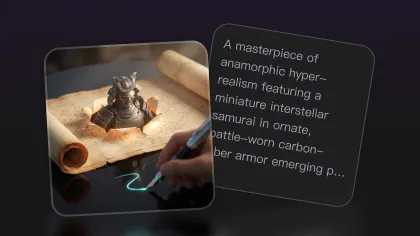
Image to Prompt AI 是一款免費的影像分析工具,可將上傳圖片轉換成用於 AI 圖像生成的詳細提示詞。你不必手動描述參考圖,只要上傳,就能收到一段結構化提示詞,抓住最重要的視覺資訊。
之所以有用,是因為好提示詞通常比新手預期更具體。一段強提示詞可能包含:
- 主體與物件細節
- 場景設定
- 光線方向
- 配色調色盤
- 鏡頭角度
- 構圖
- 紋理與材質細節
- 風格關鍵字
- 情緒與氛圍
- 負面約束(Negative constraints)
例如,你不只是寫:
city at night
更強的生成提示詞可能會是:
Cyberpunk cityscape at night, neon signs glowing through light rain, reflective wet streets, cinematic blue and magenta lighting, dense urban atmosphere, high contrast, wide-angle composition, futuristic mood.
這些額外細節能給 AI 圖像模型更清楚的指引。
如何使用 Image to Prompt AI
流程很簡單:
- 打開 Image to Prompt AI。
- 上傳支援格式的圖片,例如 JPG、PNG 或 WebP。
- 若有提供,選擇目標提示詞風格或模型模式。
- 點擊轉換或生成按鈕。
- 複製生成的提示詞。
- 貼到 Flyne AI Image Generator 或其他影像工作流程中。
- 若你想要不同的主體、情緒或風格,可在生成前先微調提示詞。
最重要的一步是:不要盲目照抄輸出。把生成提示詞當作一份很強的初稿即可。保留你喜歡的部分、刪掉無關細節,並加入你的專案目標。
範例:把參考圖片變成更好的提示詞
想像你上傳一張溫馨的桌面佈置照:溫暖的檯燈光、筆記本、一杯咖啡與柔和陰影。
人類可能寫出很簡單的提示詞:
cozy desk with coffee
更好的 image-to-prompt 結果可能是:
Cozy home office desk scene, warm table lamp glow, open notebook, ceramic coffee mug, soft shadows, wooden desk texture, relaxed evening atmosphere, shallow depth of field, editorial lifestyle photography style.
接著你可以把它改成新的創作目標:
Create a cozy productivity-themed blog header. Warm table lamp glow, open notebook, ceramic coffee mug, wooden desk texture, soft shadows, relaxed evening atmosphere, wide 16:9 composition, empty space on the right for title overlay, no readable text.
這就是 image-to-prompt 工具的真正價值:協助你抽取視覺語言,再把它重用到自己的專案中。
什麼是 Free Image Describer?
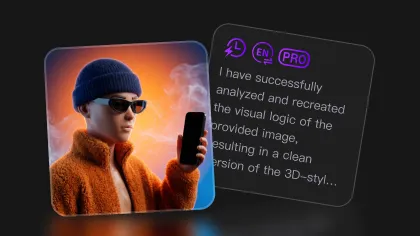
Free Image Describer 會分析圖片並產出可讀的文字描述。它不只用於生成提示詞;任何你需要理解、摘要、解釋或再利用視覺內容的情境,都很實用。
在以下需求時使用 Free Image Describer:
- 無障礙用的替代文字(alt text)
- 產品描述
- 社群媒體標題(caption)
- 視覺摘要
- 物件辨識
- 以人物為主的備註
- 行銷文案
- 內容規劃筆記
- 參考圖拆解
例如,你上傳一張球鞋產品照,工具可能會這樣描述:
A pair of white athletic sneakers with a chunky sole, photographed on a wooden floor. Soft natural light highlights the fabric texture and clean product shape.
若你需要行銷文案,可以把它改寫為:
Step into clean everyday comfort with sleek white sneakers designed for casual wear, fitness, and modern street style.
當你要處理大量視覺素材、需要快速且一致的描述時,Image Describer 特別好用。
Image to Prompt vs Image Describer:差異是什麼?
兩個工具都會分析圖片,但用途不同。
| 工具 | 最適合用於 | 輸出類型 | 使用時機 |
|---|---|---|---|
| Image to Prompt AI | AI 圖像生成 | 提示詞風格文字 | 你想重現某種風格、情緒、構圖或影像概念 |
| Free Image Describer | 圖像解釋 | 人類可讀的描述 | 你需要標題、alt text、摘要、產品備註或分析 |
| Free Prompt Generator | 提示詞強化 | 擴寫後的文字提示詞 | 你已經有粗略想法,但需要更強的提示詞 |
| Flyne AI Image Generator | 最終影像生成 | AI 生成圖片 | 你已準備好生成或測試視覺 |
若目標是生成圖片,先用 Image to Prompt。若目標是解釋或內容寫作,先用 Image Describer。若目標是強化文字想法,就用 Prompt Generator。
給創作者的實用工作流程
工作流程 1:參考圖 → 全新 AI 藝術作品
當你喜歡某張圖片的風格,但想做出原創內容時使用。
- 將參考圖上傳到 Image to Prompt AI。
- 複製生成的提示詞。
- 把主體替換成你自己的概念。
- 保留有用的風格、打光與構圖語言。
- 用 Flyne AI Image Generator 生成新圖片。
- 用 AI Image Upscaler 放大最好的結果。
轉換示例:
Original prompt: cinematic portrait of a woman in a neon city, rainy night, reflective streets, cyberpunk mood.
Rewritten prompt: cinematic portrait of a futuristic delivery robot in a neon city, rainy night, reflective streets, cyberpunk mood, low-angle composition, no readable text.
工作流程 2:產品照片 → 行銷文案
當你有產品視覺、需要描述、標題或廣告文案時使用。
- 將產品照片上傳到 Free Image Describer。
- 生成詳細描述。
- 把描述轉成產品文案。
- 用同一份描述作為圖像生成的參考。
- 用 AI Image Generator 或 Image to Image AI 建立新的活動視覺。
輸出示例:
A minimalist skincare bottle on a marble counter, soft morning light, clean bathroom background, premium beauty aesthetic.
行銷改寫:
Bring a calm, premium beauty feel to your daily routine with a minimalist skincare essential designed for clean, modern self-care.
工作流程 3:粗略想法 → 精緻提示詞
當你還沒有參考圖時使用。
- 寫下粗略想法。
- 打開 Free Prompt Generator。
- 將粗略想法擴寫成詳細提示詞。
- 用 Flyne AI Image Generator 生成視覺。
- 對你最喜歡的結果使用 Image to Prompt,抽取可重用的提示詞結構。
粗略想法示例:
fantasy library with glowing books
更好的提示詞:
Ancient fantasy library filled with towering bookshelves, glowing magical books floating in the air, golden dust particles, candlelit atmosphere, gothic arches, deep blue and amber color palette, cinematic wide shot, highly detailed fantasy concept art.
工作流程 4:圖像提示詞 → 影片關鍵影格
當你想先做出一張靜態圖,之後再變成影片時使用。
- 用 Image to Prompt 分析參考視覺。
- 把提示詞改寫成乾淨的電影感關鍵影格(keyframe)。
- 用 Flyne AI Image Generator 生成靜態圖。
- 選出構圖最強的一張。
- 用 Photo to Video AI Generator 做動態化。
在圖轉影片時,來源圖片應具備清楚主體、穩定光線,以及足夠的運動空間。若想要更順的動畫,避免過度擁擠的畫面。
使用 Image to Prompt 後的提示詞編輯技巧
Image-to-prompt 的輸出很有用,但仍應編輯。以下是最重要的修正方向。
1. 加上你的最終用途
海報用提示詞不會長得跟產品圖或頭像肖像一樣。
加入像這些短語:
- blog header
- product ad
- YouTube thumbnail
- social media post
- cinematic keyframe
- e-commerce product photo
- character concept sheet
2. 控制構圖
加入取景/構圖用語:
- close-up portrait
- wide cinematic shot
- centered composition
- left subject with empty space on the right
- top-down product photo
- vertical poster layout
- square social post
3. 移除不想要的細節
Image-to-prompt 工具可能會描述你不想保留的元素。生成前先刪掉。
例如,來源圖有凌亂桌面,但你只想要打光風格,就把提示詞中的 “cluttered desk” 移除。
4. 加入負面約束
用約束來避免常見問題:
no readable text, no random letters, no distorted hands, no extra limbs, no logo deformation, no cluttered background
5. 保留單一核心主題
不要把生成提示詞堆成一段互不相關的美學清單。聚焦的提示詞通常更容易讓模型跟上。
Image to Prompt 與 Image Describer 的最佳使用情境
AI 藝術家
藝術家可用 Image to Prompt 研究參考圖的打光、構圖與氛圍,接著用相同的視覺語言創作原創作品。
行銷人員
行銷團隊可用 Image Describer 產出產品標題,並用 Image to Prompt 製作活動視覺、廣告變體與社群圖像。
設計師
設計師可把情緒板(moodboard)轉為提示詞結構,更快測試版面想法、配色與風格方向。
電商團隊
產品團隊可描述產品照、生成活動文案、建立新產品背景,並放大最終圖片。
內容創作者
創作者可把截圖、自拍、縮圖或情緒參考轉成更好的提示詞,用於頭像、海報、影片關鍵影格與社群內容。
無障礙文案撰寫者
Image Describer 能協助起草圖像描述與 alt text。人工審核仍很重要,尤其在準確性與敏感情境上,但它能加速初稿產出。
推薦的 Flyne AI 工作流程
若要最實用的創作者流程,建議把以下工具一起使用:
- 有參考圖時先用 Image to Prompt AI。
- 需要標題、摘要或 alt text 時用 Free Image Describer。
- 有粗略想法但需要更強措辭時用 Free Prompt Generator。
- 用 Flyne AI Image Generator 生成視覺。
- 用 Image to Image AI 編輯既有視覺。
- 需要更精緻的生成與編輯時用 Nano Banana Pro。
- 用 AI Image Upscaler 放大最終素材。
- 用 Photo to Video AI Generator 把優質靜態圖動態化。
這套流程能把單張圖片變成完整的創意管線:分析、描述、撰寫提示詞、生成、編輯、精修,並可選擇加入動畫。
最終重點
提示詞撰寫是強 AI 視覺背後的隱藏技能之一。提示詞越好,模型越能理解你想要什麼。但你不必每次都從空白開始。
Image to Prompt AI 能把視覺參考翻譯成可重用的 AI 提示詞。Free Image Describer 能把圖片變成清楚的描述、標題與內容備註。Free Prompt Generator 能在生成前強化粗略想法。
搭配使用時,這些工具讓 Flyne AI 不只是圖像生成器,而是一套實用的創作工作流程,適用於藝術家、行銷人員、設計師、電商團隊與內容創作者。
最佳流程很簡單:上傳參考 → 抽取視覺語言 → 依你的目標改寫 → 生成新圖片 → 只精修值得發佈的結果。
推薦工具
- Image to Prompt AI — 最適合把視覺參考轉成詳細的 AI 圖像提示詞。
- Free Image Describer — 適用於標題、alt text、摘要、產品描述與視覺分析。
- Free Prompt Generator — 適合在你有粗略想法、需要更強圖像生成提示詞時使用。
- Flyne AI Image Generator — 最適合用多種進階圖像模型把提示詞轉成新圖片。
- Image to Image AI — 適合用提示詞引導來改造既有視覺。
- Nano Banana AI — 適合快速生成、創意編修與日常視覺工作流程。
- Nano Banana Pro — 最適合精緻圖像生成、高品質編修與更可控的創意輸出。
- AI Image Upscaler — 適合在發佈前強化最終圖片。
- Photo to Video AI Generator — 適合把優質靜態圖做成短社群影片或影片關鍵影格。
相關文章
- How to Use Free Image to Prompt Tools on Flyne AI
- Free Image to Prompt Generator: Unlocking AI Image Creation
- Mastering Image to Prompt: A Guide to Image-to-Prompt Generator
- Flyne AI Image Generator Guide 2026: Best Models Compared and How to Use
- Creating 4K High-Quality Images with Nano Banana Pro AI: A Practical Editor’s Guide
- Seedream 5.0 Lite Guide: Faster AI Image Generation and Editing
其他讀者也會看
- How to Turn Images Into Better AI Prompts with HeyDream AI
- HeyDream AI Image Generator Guide: Best Models for Text-to-Image and Image-to-Image
- How to Use Sea Imagine AI’s Image Generator: A Beginner-Friendly Tutorial
- The Seedream 5.0 AI Image-to-Image Analysis Guide 2026
- VideoWeb AI Image Generator 2026: The Fast-to-Final Model Map