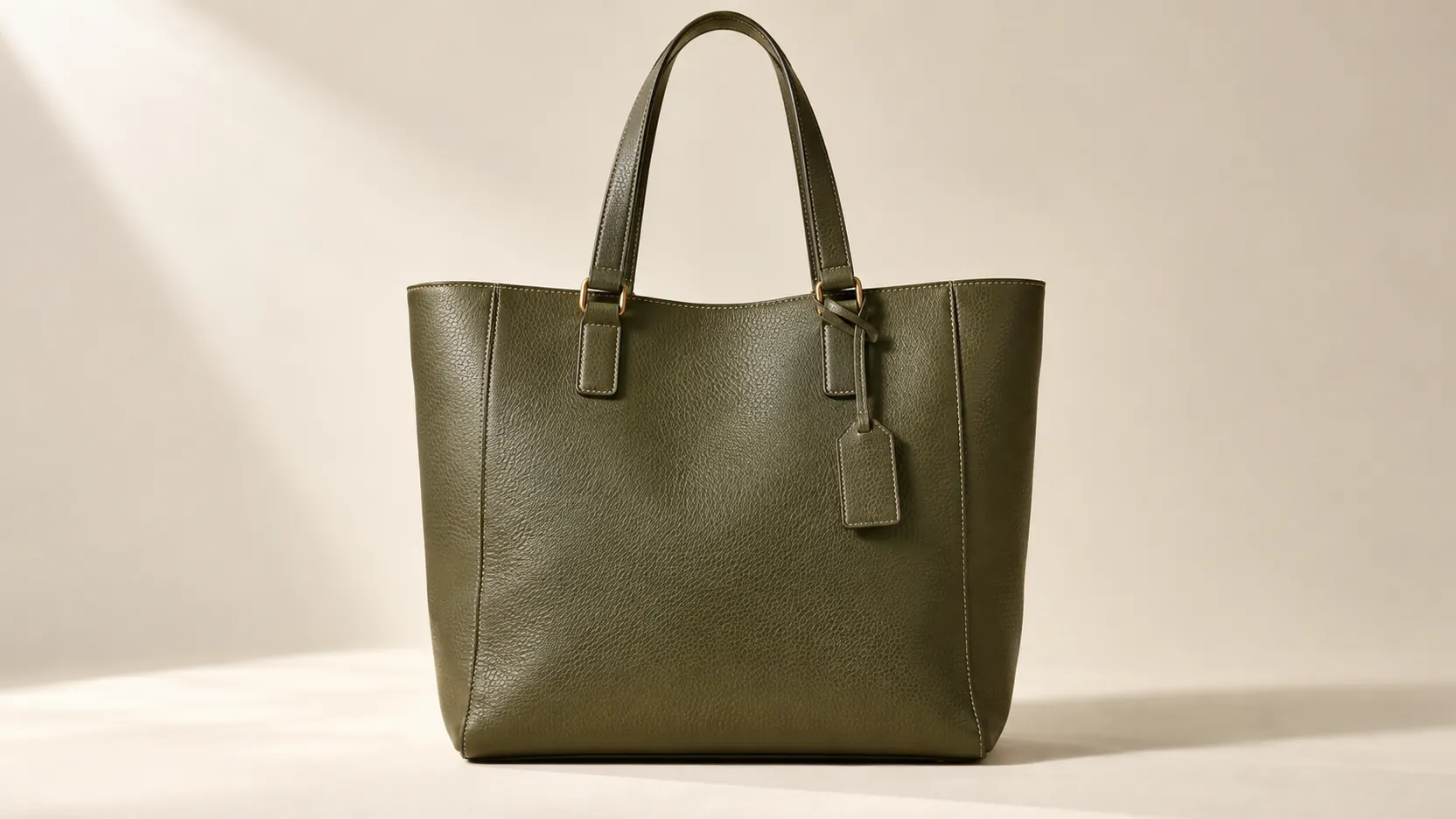
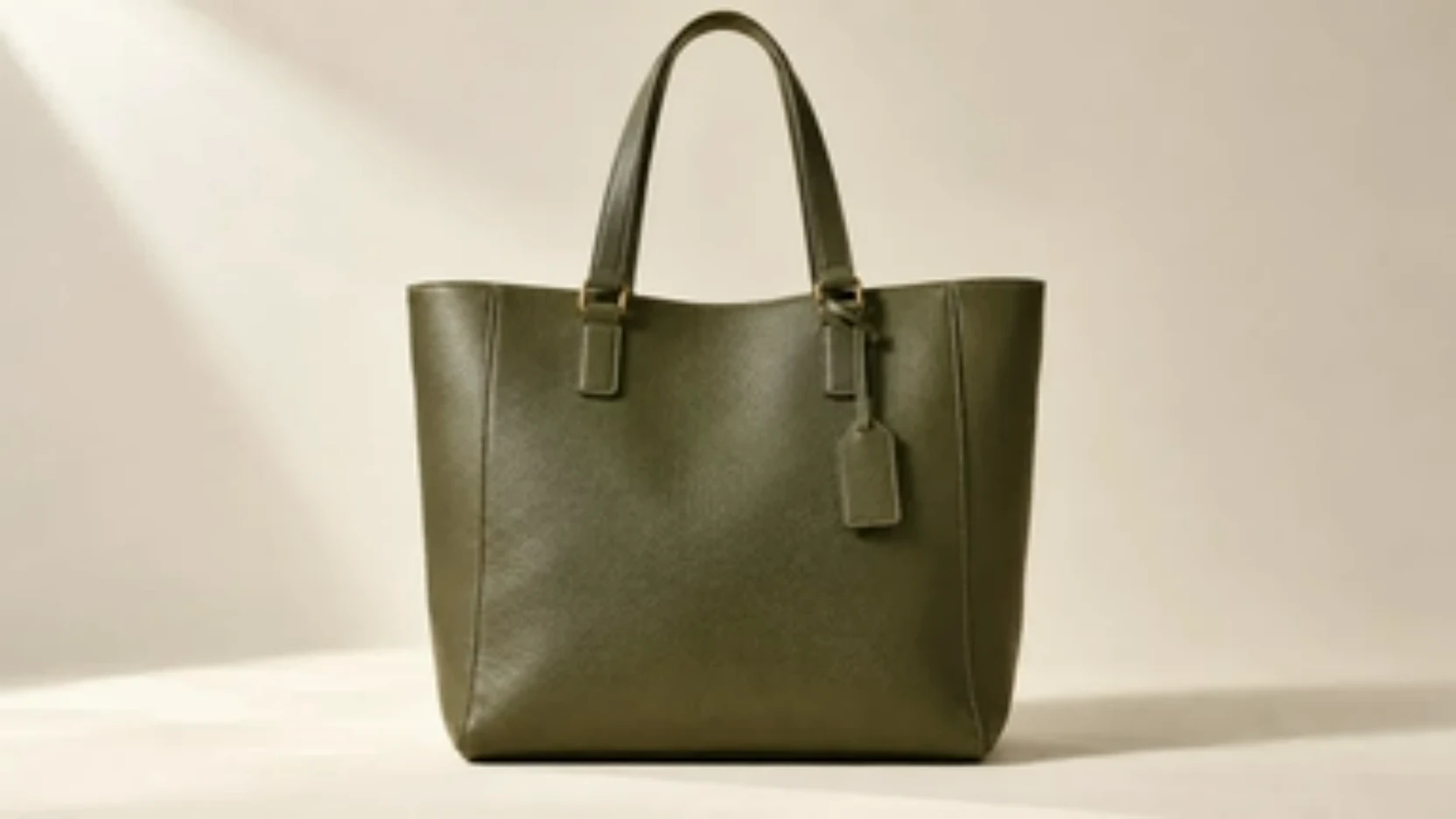
Before720p
After · AI4K
E-commerce Product Photos
Compare texture, edges, and fine product details before using a larger image in your storefront.
Enhance and enlarge your existing photo, product shot, or illustration to 2K, 4K, or 8K resolution. Use AI Image Upscaler on Flyne AI to upload your image, select your preferred output size, and generate a bigger, clearer version using credits.
Credit-based AI processing · Review the cost before generating
Only need a free 2× or 4× resize?
Use Free Image UpscalerCompare the source and enlarged image at the size your project needs. Look closely at hair, fabric, outlines, and lettering to judge how AI processing changes the details.
Drag the divider or use the arrow keys to compare details.
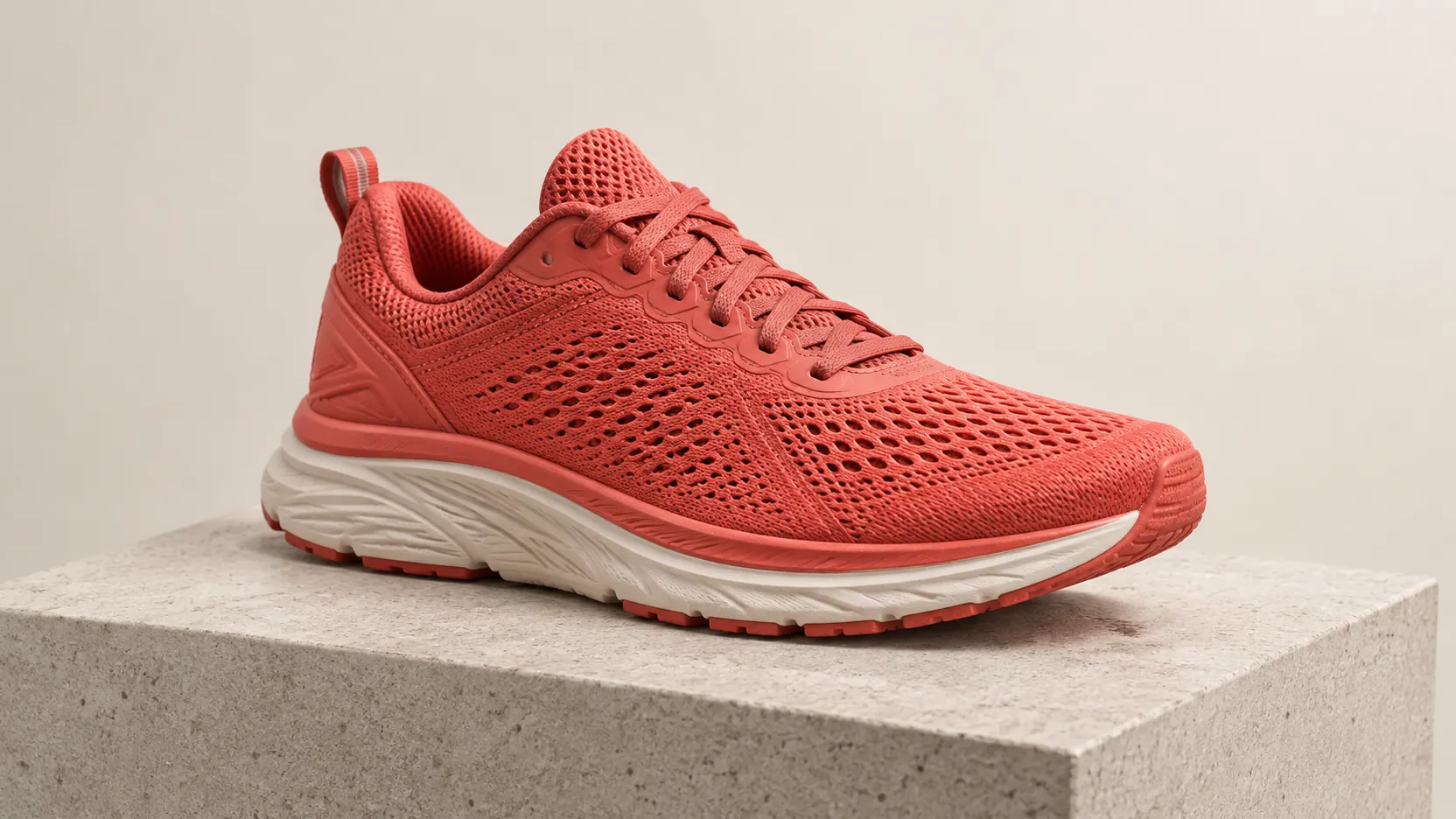
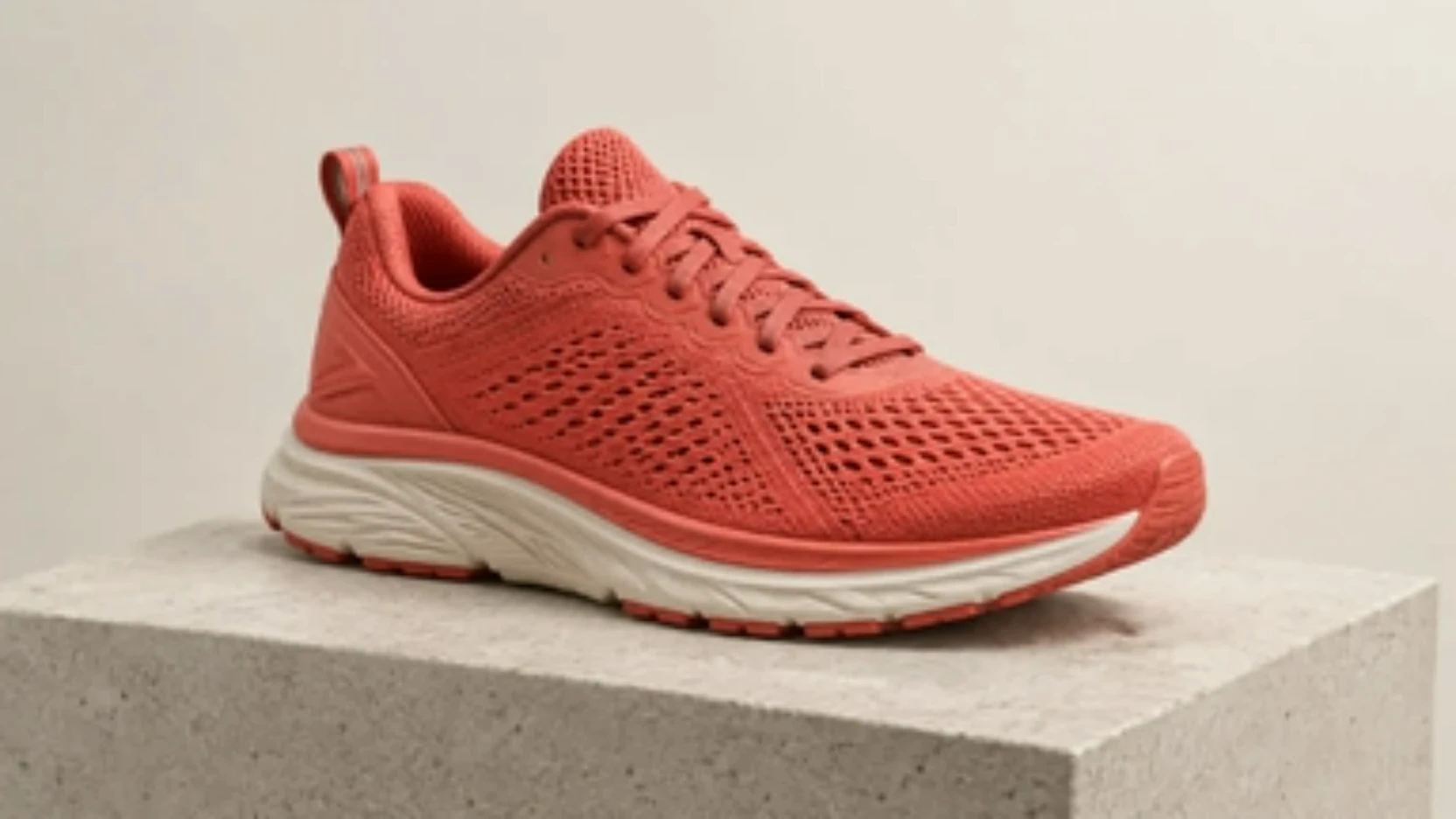
Start with an existing image and control the output resolution in an online generation workflow.
Upload a photo, product shot, or illustration as the source for enlargement. Use the clearest original you have so the model has useful visual information to work with.
Select 2K, 4K, or 8K in the upscaling form to match your intended layout. Start with the resolution your project needs and review the credit estimate before generating.
Generate a higher-resolution interpretation of your source image. Inspect textures and fine edges to see whether the result suits your design.
Follow the generation task in Create and download the completed image. Bring the result into your usual layout or editing workflow.
AI enlargement offers another way to prepare an existing visual for a larger layout, with resolution controls and a credit estimate before submission.
Start from an existing composition when you need a larger image for another placement. Upscaling gives you a new version to evaluate without rebuilding the entire design.
Choose an output size for your intended use instead of enlarging by habit. A slide image and a large campaign layout may need different pixel dimensions.
The form displays the credit cost before submission, helping you plan an enlargement and any additional attempts around your available balance.
Upload the source and start AI processing online. Download the result for further editing without installing a separate desktop upscaling application.
Choose AI processing when you want to try an AI-generated enlargement of a photo or illustration. If you only need larger pixel dimensions, our free image upscaler resizes locally at 2× or 4× without credits or sign-up.
Use Free Image UpscalerCompare before-and-after examples across products, portraits, print projects, and archived photos.
Compare texture, edges, and fine product details before using a larger image in your storefront.


Inspect hair, skin, and facial features side by side with the original.
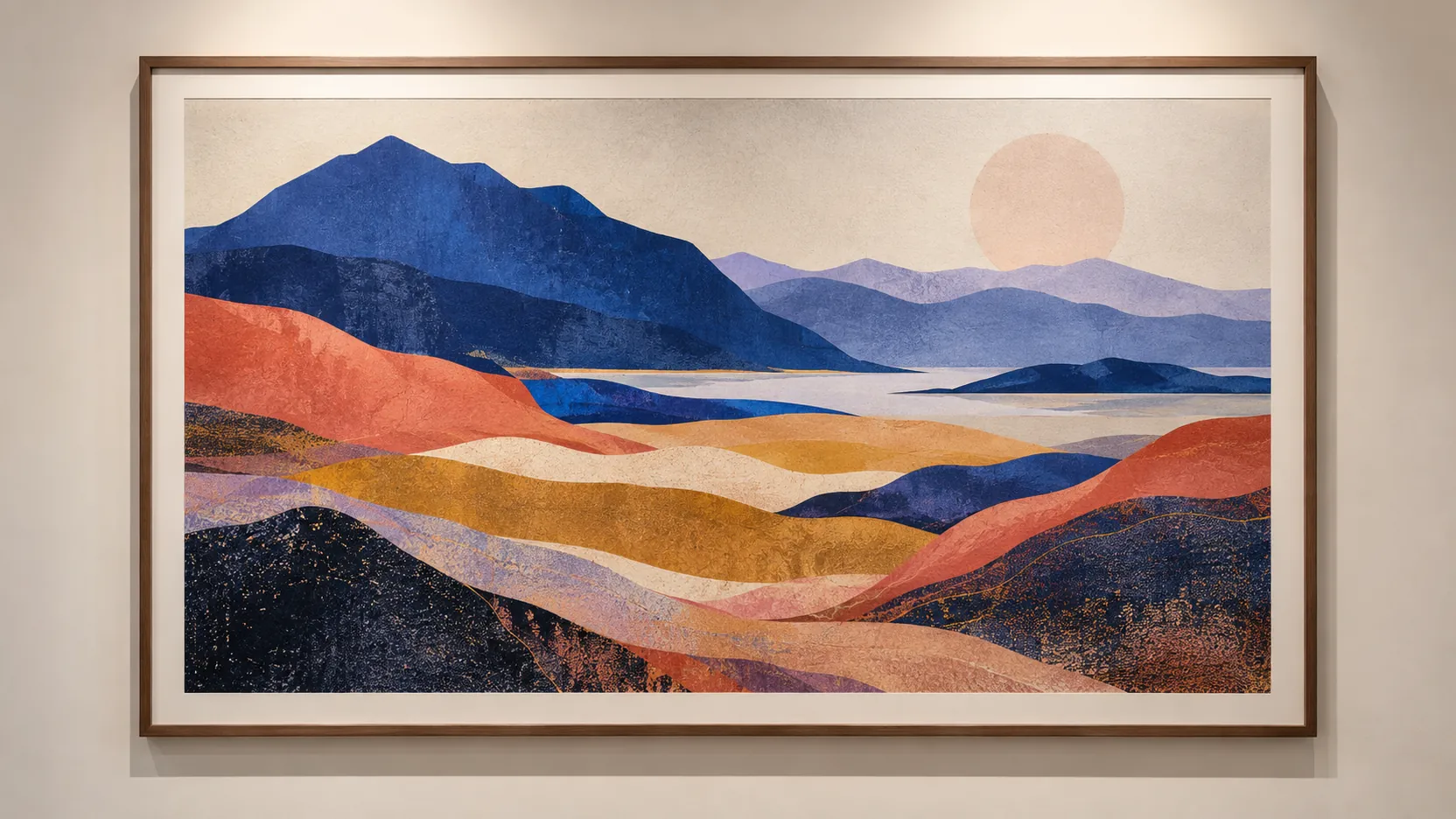
Review the enlarged image at its intended print size before preparing the final file.
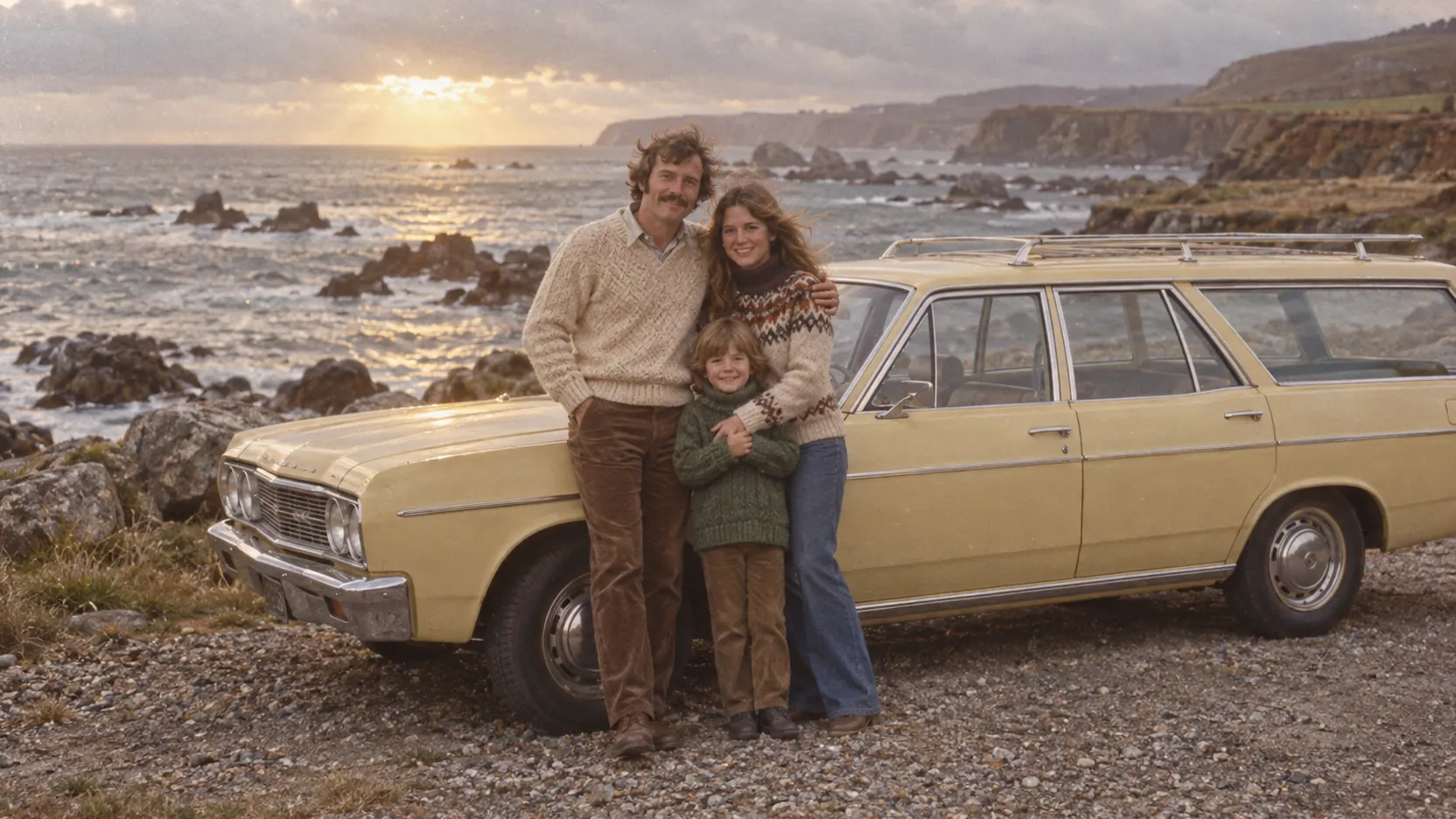
Compare an older photo with its AI-upscaled version while checking that important details stay faithful to the source.
Upload a source image, choose the available output settings, and review the generated enlargement in Create.
Learn how AI enlargement works, how credits apply, and what to inspect before using your downloaded image.
Continue creating with Flyne’s image, video, and free tools.
Explore image preparation, resolution choices, and practical ways to compare an AI enlargement with its source.