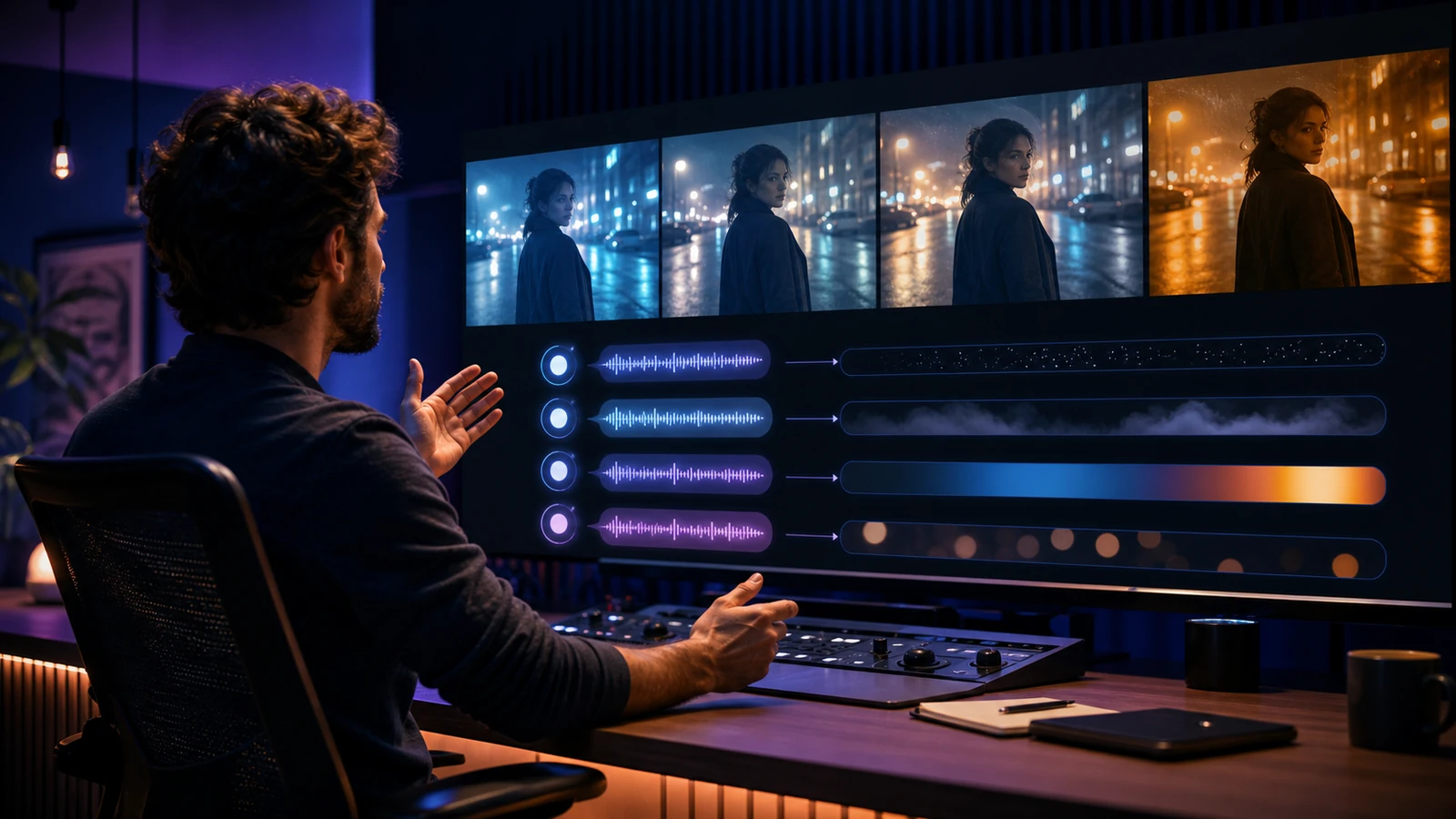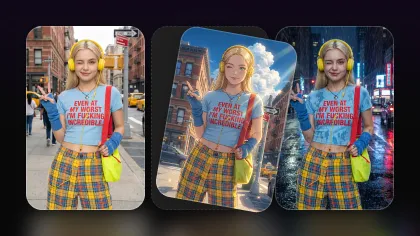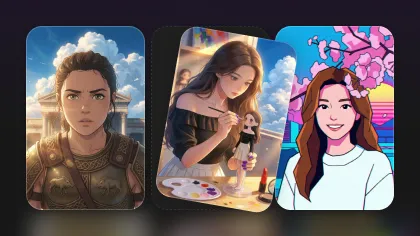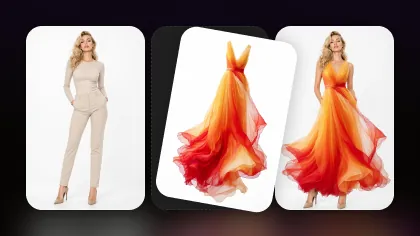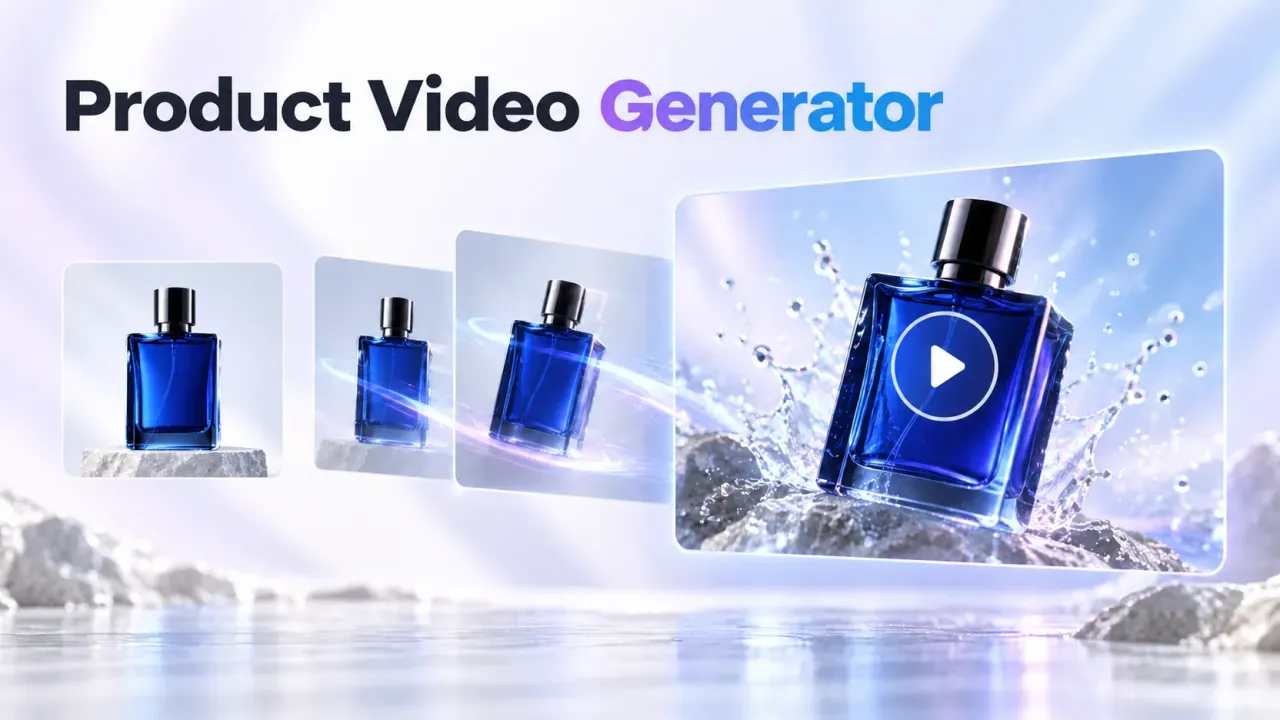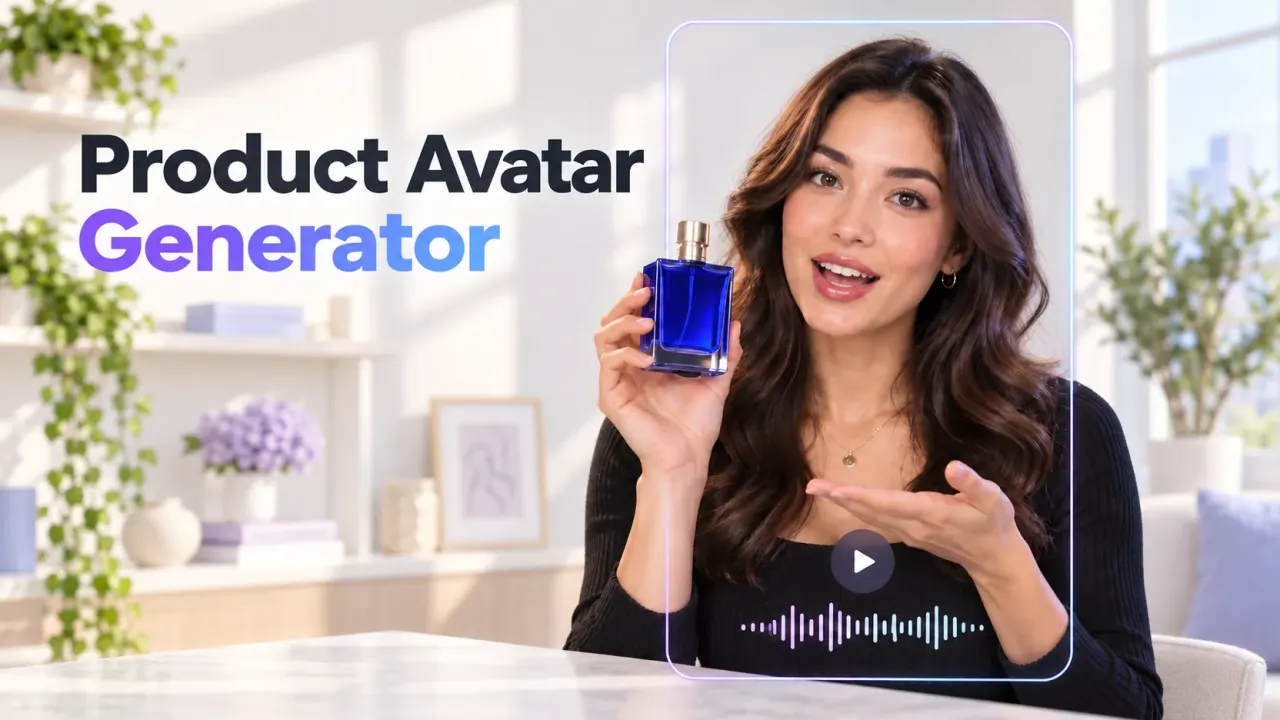
AI video generation in 2026 is powerful, but choosing the right model can still feel messy. One model is better for cinematic motion. Another is stronger with audio. Another is more practical for short social clips. Another works better when you start from an image instead of a text prompt.
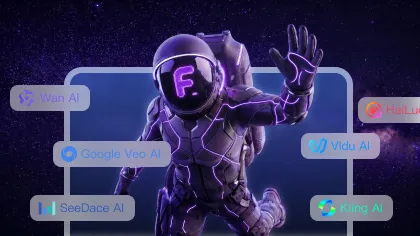
That is the problem the Flyne AI Video Generator helps solve. Instead of forcing creators into one model, Flyne AI works as a creative hub where you can test multiple video models and choose the workflow that fits the job.
This guide breaks down what the Flyne AI Video Generator does, which models are most useful for different video goals, how to choose between text-to-video and image-to-video, and how to build a repeatable workflow without wasting generations.
What the Flyne AI Video Generator Is
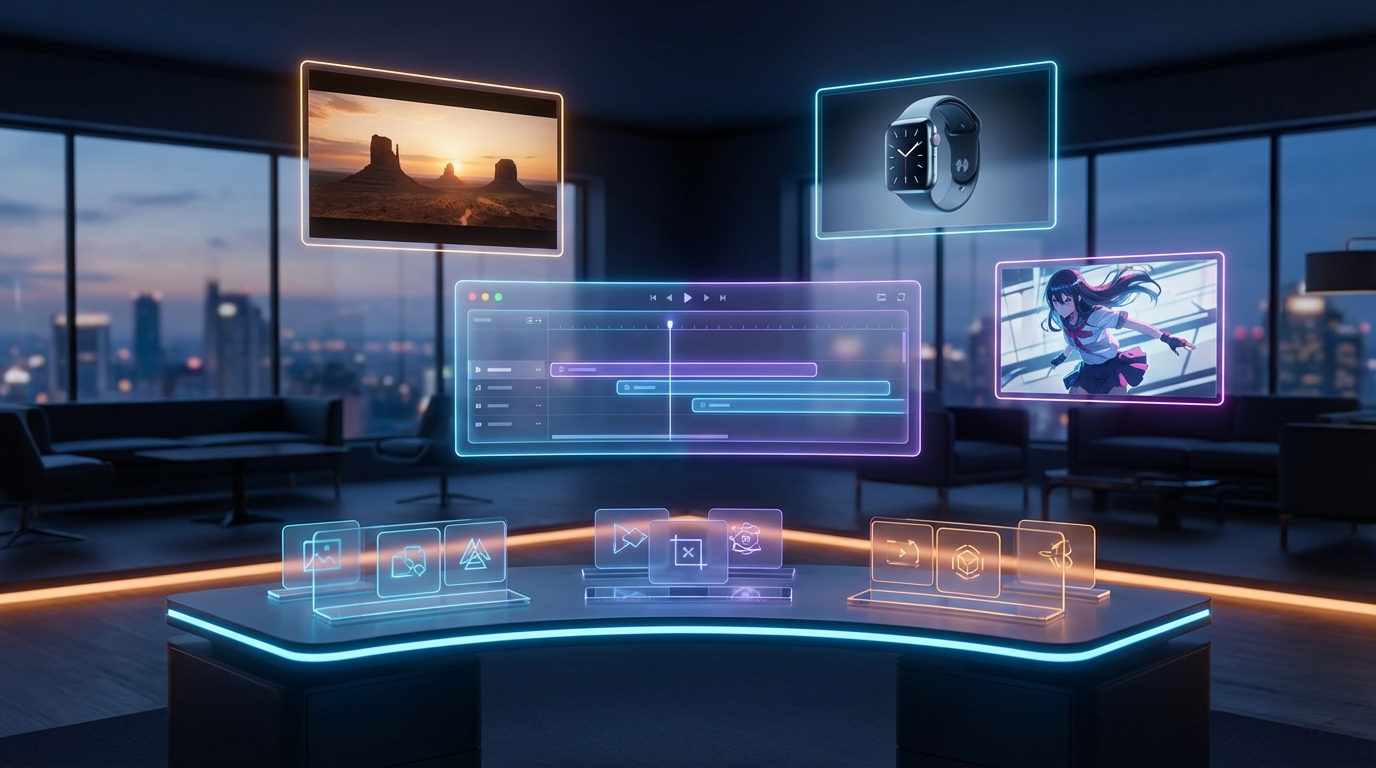
The Flyne AI Video Generator is a multi-model video creation hub for turning prompts or images into short AI videos. Instead of treating video generation as one fixed tool, it lets creators compare different model families, generation modes, and creative strengths in one place.
That matters because “best AI video model” is not a universal answer. A product teaser, music visual, anime-style motion clip, cinematic short, talking concept video, and social ad all have different needs.
From a practical creator perspective, Flyne AI helps you:
- create videos from text prompts
- animate still images into motion clips
- compare premium and fast-generation models
- use prompt helpers such as translation or optimization when available
- choose duration, ratio, resolution, or model-specific settings where supported
- test ideas quickly before moving into higher-quality output
The main advantage is workflow consistency. Once you understand the Flyne AI interface, switching models becomes a creative decision instead of a technical reset.
Why a Video Model Hub Is Better Than a Single-Model Workflow
A single-model workflow is simple, but it can become limiting. If the model struggles with faces, motion, audio, or prompt accuracy, you either keep rerolling or switch platforms.
A hub workflow gives you more room to think like a producer. You can start with a fast model to test the idea, move to a stronger model for final output, and use specialized tools when the shot needs image preservation, cinematic motion, product consistency, or audio.
This is especially useful for creators who produce videos regularly. Instead of asking “which model is best?” every time, ask a more useful question: “Which model is best for this specific clip?”
Recommended Model Stack: Start Here
The models below are ranked by practical creator value, not by hype. Think of this as a menu. The best choice depends on whether you need audio, cinematic motion, realism, motion control, short-form speed, or consistency.
1) Google Veo 3.1: Best for Prompt Accuracy and Polished Video
Google Veo 3.1 is a strong starting point when you want cleaner prompt interpretation, structured scenes, and polished output. It is especially useful for creators who need a video to follow a clear instruction rather than simply look impressive.
Use it for commercial visuals, cinematic prompts, brand scenes, educational explainers, or any project where the prompt has to land cleanly.
2) Sora 2: Best for Story-Driven Video Concepts
Sora 2 AI is a strong option for narrative scenes, realistic motion, and audio-visual generation. It works well when you want the clip to feel like a coherent moment rather than a disconnected animation.
Use it for concept shorts, story tests, character moments, cinematic drafts, and premium creative experiments.
3) Kling 3.0: Best for Cinematic Shot Direction
Kling 3.0 is a strong creator pick for cinematic shot language, directed movement, and short videos with strong visual mood. It is especially useful when your prompt includes camera movement, lighting, atmosphere, and a clear subject action.
Use it for trailers, product mood shots, stylized character clips, social video hooks, and film-like visual tests.
4) Vidu Q3: Best for Short-Form Production Workflows
Vidu Q3 is useful for short video creation, brand showcases, narrative clips, and prompt-led content where shot structure matters. It is also worth testing when you need audio-visual creation or fast social-friendly video output.
Use it for Reels, TikTok-style clips, short ads, brand snippets, creator updates, and simple narrative beats.
5) Hailuo 2.3: Best for Dynamic Motion and Complex Scenes
Hailuo 2.3 is a good fit when motion complexity matters. It is useful for action beats, expressive scenes, movement-heavy clips, fantasy visuals, and dynamic environmental motion.
Use it when the scene has more energy, but keep the prompt disciplined. One primary action per clip still works better than overloading the model.
6) Seedance 2.0: Best for Structured Video Generation
Seedance 2.0 is useful for multi-shot workflows, visual consistency, and controllable video creation. It is a good choice when you need a clip to feel organized instead of random.
Use it for creator series, brand sequences, scene tests, short stories, and prompt-led visual planning.
7) Kling Motion Control: Best When Movement Must Be Directed
Kling Motion Control is the option to reach for when normal prompting is too unpredictable. If the motion itself is the point, such as a dance, gesture, performance beat, or repeated body movement, Motion Control is often more useful than a standard text prompt.
Use it for dance clips, performance videos, motion transfer, character gestures, and repeatable ad variations.
8) Photo to Video: Best for Animating Existing Images
The Photo to Video AI Generator is the simplest starting point when you already have an image. Use it for portraits, product photos, illustrations, AI-generated art, character references, and campaign visuals that need motion without losing the original look.
This is often the best workflow when identity or layout matters.
Comparison Chart: Best Model by Creator Goal
| Goal | Best Starting Point | Why It Fits |
|---|---|---|
| Prompt-accurate polished video | Google Veo 3.1 | Strong for structured prompts, commercial concepts, and clean scene logic |
| Story-driven concept clips | Sora 2 | Good for narrative flow, realistic motion, and audio-visual scenes |
| Cinematic short shots | Kling 3.0 | Strong shot direction, atmosphere, and visual mood |
| Social-first clips | Vidu Q3 | Practical for short-form video, brand snippets, and creator content |
| Dynamic action or complex motion | Hailuo 2.3 | Better fit for movement-heavy scenes and expressive motion |
| Structured multi-shot work | Seedance 2.0 | Useful for visual consistency and organized scene generation |
| Directed body motion | Kling Motion Control | Best when the movement path must be repeatable |
| Animate an existing image | Photo to Video | Best when you start with a reference image |
| Broad model testing | Flyne AI Video Generator | Best hub for comparing multiple video workflows |
Text-to-Video vs Image-to-Video: Which Should You Use?
Text-to-video is best when you are creating a scene from scratch. It works well for mood shots, fictional concepts, cinematic prompts, product ideas, and social hooks where you do not already have a reference image.
Use the AI Text to Video Generator when your main input is a written idea.
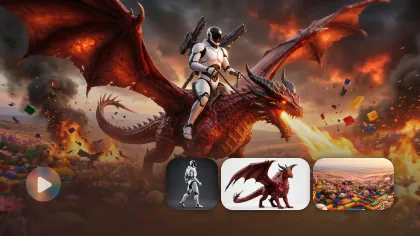
Image-to-video is best when you need consistency. If the character, product, pose, layout, outfit, face, or brand visual must remain stable, start with an image. The prompt should explain what moves and what must stay unchanged.
Use the Photo to Video AI Generator when you already have a strong visual and want to animate it.
A simple rule works well: use text-to-video for invention, and image-to-video for preservation.
How to Use Flyne AI Video Generator Step by Step
Step 1: Start With the Goal
Before picking a model, decide what kind of clip you need. Is it a social video, product teaser, cinematic scene, talking-style concept, image animation, or motion-control test?
The clearer the goal, the easier the model choice becomes.
Step 2: Choose the Right Workflow
If you have only an idea, start with text-to-video. If you have an image, start with photo-to-video. If motion must follow a specific gesture or reference, use a motion-control workflow.
Step 3: Pick the Model
Start with a safe model for your goal. Use Veo 3.1 for polished prompt accuracy, Sora 2 for story-driven video concepts, Kling 3.0 for cinematic mood, Vidu Q3 for short-form production, Hailuo 2.3 for dynamic motion, and Seedance 2.0 for structured consistency.
Step 4: Write a Shot-Based Prompt
A clean AI video prompt should sound like a short production brief:
Subject + action + setting + camera + lighting + style + constraints
Example:
A luxury smartwatch on a runner’s wrist at sunrise, close-up tracking shot, natural arm movement, soft golden light, clean urban background, premium commercial style, no text.
This works because it gives the model one subject, one action, one camera idea, and one mood.
Step 5: Add a Start Frame When Consistency Matters
A start frame is powerful when you need character consistency, product continuity, brand style, or a specific composition. The prompt should then separate preservation from animation.
Example:
Preserve the product shape, logo placement, camera angle, and clean background. Add a slow push-in, subtle shadow movement, and soft studio reflections. Do not add hands, text, or extra objects.
Step 6: Generate Smartly
Do not spend premium generations while the idea is still vague. Test with a simple prompt first, compare outputs, then refine the prompt before moving into higher-quality settings or more advanced models.
A reliable loop is:
- Draft the idea.
- Pick the best direction.
- Change one thing at a time.
- Upgrade only when the prompt is stable.
Practical Workflows for Real Creator Use
Workflow 1: Audio-Visual Concept Clip
Use Sora 2, Google Veo 3.1, or Vidu Q3 when you need the clip to feel complete with sound, atmosphere, or voice-style direction.
Prompt tip: keep the visual scene simple so the audio and motion can stay synchronized.
Workflow 2: Product Promo From a Still Image
Use Photo to Video or a model that handles image-to-video well. Upload a clean product image and write a preservation-first prompt.
Prompt tip: product videos work best with slow camera motion, clean backgrounds, crisp lighting, and no extra objects.
Workflow 3: Cinematic Trailer Shot
Use Kling 3.0 for atmosphere, camera language, and mood.
Prompt tip: use film terms such as slow push-in, rim light, shallow depth of field, soft haze, golden hour, neon reflections, handheld sway, or dolly forward.
Workflow 4: Dynamic Action or Fantasy Motion
Use Hailuo 2.3 when the scene needs more physical movement.
Prompt tip: do not ask for a full action sequence in one generation. Break the idea into one action per shot.
Workflow 5: Cohesive Creator Series
Use Seedance 2.0 when visual structure and consistency matter across related clips.
Prompt tip: repeat the same character description, wardrobe, setting, color palette, and tone across generations.
Workflow 6: Budget-Conscious Prompt Testing
Use the main Flyne AI Video Generator as the hub for testing different models and workflows. Start with simpler settings, then move to stronger models once you understand which prompt direction works.
Prompt tip: draft cheap, then upgrade.
Common Mistakes and Fast Fixes
Mistake: Writing a Full Movie Instead of One Shot
Fix it by keeping the prompt short and filmable. One subject, one action, one camera move.
Mistake: Using Vague Style Words
“Epic,” “beautiful,” and “high quality” are weaker than specific film language. Use concrete cues: softbox lighting, wet pavement reflections, shallow depth of field, close-up tracking shot.
Mistake: Ignoring the Start Frame
If identity matters, use a start frame. A reference image gives the model a stronger visual anchor than text alone.
Mistake: Changing Too Much Between Generations
If you rewrite the whole prompt each time, you cannot tell what improved. Change one thing at a time: lighting, camera, action, or style.
Mistake: Picking the Most Advanced Model Too Early
Premium models are best when the concept is already clear. Use simpler drafts first, then upgrade for the final clip.
Quick FAQ
Which Model Should I Start With?
Start with Google Veo 3.1 for prompt accuracy, Kling 3.0 for cinematic shot direction, or Vidu Q3 for short-form creator clips.
What Is the Best Workflow for Product Videos?
Start with a clean product image and use Photo to Video. Keep motion subtle, preserve the product shape, and use slow camera movement.
What Is the Best Workflow for Story Concepts?
Use Sora 2 or Seedance 2.0, depending on whether you care more about cinematic realism or structured scene consistency.
Which Tool Helps With Directed Movement?
Use Kling Motion Control when the exact movement path matters, especially for gestures, performance clips, or dance-style videos.
Should I Use Text-to-Video or Image-to-Video?
Use text-to-video when you want the model to invent the scene. Use image-to-video when you want to preserve identity, composition, product shape, or brand style.
Final Model Picker: 10-Second Recap
- Best prompt accuracy: Google Veo 3.1
- Best story concept workflow: Sora 2
- Best cinematic mood: Kling 3.0
- Best short-form creator clips: Vidu Q3
- Best dynamic motion: Hailuo 2.3
- Best structured consistency: Seedance 2.0
- Best directed movement: Kling Motion Control
- Best image-led workflow: Photo to Video
- Best overall hub: Flyne AI Video Generator
If you want one simple rule, use this: draft simple, refine carefully, then upgrade when the prompt is stable.
Recommended Tools
- Flyne AI Video Generator
- Photo to Video AI Generator
- AI Text to Video Generator
- Google Veo 3.1 AI Video Generator
- Sora 2 AI Video Generator
- Kling 3.0 AI Video Generator
- Vidu Q3 AI Video Generator
- Hailuo 2.3 AI Video Generator
- Seedance 2.0 AI Video Generator
- Kling Motion Control
- Luma Modify Video
Related Articles
- Best AI Video Models 2026: The Ultimate Guide to Image-to-Video Generation
- Vidu Q3 vs Veo 3.1 vs Seedance 2.0: Which AI Video Model Fits Your Workflow?
- Higgsfield Kling Review: Kling 3.0 Is Here—Worth Using?
- Kling 2.6 AI Video Generator With Audio
- Seedance 2.0 Video Generation Guide: How to Get Controlled, Consistent Results
- Happy Horse 1.0 vs Seedance 2.0: Which AI Video Model Is Better for Real Creative Work?
People Also Read
- How to Use HeyDream AI’s Text-to-Video Generator
- Veo 3.1 Video Generation Guide: How to Create Cinematic Clips
- How to Use DreamMachine AI’s AI Video Generator
- Try Veo 3.1 in Dream Machine AI: Text-to-Video and Image-to-Video Guide
- SeaImagine AI Text-to-Video Guide: How to Choose Models and Create Better Clips
- How to Use Seedance 2.0 on SeaImagine AI to Make Better Short Videos