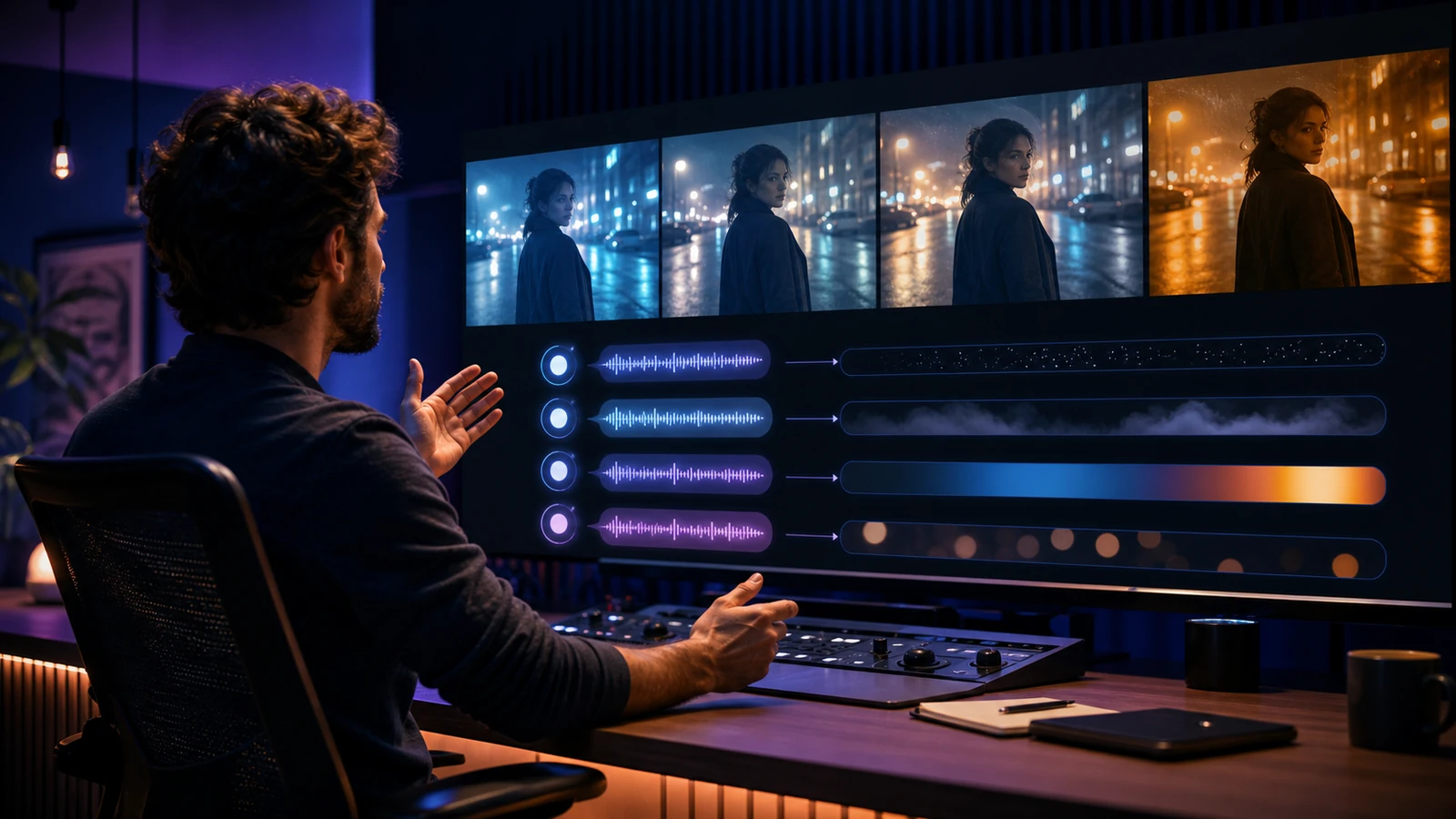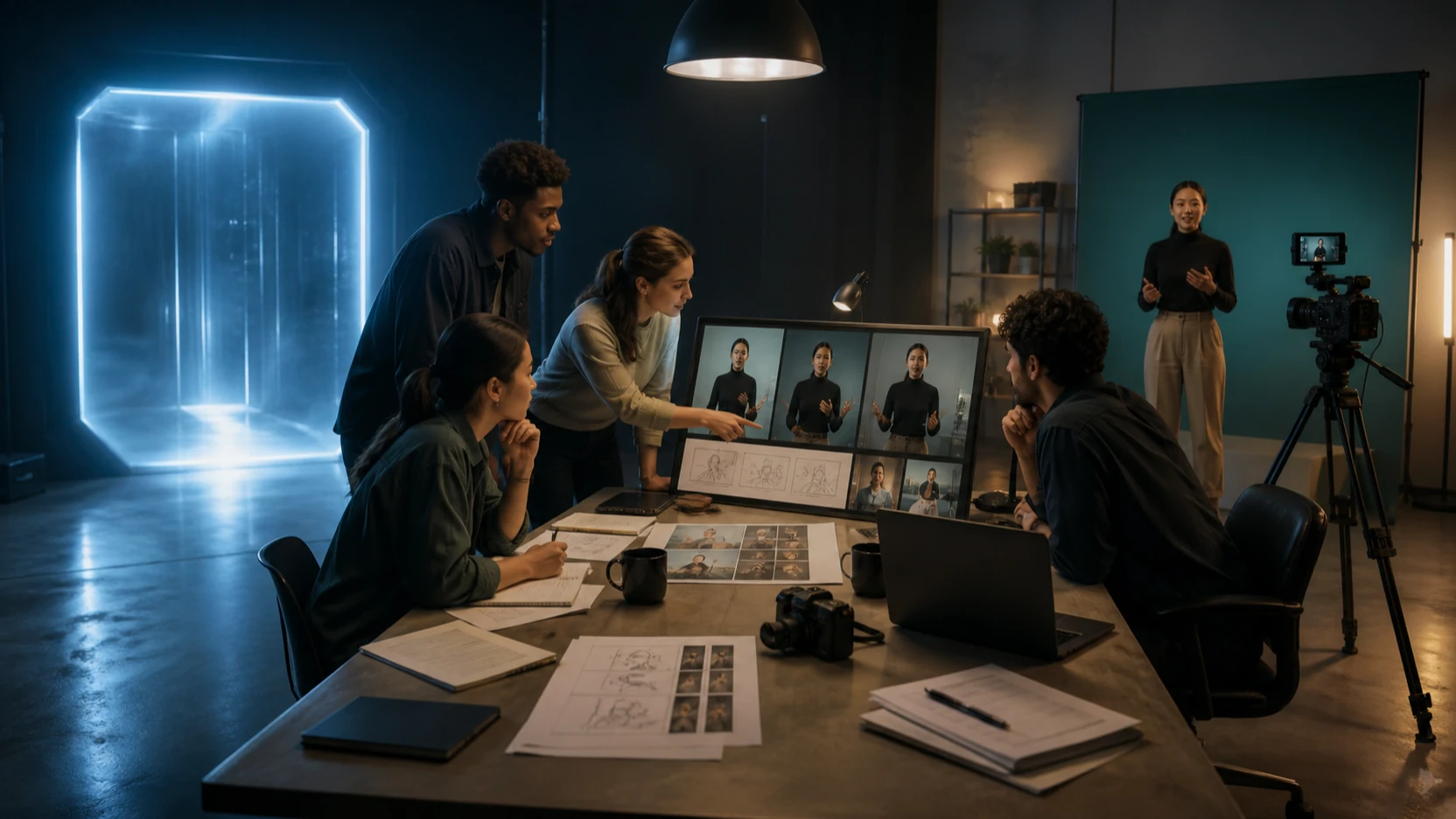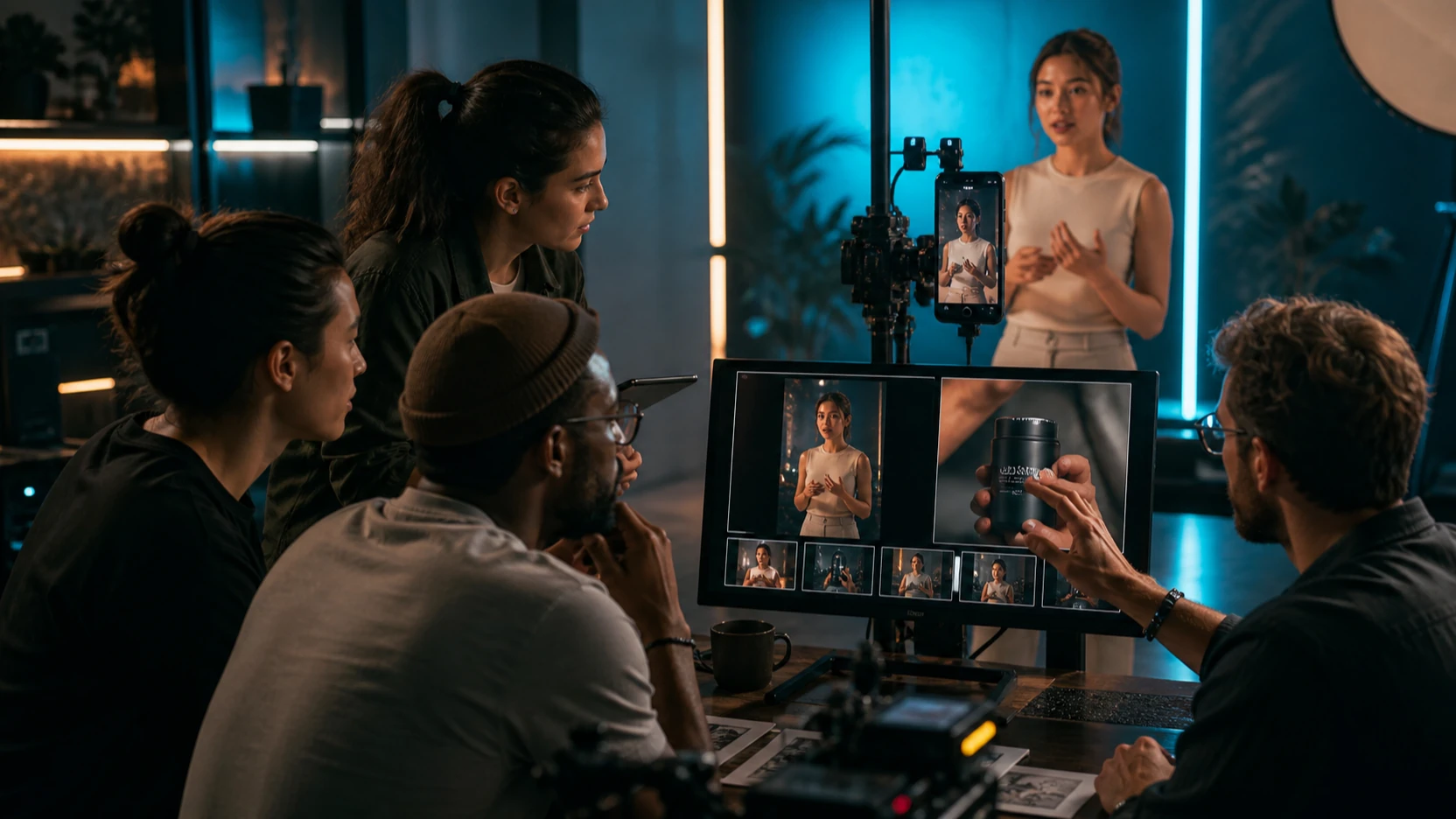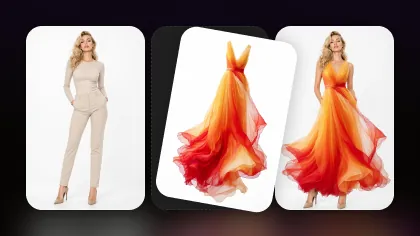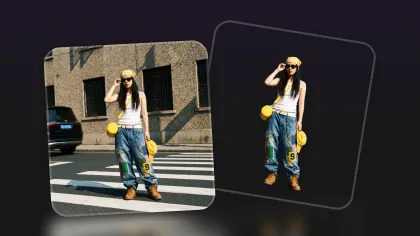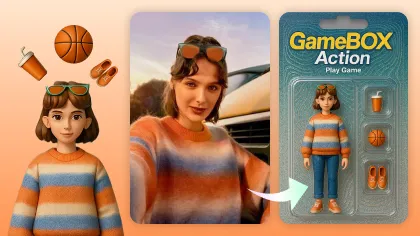
A lower-cost Veo 3.1 video generator is useful only when it produces footage you can actually keep. Flyne AI currently offers credit-based browser access to Veo 3.1 with text prompts, start- and end-frame inputs, prompt translation and optimization, resolution and ratio controls, public or private generation, and a displayed cost of 300 credits.
That makes the Flyne Veo 3.1 AI Video Generator a potentially affordable route for cinematic clips, product promotions, social videos, advertisements, educational scenes, and storyboards. It is not automatically the cheapest option for every user. The real comparison is the cost of the credit package, the number of retries, and how many outputs survive review.

Is Flyne AI a Lower-Cost Veo 3.1 Video Generator?
Flyne is a strong lower-cost candidate because its current credit packages make a 300-credit generation comparatively inexpensive on paper. On July 24, 2026, the Flyne pricing page displayed monthly examples including 5,000 credits for $9.99, 13,000 for $19.99, and 21,000 for $29.99. At those rates, one 300-credit attempt works out to roughly $0.43 to $0.60 before retries.
That estimate is a snapshot, not a permanent price promise. Promotional discounts, credit validity, model costs, taxes, plan rules, and generation settings can change. Check the live package and model page immediately before purchasing credits.
More importantly, count acceptable results rather than cheap attempts. If you spend 1,200 credits on four generations and only one clip is usable, that usable clip consumed all 1,200 credits. A lower displayed price matters only when prompt control, subject stability, audio, and motion reduce the need to regenerate.
The provisional verdict is therefore conditional: Flyne is one of the better browser workflows to investigate for potentially affordable Veo 3.1 access, but the winning price depends on your approval rate.

What Google Veo 3.1 Officially Supports
Google’s first-party documentation establishes the model baseline, but it does not prove that every control is available through Flyne. The official Veo 3.1 Gemini API guide documents text-to-video, image-to-video, video-to-video, and native audio generation. It also lists 4-, 6-, and 8-second durations, with 1080p and 4K tied to eight-second output and other mode-specific restrictions.
Google currently documents:
- 720p output as the default API resolution.
- 1080p for supported eight-second generations.
- 4K for supported eight-second Veo 3.1 generations, excluding Veo 3.1 Lite.
- Native audio generated with the video.
- 16:9 and 9:16 aspect ratios in supported modes.
- Reference-image, interpolation, and extension rules that can affect duration and resolution.
These are official API capabilities, not a checklist of guaranteed Flyne features. The live Flyne interface currently shows Veo 3.1 Fast, 720p, prompt input, start and end frames, aspect-ratio controls, public/private selection, and a 300-credit generate action. Verify audio, duration, higher resolutions, upload limits, and exact frame behavior within Flyne before describing them as selectable there.

What the Flyne Veo 3.1 Workflow Offers Creators
Flyne reduces the workflow to creator-facing controls instead of requiring direct API integration. On the current Veo 3.1 model page, users can begin with a prompt or image-led setup, upload a starting frame and an ending frame, translate or optimize a prompt, choose visible output settings, set public or private generation, and generate through credits.
That format is practical for several groups:
- Independent creators testing hero shots for Shorts, Reels, or YouTube.
- Ecommerce sellers animating approved product photography.
- Small agencies preparing campaign concepts before conventional production.
- Filmmakers visualizing shots, transitions, or atmosphere.
- Educators creating short physical or historical visualizations.
- Startup teams producing product stories and launch drafts.
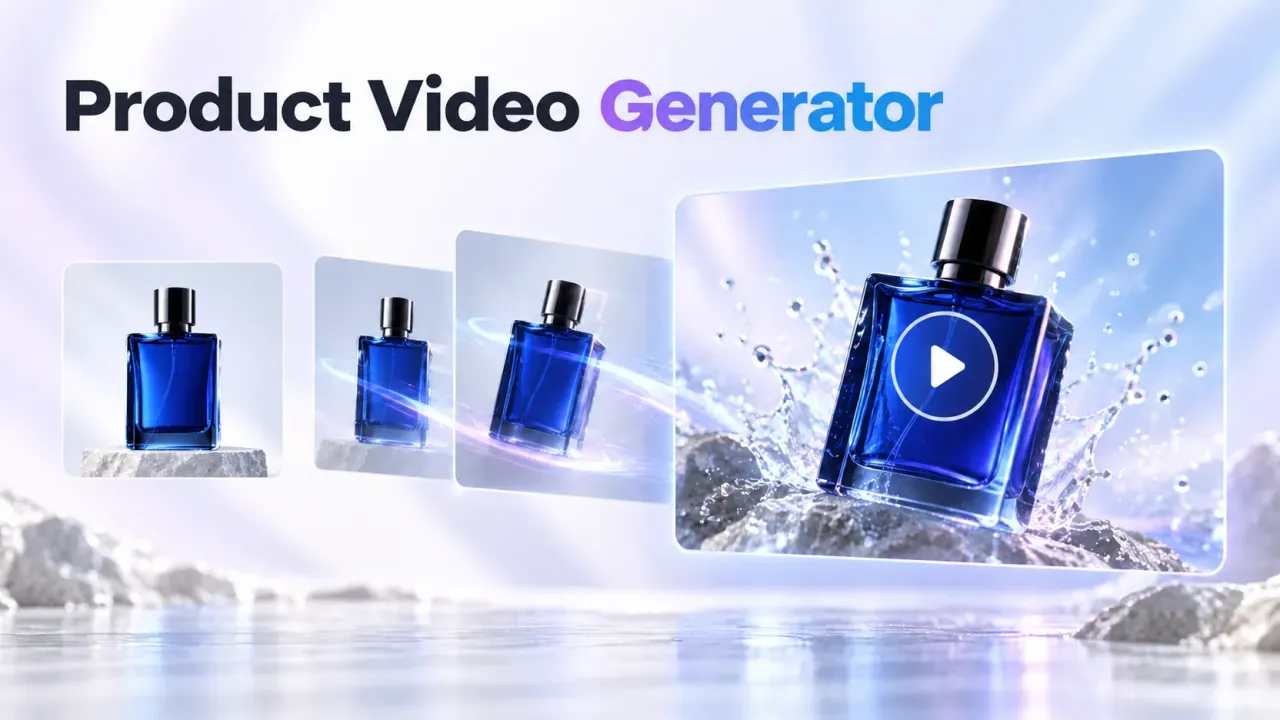
Use Flyne Text-to-Video when the idea begins as a written shot. Use Veo 3.1 with a start frame when composition, identity, packaging, or art direction is already approved. Use Flyne Product-to-Video when the task is specifically an ecommerce demonstration or promotional scene.
Treat every output as a creative draft. Product geometry, claims, labels, dialogue, and visual continuity still need human review.

How to Spend Fewer Credits on Veo 3.1 Generations
The best cost-saving method is to reserve Veo 3.1 for approved hero shots. Prompt development, reference creation, and composition tests can often happen with a lower-cost image or video model first.
Use this eight-step workflow:
- Write the complete shot before generating. Define subject, action, setting, camera, light, sound, aspect ratio, and final frame.
- Use one action and one camera movement. A short clip is easier to control when the subject performs one readable action while the camera executes one move.
- Create the start image more cheaply. Lock product shape, wardrobe, color, and framing with an image generator before animation.
- Test composition with another video model. The Flyne AI Video Generator lets you compare available models before spending premium credits.
- Use Veo 3.1 for the approved version. Generate the polished product reveal, establishing shot, or dialogue beat only after the visual direction is stable.
- Build short isolated clips. Separate an unboxing, product close-up, reaction, and final hero shot instead of forcing them into one complicated prompt.
- Edit clips conventionally. Assemble the accepted shots, music, captions, and legal copy in a standard video editor.
- Remove vague instructions. Specify the exact dialogue, speaker, camera move, ambience, and ending to reduce avoidable retries.
This staged approach makes the credit price meaningful because each Veo attempt begins with a tested idea.

Veo 3.1 for Product Videos, Social Ads, and Cinematic Clips
Veo 3.1 is most economical when assigned to the shots where realism, scene logic, audio, or continuity carry visible value. Routine variations may be better handled by faster or cheaper models.
| Workflow | Recommended Flyne path | Why |
|---|---|---|
| Cinematic text-to-video | Veo 3.1 AI Video Generator | Best candidate for polished hero shots and audiovisual storytelling |
| Animate an approved image | Veo 3.1 with a start frame | Locks the composition before motion is introduced |
| Ecommerce product promotion | Product-to-Video Generator | Focused product workflow for listings, ads, and social assets |
| Prompt-only social clip | Text-to-Video Generator | Direct route from a written shot to video |
| Compare lower-cost models | Flyne AI Video Generator | Useful for testing Veo beside other available models |
| Compare model generations | Veo 3 AI Video Generator | Helps evaluate whether Veo 3.1 adds enough value for the task |
For product work, preserve the source image, packaging proportions, label area, materials, and camera angle. For vertical ads, generate in the intended aspect ratio rather than cropping a wide result later. For education, favor one continuous physical explanation over text-heavy overlays.
Veo 3.1 should earn its place through fewer corrections or a stronger final shot, not merely through its model name.

How to Compare Veo 3.1 with Cheaper Flyne Video Models
Use the same prompt and reference image for every model comparison. Changing the input makes it impossible to tell whether a difference came from the model, the prompt, or the source asset.
Review each result against four groups of criteria:
Visual control
- Prompt adherence
- Subject and product-shape consistency
- Physical interactions
- Camera control
- Scene continuity
- Lighting consistency
- Visual artifacts
Audio behavior
- Dialogue clarity
- Lip synchronization
- Ambient sound
- Sound-effect timing
- Music or audio mood, when available
Production efficiency
- Generation time
- Queue delay
- Credits per attempt
- Number of retries
- Download and export options
Final usability
- Whether the clip works without repair
- Whether product details remain accurate
- Whether audio can be published or must be replaced
- Whether the result fits the platform crop
- Whether rights, watermarks, and privacy settings suit the campaign
Flyne’s comparison content positions Veo 3.1 as a higher-end choice for realism, scene logic, continuity, and polished commercial work, while models such as Vidu Q3 and Seedance 2.0 may suit faster or more flexible testing. Treat that positioning as a starting hypothesis. Your repeatable prompt test should make the final decision.

Veo 3.1 Prompt Formulas and Copy-Ready Examples
Veo prompts work better when the shot has a clear subject, one action, one camera move, and explicit audio direction. Dense story summaries often create more room for visual or dialogue drift.
Reusable text-to-video formula
Create an [duration]-second [aspect ratio] video. Subject: [subject]. Action: [one clear action]. Setting: [environment]. Camera: [one camera movement]. Lighting: [lighting]. Audio: [dialogue, ambience, music, and effects]. Visual style: [style]. End on [final shot]. Avoid [extra subjects, abrupt cuts, unstable objects, distorted anatomy, or unreadable text].
Reusable image-to-video formula
Use the uploaded image as the exact starting frame. Preserve [face, product, clothing, composition, colors, lighting, and background]. Animate [one action]. Camera: [movement]. Environmental motion: [wind, steam, rain, smoke, reflections, or particles]. Audio: [dialogue and sound]. Keep the scene continuous and avoid [identity drift, changed packaging, extra limbs, or sudden scene changes].
Copy-ready prompts
- Create an eight-second cinematic product advertisement. A perfume bottle stands on black stone while the camera makes a slow orbit. Add soft mist, realistic reflections, gold rim lighting, and delicate glass sound effects.
- Use the uploaded product image as the exact starting frame. Preserve the packaging, label, colors, proportions, and camera angle. Add a slow push-in, moving reflections, soft atmospheric mist, and one synchronized reveal sound.
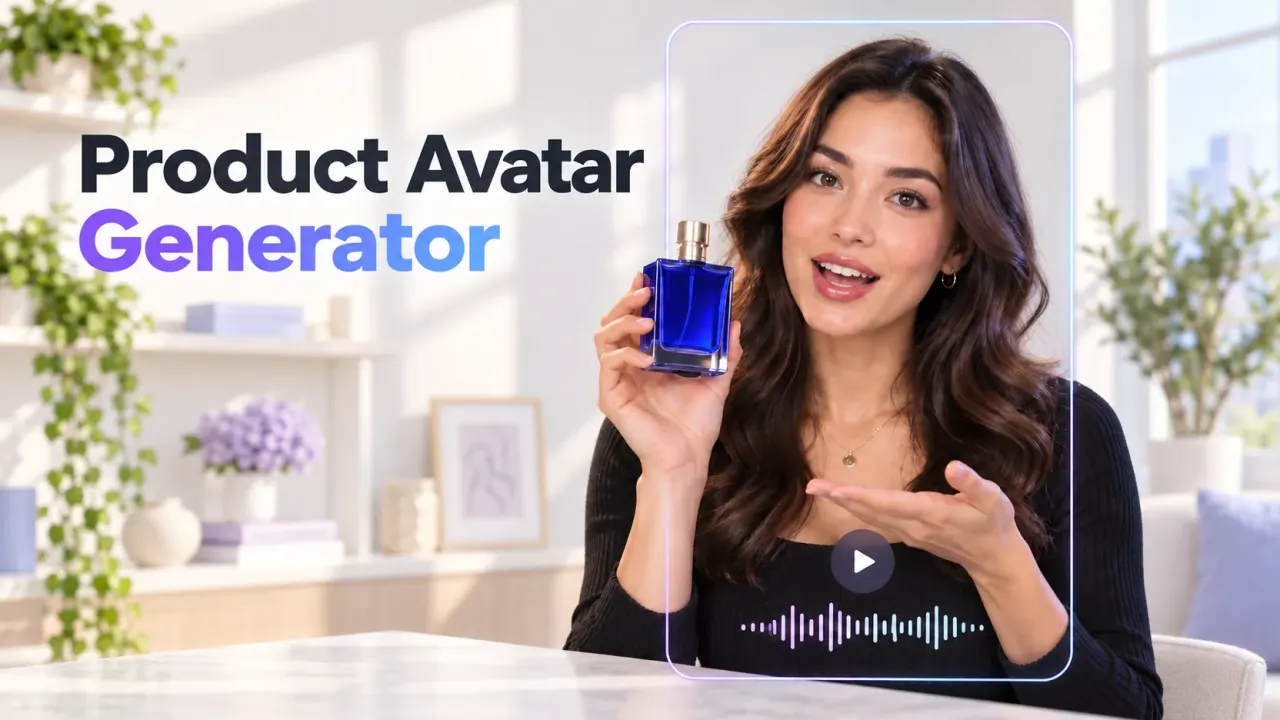
- Create a vertical creator-style advertisement. A fictional presenter holds [product], says “[dialogue],” demonstrates one verified feature, and finishes with “[CTA].” Use natural phone-camera framing and room ambience.
- Create a cinematic café scene. Steam rises from a coffee cup as morning sunlight moves across the table. Use a slow macro camera movement, realistic liquid behavior, café ambience, and subtle ceramic sounds.
- Create a fashion film from the uploaded image. Preserve the model’s face, outfit, colors, and location. The model walks slowly while the fabric moves naturally in the wind. Use a low tracking shot and soft footsteps.
- Create a short educational visualization of [concept]. Use one continuous scene, clear physical movement, a neutral background, and concise narration. Avoid text-heavy overlays.
- Create an eight-second establishing shot of a futuristic coastal city at sunrise. Use a slow aerial movement, realistic ocean reflections, distant traffic ambience, and no scene cuts.
- Create a product-unboxing sequence. Begin with the sealed package, show one hand opening it, reveal the product, and finish with a clean hero shot. Preserve all branding and use realistic packaging sounds.
Verify product claims and add final captions or legal copy outside the generated video.

What to Verify Before Buying Flyne Credits
Check the live service terms before treating Flyne as a production platform. A model page can confirm visible controls, but it does not settle every question about rights, refunds, privacy, or regional availability.
Verify:
- Current credits required for each Veo 3.1 setting.
- Credit-package price and expiration.
- Output duration and selectable resolution.
- Whether native audio is enabled for the chosen mode.
- Start- and end-frame rules and upload limits.
- Available aspect ratios.
- Shared versus priority queue behavior.
- Introductory or check-in credits.
- Visible or embedded watermarks.
- Public/private defaults and retention.
- Commercial-use conditions.
- Failed-generation and refund rules.
- Regional access and payment availability.
The current Flyne pricing page lists free and paid plans, private generations, commercial rights, queue differences, and credit-validity language. Read the linked terms, privacy policy, and refund policy for the conditions behind those labels.
Do not imply that Flyne is officially affiliated with Google or Google DeepMind unless a legal source confirms that relationship. Flyne is best described as a separate browser platform offering access to listed AI models.

Frequently Asked Questions About Affordable Veo 3.1 Access
Is Flyne Veo 3.1 free?
Flyne currently lists introductory credits and a free plan, but the Veo 3.1 control displays a 300-credit generation cost. Describe it as credit-based and free to try only when enough live credits are available.
Is Flyne always cheaper than first-party Veo access?
No. Compare the current package price, generation settings, retry rate, queue behavior, and number of usable clips. Flyne may be more affordable for some browser workflows, but not every workload.
Does every Flyne Veo 3.1 video include native audio?
Google’s official API documents native audio for Veo 3.1. Confirm that audio is enabled in the specific Flyne mode and generation settings before relying on it.
Can Flyne generate Veo 3.1 video in 4K?
Google documents supported 4K output for eight-second Veo 3.1 generations with restrictions. The Flyne interface inspected for this article visibly showed 720p; verify whether 1080p or 4K is selectable for your account and mode.
What is the cheapest way to use Veo 3.1?
Develop the prompt and reference frame with less expensive tools, test motion with a cheaper model, and use Veo 3.1 only for approved hero shots. This reduces expensive retries.
Can Veo 3.1 videos be used commercially?
Flyne’s pricing page currently mentions commercial rights, but rights depend on the applicable plan, terms, source assets, content, and jurisdiction. Verify the live conditions before publishing paid work.

Final Verdict: When Lower-Cost Veo 3.1 Access Makes Sense
Flyne Veo 3.1 is a practical lower-cost Veo 3.1 video generator candidate for creators who want credit-based browser access without building directly against an API. It is most compelling for approved hero shots, image-led animation, product reveals, cinematic social clips, and short scenes where native audio or continuity may reduce post-production work.
Use a cheaper model for composition tests and reserve Veo 3.1 for the version that matters. Then judge value by total credits spent on accepted clips, not by the price of a single attempt.
Related reading:
- Veo 3.1 vs Sora 2: Which AI Video Model Should You Use?
- Flyne AI Video Generator Guide: Best Models Compared
- Vidu Q3 vs Veo 3.1 vs Seedance 2.0
- How to Turn Images Into Videos With Google Veo 3