MiniMax H3 Image AI Image Generator and Photo Editor
MiniMax H3 Image is MiniMax’s open-weight image generation and editing model, combining native high-resolution output, realistic detail, and strong instruction following. Create from text or guide an image with up to 16 references, from product photography to illustration and scene design.
Examples of MiniMax H3 Image
Explore reference blending, detailed graphics, character design, and surreal artwork.
Combine Up to 16 References
Blend people, animals, and objects into new scenes using up to 16 reference images.
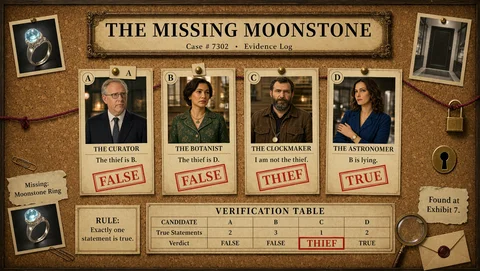
Follow Detailed Instructions
Create structured diagrams and information boards with clear layouts and labels.
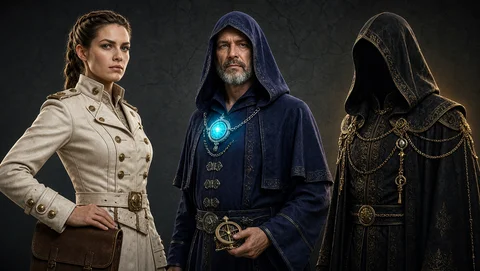
Design Detailed Characters
Build distinctive characters with expressive faces, intricate clothing, and rich textures.
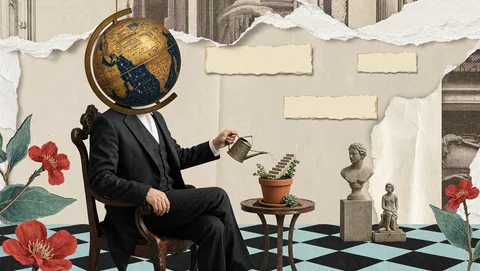
Explore Surreal Ideas
Reimagine everyday objects through playful compositions, unexpected scale, and mixed textures.
How MiniMax H3 Image Creates Detailed, Reference-Guided Images
H3 Image brings text-to-image generation and editing into one model. Written instructions direct the composition, while references supply visual details such as a product’s shape or finish.
Unified generation and editing
Generate a new image from a description, then use the selected result for an instruction-based edit. A studio product shot can become the starting point for a lifestyle scene.
Native high-resolution generation
The model generates roughly 16-megapixel images directly, including 4096 × 4096 square output. Fine edges and textures have room to appear in a detailed product study.
Up to 16 visual references
Combine images with distinct roles, such as a pitcher photo for the silhouette, a close-up for the glaze, and a room for the setting.
Detailed instruction following
Direct the subject, viewpoint, lighting, and arrangement in words. Ask for a low camera angle, a visible handle, and a soft shadow falling to the right.
Why Choose MiniMax H3 Image for Realistic Image Creation?
MiniMax emphasizes image quality, creative control, and generation speed. These strengths support both original concepts and revisions guided by existing photographs.
Natural material detail
The model is designed to render rich, realistic textures. In a product scene, that can mean visible fabric weave, subtle glaze variations, and reflections that describe a curved surface.
Control over the visual brief
Prompt following and reference inputs let you specify the parts that matter. A product photo can guide form while the prompt establishes a new setting.
A continuous creation workflow
Use the same model to generate the initial idea and edit the chosen composition as the brief develops.
High-resolution iteration
MiniMax reports 4K image generation in under 10 seconds in its published results. Flyne AI’s actual generation time depends on the request and service load.
What Can You Create with MiniMax H3 Image?
Use MiniMax H3 Image to generate photographic scenes, illustrations, character concepts, and reference-guided edits. The examples below show ways to apply these capabilities.
Catalog hero images
Generate a clean three-quarter view that shows the product silhouette.
Material close-ups
Use a surface reference to explore a detail shot of woven fabric or glazed ceramic.
Characters and illustration
Generate a character or illustrated scene from a written brief, then use a selected image as a reference for a new pose or setting on Flyne AI.
Environment and scene concepts
Combine location references with written direction to explore a room, street, or imagined landscape. Describe the viewpoint and the relationships between objects.
How to Use MiniMax H3 Image on Flyne AI
On Flyne AI, the default output setting is 1K, with 2K and 4K also available. Choose an aspect ratio for your composition, enter a prompt or provide reference images, and generate the image.
Describe the product or start with its photo
Specify the setting, angle, and details to preserve
Generate the image and compare it with the product